As screens get bigger, using a phone one-handed has become challenging over the years. However, if you use an iPhone, you can take advantage of some built-in iOS features to make the experience more comfortable.
The best part? They’re available on most iPhone models. So, whether it’s a compact model or one of the larger ones, you can make it one-handed friendly with these tips.
1
Use Reachability to Make Screen Content More Accessible
Reachability is a key accessibility feature on iPhones. It temporarily brings the upper half of the screen to the middle or bottom area, making it easier for you to interact with apps, widgets, controls, and other content without requiring you to adjust your hand grip or stretch fingers and risk dropping the phone.
The Reachability feature is enabled by default. To confirm, open “Settings,” go to Accessibility > Touch, and check if the “Reachability” is toggled on. Flip it on if it isn’t.
Once enabled, using Reachability is easy. With the content you want within easy reach on the screen, swipe down on the bottom edge of the screen, and it’ll immediately lower the screen content. Use your thumb to interact with the screen elements like you usually do.
The screen content will automatically go back to the top after a few seconds of inactivity. Alternatively, you can do this manually by tapping the upward-pointing arrow or the blank area at the top of the screen.
2
Add a Multi-Function Button to the Screen With AssistiveTouch
AssistiveTouch is an accessibility feature that adds various device controls and features—under a single virtual button—to your iPhone’s Home Screen and Lock Screen, saving you the trouble of pressing multiple buttons or navigating submenus.
For instance, you can use it to easily perform pinch and rotate or hold and drag gestures on the screen, which can be really convenient when using the phone in one hand. It also makes it easy to access the Notification Center and Control Center. Besides, there’s the ability to add custom actions, so you can add your most-performed tasks or most-accessed features.
Apple keeps AssistiveTouch disabled by default. To enable it, open “Settings,” go to Accessibility > Touch > AssistiveTouch, and toggle the switch for AssistiveTouch on.
Once enabled, it puts a floating button on the screen with buttons for various actions. Hit this button, and it’ll open the main AssistiveTouch menu. From here, tap on a button to perform the said action. Certain buttons, such as “Device”, reveal more actions upon tapping, making it easy to access App Switcher, restart the device, take a screenshot, or rotate the screen.
The AssistiveTouch menu is also highly customizable. For instance, if you want to customize the options you see in the main menu, tap “Customize Top Level Menu,” and you can remove or add buttons as needed. Similarly, you can assign actions to the Double-Tap and Long Press gestures on the icon to unlock the ability to perform more actions. Explore other options available on this page and tweak them to get the most out of AssistiveTouch.
3
Activate the One-Handed Keyboard to Type Comfortably
Just like interacting with screen items, typing can also feel cumbersome when you’re using your iPhone one-handed, requiring you to stretch your fingers and switch grips repeatedly to access every single key on the keyboard. Thankfully, Apple includes a one-handed keyboard in iOS to make life easier.
The one-handed keyboard is set to the off option by default. This means the iOS keyboard opens to expanded mode, and you can switch to one-handed mode when required. To do this, tap and hold the globe icon in the bottom-left corner of the keyboard. Then, in the pop-up menu card, tap the left-aligned or right-aligned keyboard icon to shrink the keyboard to the left or right edge, respectively.
Once up, tap the keys to type them out. Alternatively, you may swipe type on your iPhone, which is a little more convenient in one-handed mode. When done typing, tap the angled arrow icon to expand the keyboard.
You may also permanently open the iOS keyboard in one-handed mode, though it isn’t recommended. Head to Settings > General > Keyboard > One-Handed Keyboard and choose “Left” or “Right.”
4
Use Back Tap to Perform Frequent Tasks
Back Tap is another accessibility feature in iOS, which essentially turns the back of your iPhone into a virtual button that you can use to perform actions quickly. It supports two gestures: Double Tap and Triple Tap, to which you can assign an action based on your preference.
This is really handy, as you can use it to make your most-used features more accessible or assign it to actions hard to perform when using your iPhone one-handed. For example, since pressing the screenshot key combination isn’t easy with your phone in one hand, you can take a screenshot by tapping the back of your iPhone.
Similarly, you can use it to access the App Switcher, Notification Center, or Control Center, among other things. You may even assign a Back Tap gesture to toggle Reachability if you find the swipe-down gesture on the home bar a little hard to perform in one-handed mode.
To configure Back Tap, open Settings and go to Accessbility > Touch. Scroll down to the bottom and select “Back Tap.” Tap on “Double Tap” or “Triple Tap” and choose an action to assign to the gesture.
Once set up, using Back Tap is straightforward. Depending on the gesture you’ve configured, double-tap or triple-tap the back of your iPhone, and it’ll trigger the specified action. If you’re using one of the thicker covers, you may need to remove it for a more reliable experience.
The position of app icons and widgets on your iPhone Home Screen can make or break one-handed usability. As good practice, it’s best to place your most-used apps in the middle to lower half of the screen, in ascending order of frequency of use. If there are too many apps, you can put them into folders. This way, you won’t have to stretch your fingers to interact with app icons or widgets on the screen.
Another trick you can follow is to put apps or folders along the edge where you usually hold your iPhone. This would be the right edge if you hold your iPhone in your right hand and the left edge if you hold it in your left hand.
It’s easy to organize apps on an iPhone. Just tap on an empty area on the screen to put icons and widgets into jiggle mode. Then, move the icons or widgets to your preferred location. Drop an icon on top of another to create a folder. You can similarly stack your widgets to make them easily accessible.
6
Use Siri to Quickly Perform Multi-Step Tasks
You can use the above tips to interact with your iPhone more comfortably during one-handed operation. However, sometimes, certain tasks require multiple steps, which may not be possible for you to perform at the moment. You can turn to Siri to get things done.
To do this, first, set up Siri on your iPhone by heading to Settings > Apple Intelligence & Siri > Talk & Type to Siri.
Then, say “Siri” or “Hey Siri,” or press and hold the Side button to summon Siri. You’ll see a glowing light around the screen, indicating that Siri is listening. Start speaking what you want to perform and, if supported, Siri will perform it.
Using Siri can help you reply to texts, make calls, pull up information online, or get directions to places. You can also use it to check your events and reminders or create new ones.
-
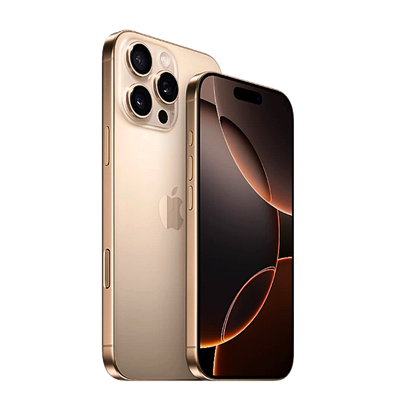
- SoC
-
A18 Pro
- Display
-
2,622 x 1,206 resolution (460 ppi)
A version of Apple’s newest iPhone with a larger screen featuring a camera button, a programmable action button, and artificial intelligence features.
These tips can significantly improve your iPhone’s one-handed usability. So, try to force yourself into using these tips in your daily practice, and they’ll become a natural reflex when you go one-handed.
Besides incorporating these tips, you can also swap your existing iPhone case with a slim and textured one, as it’ll give you greater control and confidence when using the phone in one hand. If you don’t like putting on a case, pick a textured skin.