If you’ve invested in an iPhone, what do you use it for most? Maybe it’s taking photos, or messaging friends and family, or just endlessly doomscrolling through whatever feeds you happen to have open.
Even with a device as ubiquitous as the iPhone though, there are features that not everyone is aware of. If you dig beneath the surface of the apps and menus that you use daily, there’s more and more functionality to explore.
We’ve rounded up five lesser-known iPhone features–and if you already knew about all of them, you have an impressively thorough knowledge of your device.
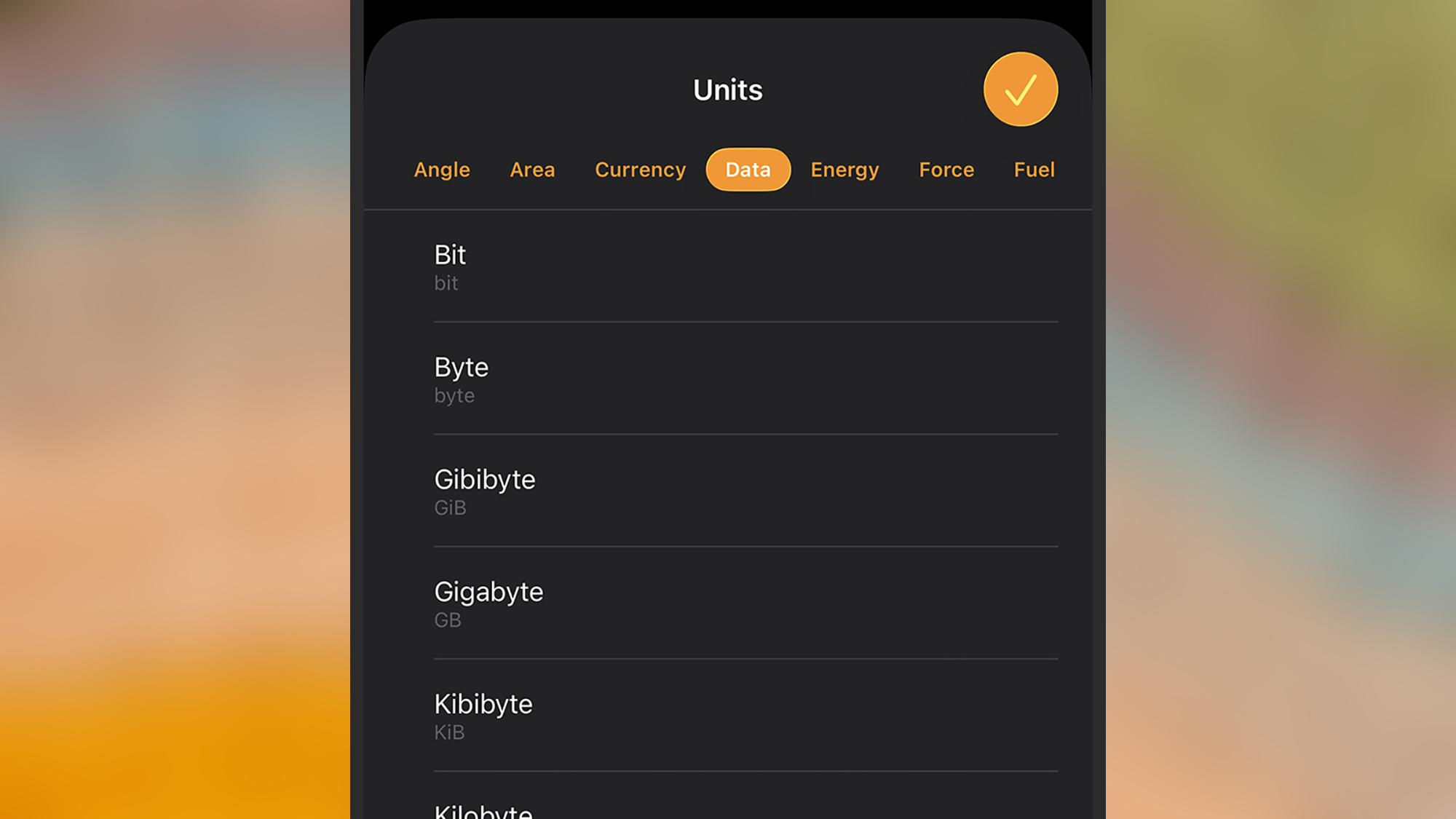
It’s likely that you’ve used the Calculator app that comes as part of iOS, but did you know the app has a conversion tool hidden away in it as well? It means you can convert between temperatures, weights, distances, currencies, and more without having to load up a separate app or website.
With the Calculator open on your iPhone, tap the small calculator icon (top right), then pick Convert. You can then tap the arrows next to the on-screen figures on the right to choose the units you’re converting from and to.
For example, tap the top pair of arrows and pick Currency, then choose the currency you’re converting from; tap the bottom pair of arrows and Currency again to select the currency you’re converting to. For this particular conversion, the latest exchange rates get pulled from the web.
It’s fair to say that the Measure tool doesn’t get quite the same attention as a lot of other native iOS apps—from Apple Maps to the Safari browser—but it can still prove useful whenever you need to measure something in the real world. If it’s somehow been removed from your iPhone, you can get it again from the Apple App Store.
Launch the Measure tool from the Utilities folder in the App Library (or just search for it from the App Library screen), and you’ll be invited to add your first point—which you can do via the big + (plus) button. Point your iPhone camera accordingly, then create points marking out the length or area you want to measure.
You’ll see as you go that you can join points together, and measurements stay on screen until you tap the trash icon (top right). Use the list button (top left) to see the measurements you’ve made, and the photo capture button (lower right) to take a snap with the measurements overlaid on top.
Use your iPhone as a level
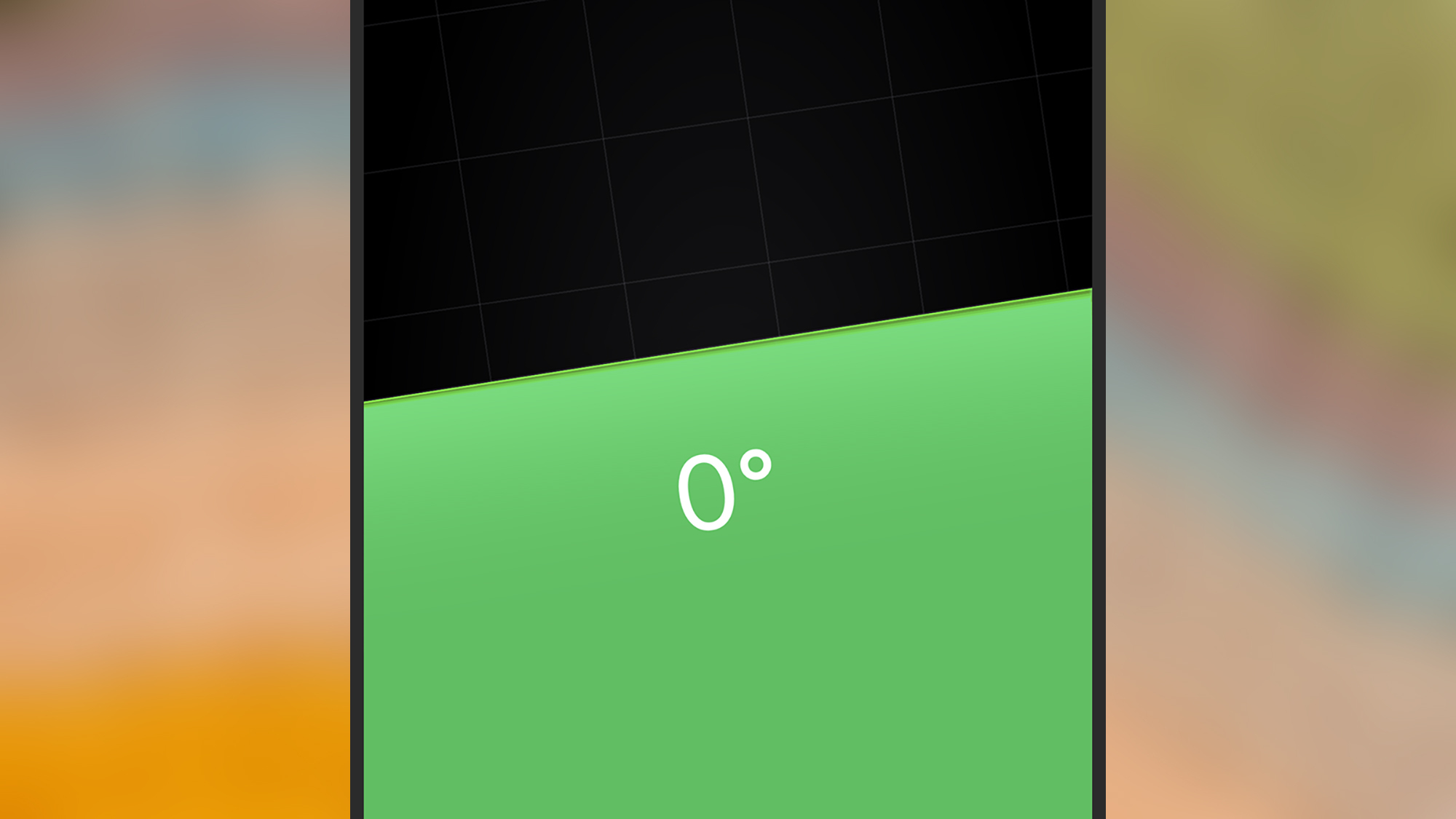
Something else your iPhone can do right out of the box is operate as a level. Whether you’re placing paintings on the wall or trying to build an actual wall yourself, it’s a useful tool to have to hand.
Surprise: This is also in the Measure tool, so you might have already found it if you’re working through these tips chronologically. Tap the Level button down at the bottom of the screen and the spirit level appears. You can use it with your iPhone in either portrait or landscape mode.
You’ll see that the display turns a reassuring green when your iPhone is perfectly level. You can also tap once on the screen to set a zero-degree level—which is helpful if you’re measuring a change in angle. Tap the screen again to revert back to standard operation.
Use your iPhone as a compass
There’s a compass app built right into iOS, no extra download necessary, and so if you’re struggling to find your way home or you’re exploring the great outdoors then you can load it up any time you need it. It works using the iPhone’s built-in sensors, so you don’t need Wi-Fi or cell signal.
You can find the Compass app through the Utilities folder in the App Library, if it’s not already on one of your home screens (or just search for it from the App Library screen). You get readings for the way your iPhone is pointing, your current coordinates, and your current elevation above sea level.
Tap on the compass to apply a bearing lock to keep you on track (you’ll see a red bar appear if you start to deviate from it)—tap again, and the lock disappears. If for some reason you’ve previously uninstalled the Compass app from your iPhone, you can download it again from the Apple App Store.
Use your iPhone as a sound level meter
Sometimes you’re going to want to measure the noise level around you. Maybe you’re writing up a complaint about the road construction happening around your office, or maybe you’re worried your new hi-fi system is turned up too loud— whatever the reason, your iPhone can help.
There is a caveat though: For full, native functionality, you need an Apple Watch to do the monitoring. Open the Noise app on your watch, then tap Enable when prompted. You can then head to the Health app on iOS, tap the magnifying glass (bottom right), and choose Hearing > Environmental Sound Levels to see the readings.
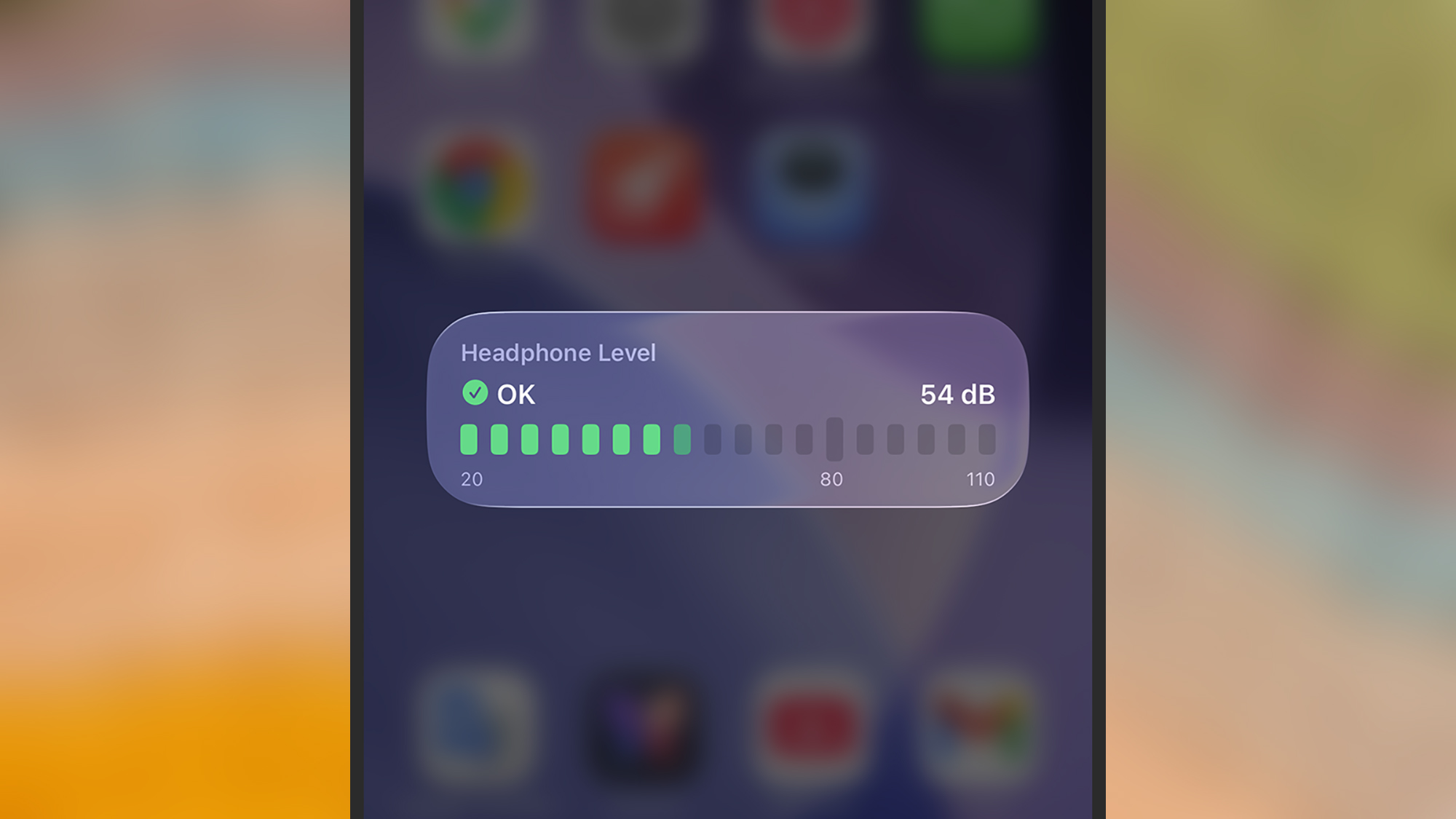
You can also monitor headphone volume in iOS from the Control Center: Swipe down from the top right of the screen, tap the + (plus) button in the top left corner, then Add a Control. Choose Headphone Levels under Hearing Accessibility, and you can then use this button at any time to check the volume levels coming into your ears.

2025 PopSci Best of What’s New