This self-hosted tool frees your Bambu Lab 3D printer from the cloud


Bambu Lab manufactures the world’s most popular 3D printers, earning a reputation for ease of use, reliability and excellent value for money. But not everyone is enamored of the company’s walled garden approach, which involves locking in third-party slicers and heavy reliance on the cloud.
That’s where Bambuddy comes in, offering a self-hosted offline interface for your Bambu Lab printer.
Why bother with Bambuddy?
Let me start by saying that if you are completely satisfied with the way your Bambu Lab printer works, you may not be interested in using Bambuddy at this time. For all its flaws, Bambu Lab’s cloud infrastructure gave me no reason to complain. Being able to send prints directly to your printer from your phone or record the camera feed from anywhere is a big part of Bambu Lab’s appeal.
That said, there are good reasons why you might want to ditch Bambu Lab’s systems and go it alone. Chief among them is truly local and offline support for your printer. Bambu Lab has experienced cloud outages in the past that prevented users from using their printers through regular channels. Bambuddy removes the dependency on remote servers in the same way as transferring files locally via USB.
-
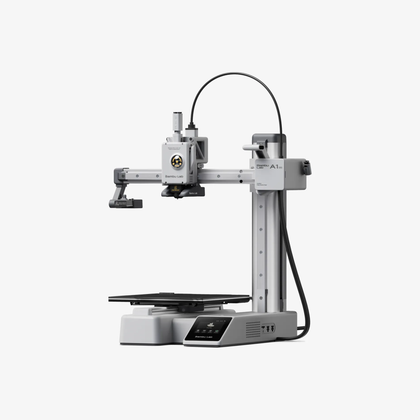
- Construction volume
-
180x180x180
- Print speed
-
500mm/s
The Bambu Lab A1 Mini 3D Printer is ready to use and can get you printing in 30 minutes. Offering fully automatic calibration, this compact 3D printer features a build volume of 180mm and is compatible with the AMS Lite for multi-color printing. It also has built-in vibration and flow calibration, which are features typically only found on high-end printers.
-
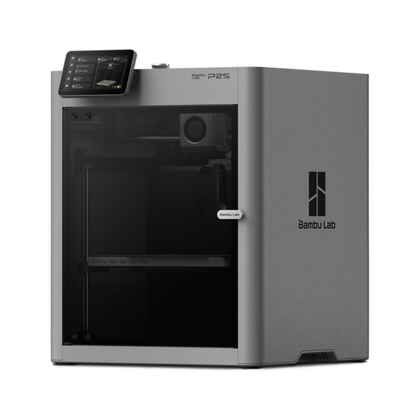
- Construction volume
-
256x256x256mm
- Print speed
-
600mm/s
The Bambu Labs P2S 3D printer is ready to use and can get you printing in 15 minutes. It allows printing up to 20 colors with the AMS unit, has an improved built-in camera for remote monitoring and time-lapses, and has a closed body for printing even high-temperature filaments.
There’s also a privacy argument to be made, since every model you pass to your Bambu Lab printer via standard means is sent through the company’s servers. This isn’t an issue for many users, but it’s something other brands like Prusa are talking about with their own local control options.
Using Bambuddy also gives you access to some unique features. The software includes a comprehensive print archiving system, where models are saved in case you want to repeat the print (or make changes and then print again). You also have access to powerful automation and scheduling tools, which allow you to schedule prints in advance (perfect for overnight printing and avoiding unwanted noise).

You won’t miss out on features when going local with Bambuddy, either. You can always access the camera feed, see which spools are loaded and how many you have left, and collect statistics on your print history. The software even offers a way to manage 3D printing projects, create virtual printers to share and allows you to print from anywhere in the world thanks to its proxy mode.
Installing and using Bambuddy is easy
There are several ways to install Bambuddy, with the one-line Docker installation being the easiest method. This should work on any computer that has Docker installed, so make sure to install Docker first.
Run the installation script by pasting the following into your computer’s command line:
curl -fsSL https://raw.githubusercontent.com/maziggy/bambuddy/main/install/docker-install.sh -o docker-install.sh && chmod +x docker-install.sh && ./docker-install.sh When I ran this script, I had to change the installation directory to my macOS user directory so Docker could access the container. I left all other settings at their defaults and chose to build from source (because why not). Once the script is finished, Bambuddy is already up and running.

Next, go to your printer and using its built-in screen, enable LAN-only mode followed by Developer mode when the option appears. You may see a scary notice where you have to check a box to accept the risks, but don’t worry too much about that.

On the same screen, note the displayed access code and the IP address of your printer (I took a photo with my phone). Finally, find and enable “Store sent files on external storage” so that Bambuddy can extract thumbnails from the print jobs you send to it. The last thing you’ll need is your printer’s serial number, which you’ll find under Settings > Device & Serial Number.
At this point I decided it was best to give my printer a static IP address. I did this on my router by checking which IP address matched my printer and binding the MAC address. This means that the printer will always use the same local IP address, which can avoid device discovery issues due to IP address reassignment.
Finally, it’s time to visit localhost:8000 in your web browser (on the computer you installed Bambuddy on), or your-ip:8000 on any other computer (where your-ip refers to the local IP address of the computer).
You’ll be asked to enable authentication (which requires anyone accessing Bambuddy to log in first), or you can skip this step and move on to adding a printer. Fill in the fields with the information you collected previously and you should see your printer listed and ready to go.

There are some downsides to moving away from the cloud
While LAN-only mode should “work” in any slicer that supports local transmission, I had trouble getting my P2S recognized in Bambu Studio and OrcaSlicer. I would go so far as to say that Bambu Studio’s implementation of LAN mode is completely unnecessary, given that even after local pairing, the slicer attempts to send print jobs via the cloud. A quick web search reveals that I’m not the only one irritated by this.
The easiest way I found to print was to slice the file in Bambu Studio and then export it as a GCODE.3MF file. I was then able to pass this to Bambuddy using the standard upload box, which worked perfectly.
Of course, the main downside to enabling LAN and Developer modes is that Bambu Lab completely locks you out of its mobile app. You will no longer be able to monitor or send print jobs to the printer using this method. Whether it’s worth it or not depends on how important local control is to you.

Personally, I keep Bambuddy installed but revert to online mode for now. By changing a few settings on my printer, cloud or local internet outages will no longer hinder my printing.
OctoPrint is another local 3D printing solution, but unlike Bambuddy, it’s not specifically designed for Bambu Lab printers, so it’s a little harder to recommend.