12 Ways to Open the Control Panel on Windows 10


Although there is talk of Microsoft removing the Control Panel, it’s not going anywhere anytime soon. Some important settings are only found in the classic Windows 10 Control Panel and are not found in the Settings app. Here are 12 ways to open Control Panel.
You can search for any application on your PC with the Start Menu Search feature, also known as Windows Search. In the search box on the left of the taskbar, simply type Control panel. Click “Control Panel” in the search results to launch it. You can also use the arrow keys to select it and press Enter.

Pin it to the taskbar
Windows lets you pin apps to the taskbar for quick access. You can launch Control Panel using one of the methods described in this article and then pin it to the taskbar.
To do this, launch Control Panel, right-click its icon in the taskbar, and then select “Pin to Taskbar” to keep it there permanently. You can then drag and drop the shortcut icon to reposition it wherever you want on the taskbar.
There are three ways to open Control Panel from the Start menu. The first comes from the apps list. Click the Start button (or press the Windows key), scroll down the list of applications, click “Windows System” to open the folder, and then click “Control Panel.”

You can also add a shortcut to the pinned tile section to the right of the Start menu. To do this, open the Start menu, type Control panel in the search box (or look for it in the apps list), right-click the Control Panel shortcut in the search results, and then click “Pin to Start.”

The Control Panel shortcut tile will now appear in the pinned tiles section of the Start menu. Click on it to launch the control panel.

Use the Settings search box
You can find Control Panel with a search in the Start menu, but you can also search for it in the Settings window, if the Settings window is open.
In Settings (which you can also open by pressing Windows+i on the keyboard), click the search box at the top of the window, type Control panelthen click on the search result “Control Panel”.

Create a desktop shortcut
For quicker access to Control Panel, you can create a desktop shortcut. To do this, click the Start button in the lower left corner of the screen. In the list of applications, scroll down and click “Windows System”. From the submenu, click and drag “Control Panel” to the desktop. You can also drag and drop the Control Panel from the pinned app tiles on the right.

You can also open Command Prompt from the File Explorer address bar. First, open File Explorer: you can press Windows+E to quickly open it. Click the arrow to the left of “This PC” in the address bar at the top of the window and select “Control Panel” from the menu.
You can also add a Desktop menu (“toolbar”) to your taskbar. To do this, right-click in an empty space on the taskbar, hover your cursor over “Toolbars,” then click “Desktop” in the submenu.

The desktop toolbar will now appear on the right side of the taskbar, to the left of the notification area icons. Click the icon with two right arrows, then click “Control Panel” on the menu to open Control Panel.

Run the Control Panel EXE file
By default, Windows stores the Control Panel EXE file in “C:\Windows\System32”.
To find it, launch File Explorer and navigate to C:\Windows\System32. Search for “control.exe” in the long list: you can click in the right pane and start typing its name to access it. Double-click the shortcut to open Control Panel.

Run it from Task Manager
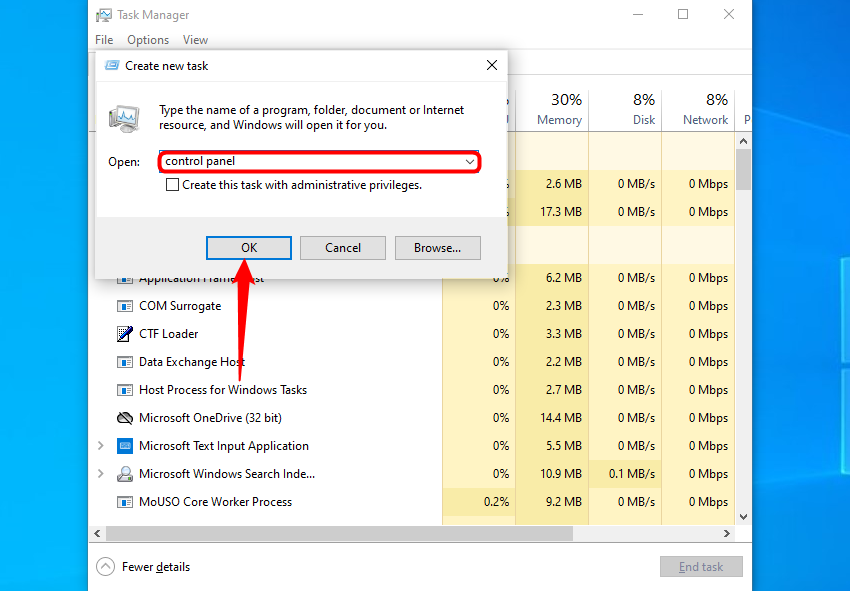
Task Manager isn’t just for stopping applications or monitoring processes and performance: you can also launch applications from it. To launch Control Panel this way, press Ctrl+Shift+Esc or right-click on the taskbar and select “Task Manager” to open Task Manager. Click “File” and select “Run new task.”

The Create New Task window will appear. Type Control panel in the Open box and click “OK” to launch Control Panel.
 Use the Run window
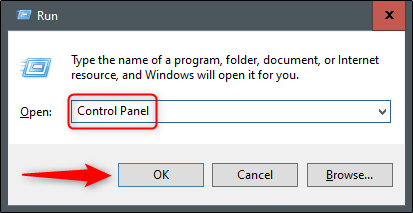
You can also launch Control Panel using the Run window. Press Windows+R to open the Run window. In the Open box, type Control panel and click “OK” to open it.
Run a command in Command Prompt
You can launch almost any application on your PC, including Control Panel, from Command Prompt. To do this, type cmd in the Windows search box, and then select “Command Prompt” from the search results to open it.

In the Command Prompt, type this command and press Enter:
control panel

The Control Panel will open.
Run a command in PowerShell
You can also launch Control Panel from PowerShell. To do this, type PowerShell in the Windows search box, and then select “Windows PowerShell” from the search results to open a PowerShell window. (You can also press Windows+X or right-click the Start button and select “Windows PowerShell” to open it.)

In PowerShell, type the following command, then press Enter to open a Control Panel window:
control panel

Windows 10 offers different ways to accomplish common tasks. For example, there are a wide variety of ways to launch File Explorer, open a Command Prompt window, or lock your PC. Explore all the options to find the ones that work best for you and your workflow.


