Raycast is finally on Windows, and it totally changed how I use my PC


Last month, one of the best productivity apps for Mac was finally available for Windows. It’s Raycast, which is like a keyboard-controlled Swiss army knife for your computer. Open Raycast with a keyboard shortcut (Alt + Space by default under Windows and Option + Space on a Mac) to quickly find files, launch apps, search the web, and more… all from a single text box.
While Apple’s Spotlight feature offers a similar utility on Macs, Raycast is more powerful and flexible and now works on Windows PCs as well. Most of its features are free, with an optional subscription to sync data between devices and use some AI features.
Raycast can be a little intimidating at first, but it can feel like a superpower once you use it. To give you an idea of how useful it is, here are some ways I use it myself.
This column first appeared in Advisorator, Jared’s weekly tech advice newsletter. Sign up to receive tech tips like this every Tuesday.
Instant calculations and unit conversions
Jared Newman / Foundry
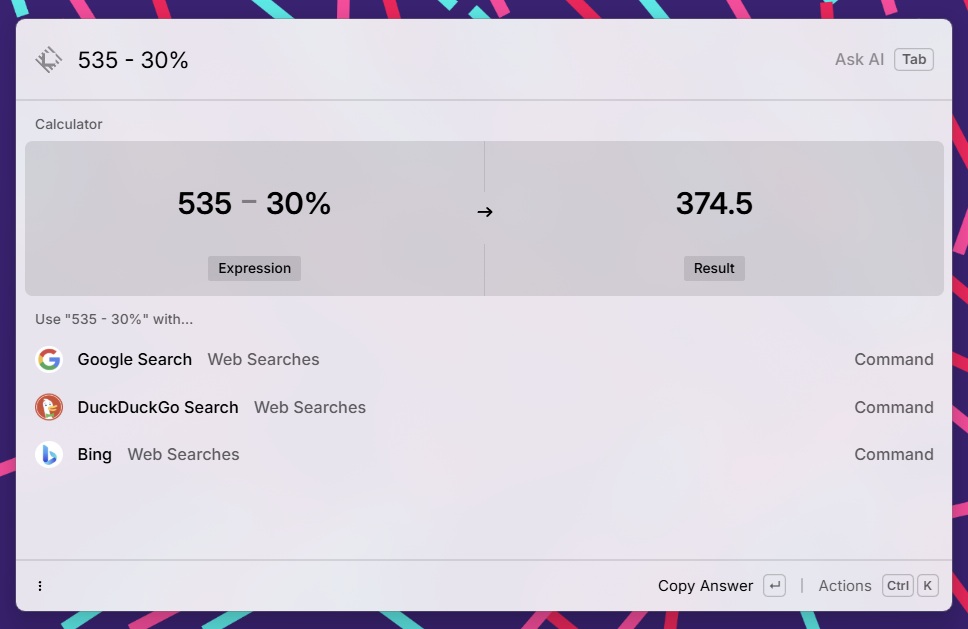
Raycast’s built-in calculator is perhaps the feature I use more than anything else. Without ever letting go of the keyboard, I can open Raycast, enter an expression and see the result immediately, with the Enter key even copying the answer to the clipboard. It’s so much faster than using a separate calculator app.
Find files (and folders) faster
Jared Newman / Foundry
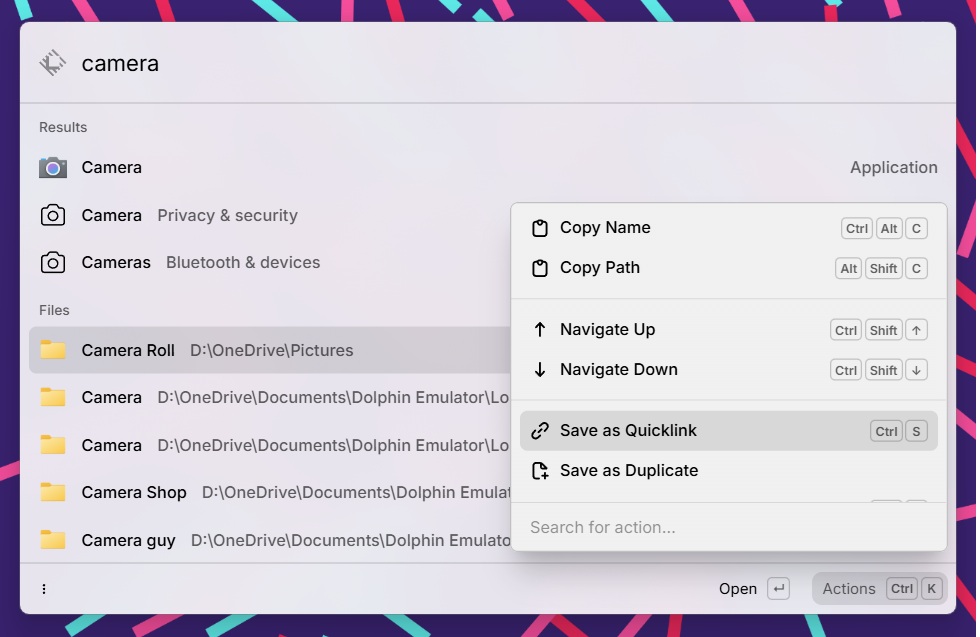
My file system is pretty organized, but opening a specific file or folder via Raycast is still faster than digging through File Explorer. Where Raycast really shines is its “Quicklinks” feature which makes accessing your favorite files or folders even easier.
Once you’ve saved a quick link, you can pin it to Raycast’s main menu, allowing you to open it with a custom keyboard shortcut or simply find it more easily in Raycast’s search results. I pinned my Downloads and Professional Images folders so they were never more than a few keystrokes away.
An extended clipboard
Jared Newman / Foundry
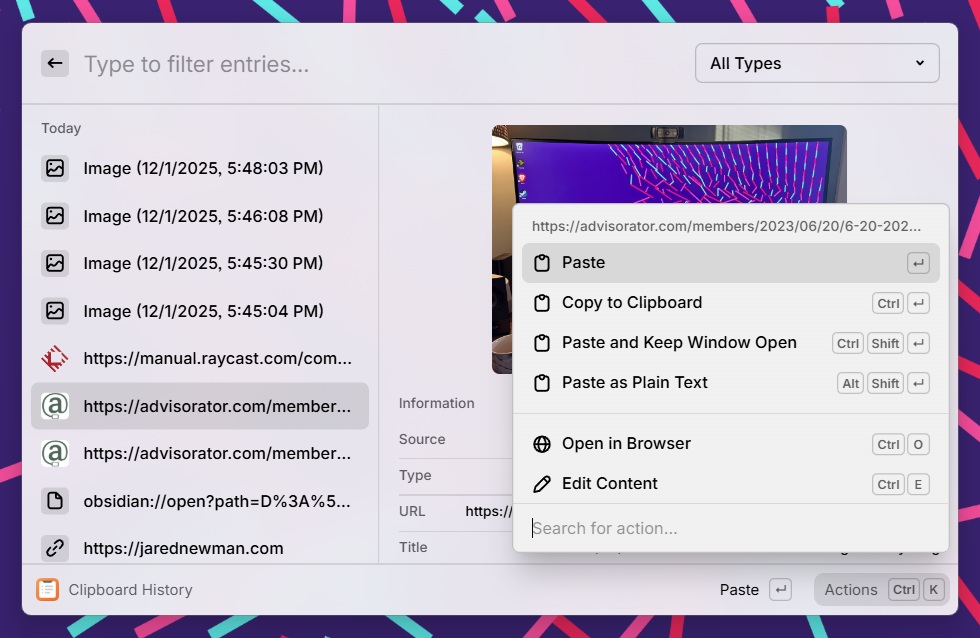
While macOS Tahoe now includes a clipboard history feature, Raycast’s version is better. You can open it instantly with a custom keyboard shortcut (no need to press Command + Space first) and can optionally paste it as plain text. Raycast’s clipboard history is also searchable and provides a nice view of copied images. I also started using it instead of Windows’ built-in clipboard manager.
The Clipboard History is a good way to familiarize yourself with Raycast’s “keyboard shortcuts”, which allow you to perform actions without even opening the main Raycast window. (I mapped Raycast’s clipboard manager to Ctrl+V on macOS and Windows key+V on Windows.)
Quick text snippets

Jared Newman / Foundry
Raycast’s Snippets tool lets you turn small fragments of text into larger blocks of text, reducing repetitive typing. For example:
- I can type
@advwrite “advisorator@jarednewman.com” - I can type
@adrto write my postal address. - To eliminate PR arguments, I can type
!gopawho then asks me the name of the PR representative and writes “Hi [name]thank you for contacting us. I’m going to leave this one aside. Thanks – Jared.
You can configure all of this via Raycast’s simple “Create Snippet” menu, where the snippet is what you want to write and the keyword is what you type to trigger the snippet conversion.
I previously sang the praises of a free Windows app called Beeftext for this purpose, but it is no longer actively maintained and there is no Mac version. Additionally, the Raycast implementation is easily searchable in case I forget the shortcut for a particular snippet.
Window management
Jared Newman / Foundry
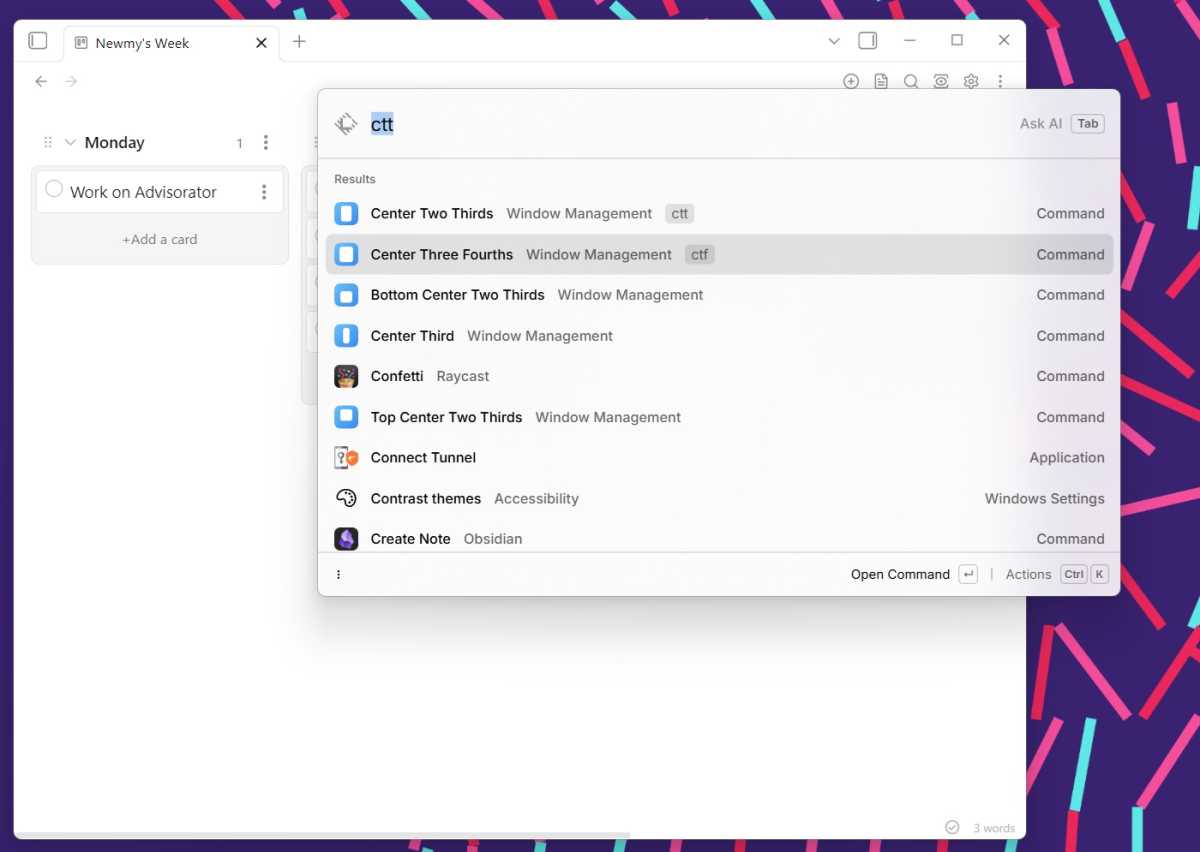
After switching to an ultrawide monitor, I often move my windows in and out of split-screen mode. Raycast makes this easy by letting you resize windows with keyboard commands. For example, I can move Obsidian to the middle of the screen to focus on writing, or split it 33.3%/66.6% with my web browser while researching.
It’s also a good way to get familiar with Raycast’s “Command Aliases” feature, which lets you run commands with less typing. I set it up so that input LT in Raycast moves an app to the left third of the screen when typing RTT moves an application to the right two thirds.
Check my calendar

Jared Newman / Foundry
Seeing what’s happening on my calendar still requires more clicking and typing than I’d like. Fortunately, Raycast offers a Google Calendar extension to quickly view your upcoming calendar.
This is one of many third-party extensions you can install to make Raycast even more useful. Just type “Store” into Raycast and you can browse all kinds of free enhancements. The one I use for my calendar is simply called “Google Calendar”.
This type of tool is the future
Whether you use Raycast or not, this category of “command bar” apps is one you need to know about, as it’s a growing area of interest for tech companies. Apple has beefed up Spotlight in macOS Tahoe to compete more directly with Raycast, and Microsoft is building something similar with Command Palette in its free PowerToys app. ChatGPT’s Mac app and Google’s new Windows app use the same command bar concept with an equal emphasis on AI.
With the rise of AI tools like ChatGPT, I think people are receptive to the idea of asking their computer to do things instead of constantly clicking manually. Once you get used to doing this with Raycast, it’s hard to imagine using your computer without it.
This column first appeared in Advisorator, Jared’s weekly tech advice newsletter. Sign up to receive tech tips like this every Tuesday.


