How to adjust the text size on your device screens because your eyes deserve better


Modern life usually means spending a lot of time staring at electronic screens, and the wear and tear on our eyeballs can add up. Besides taking breaks from the screen and dimming the display at night, there’s another step you can take to protect your peepers: make the text on your devices large enough to read comfortably.
There are many reasons why you squint at screens (maybe you’re not that young anymore or your desk is never lit enough), but there’s no reason to put up with it. Every mobile and desktop platform includes options for increasing text and menu sizes, and they’re usually not hard to find.
Android
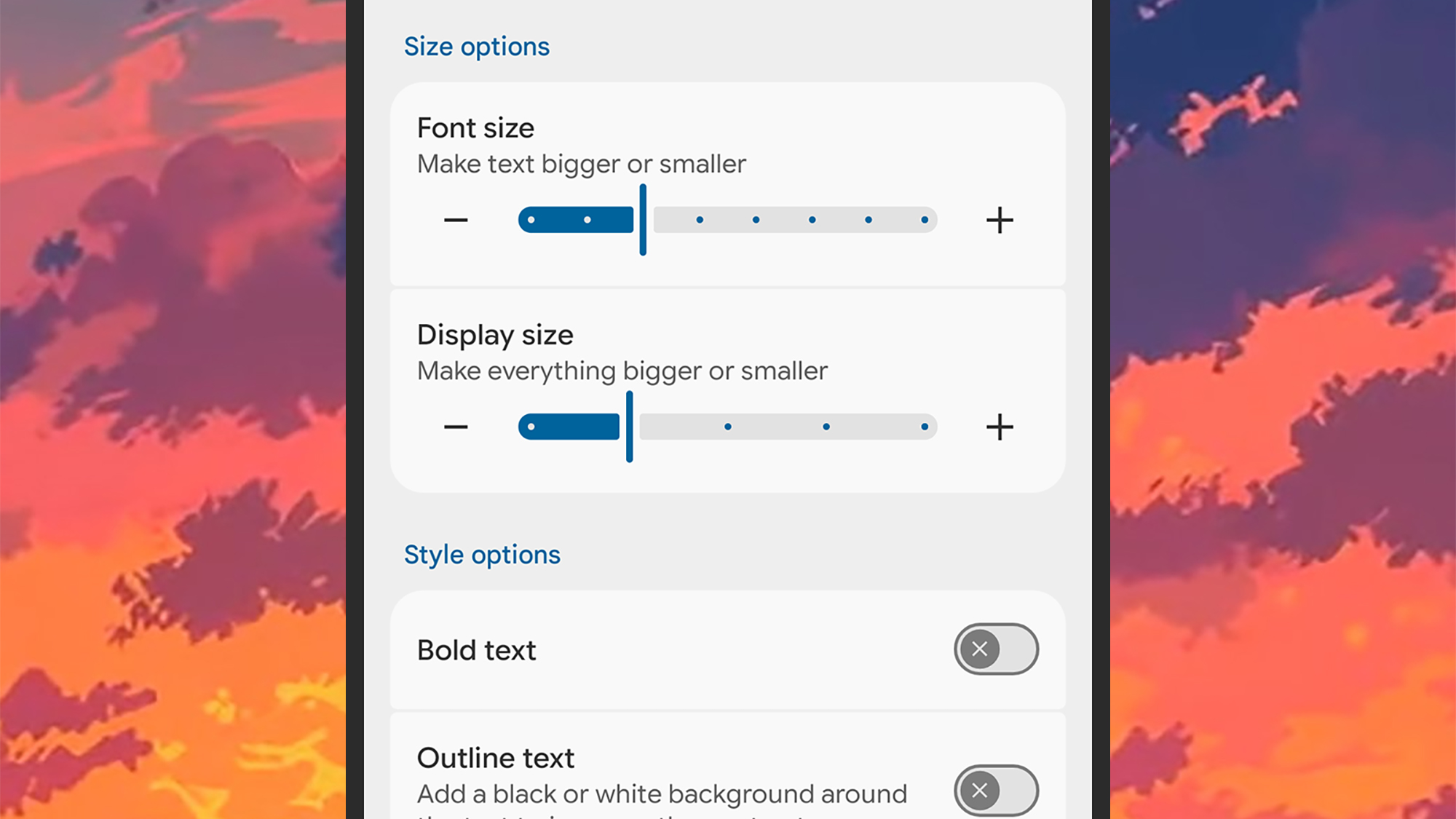
Let’s start with Android. On Google Pixel phones, you can adjust the text size by opening Settings and tapping View and touch > Display size and text. There are two sliders for text and other on-screen elements, as well as a toggle switch for bold text. At the bottom you will find a button to Reset settings.
Samsung Galaxy phones work the same way. Open Settings, then tap View > Font Size and Style. There’s a simple slider at the bottom of the screen that lets you make the text on the screen smaller or larger, as well as a toggle switch to make the text bold.
You can add a font size tile to the Quick Settings panel, but this is only available on Pixel phones, not Galaxy phones. Swipe with two fingers from the top of the screen, then tap the pen icon to find Font size and add it to the visible tiles.
iOS
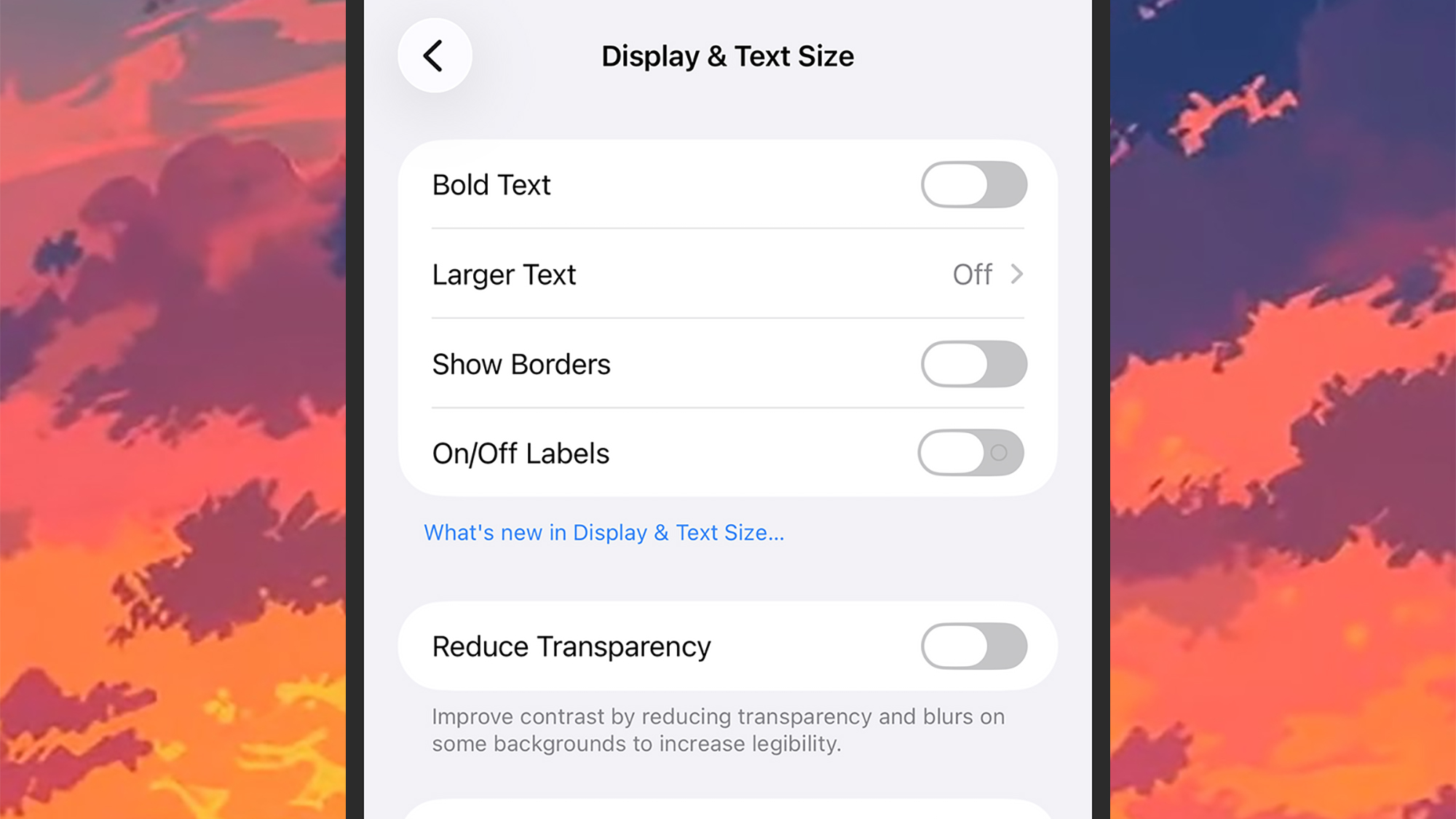
If you’re using an iPhone, you can find the text size settings by going to Settings, then choosing Display and brightness and then Text size. You then get a simple slider that you can adjust to change the text size in most places across all your apps. Below Text size there is a Bold text toggle switch that you can also use.
You can enlarge iOS text even further by choosing Accessibility in Settings, then tapping Display and text size > Larger text. If you activate the Larger accessibility sizes With the toggle switch, you will find that the range of the text size slider increases, allowing you to expand the size of the characters on the screen even further.
It is possible to add a text size shortcut to Control Center for quick access, if you find it useful. Swipe from the upper right corner of the screen to access Control Center, then tap the icon + (plus) in the upper left corner and Add a control. THE Text size the cursor is below Display and brightness and has a AA label on it.
Windows
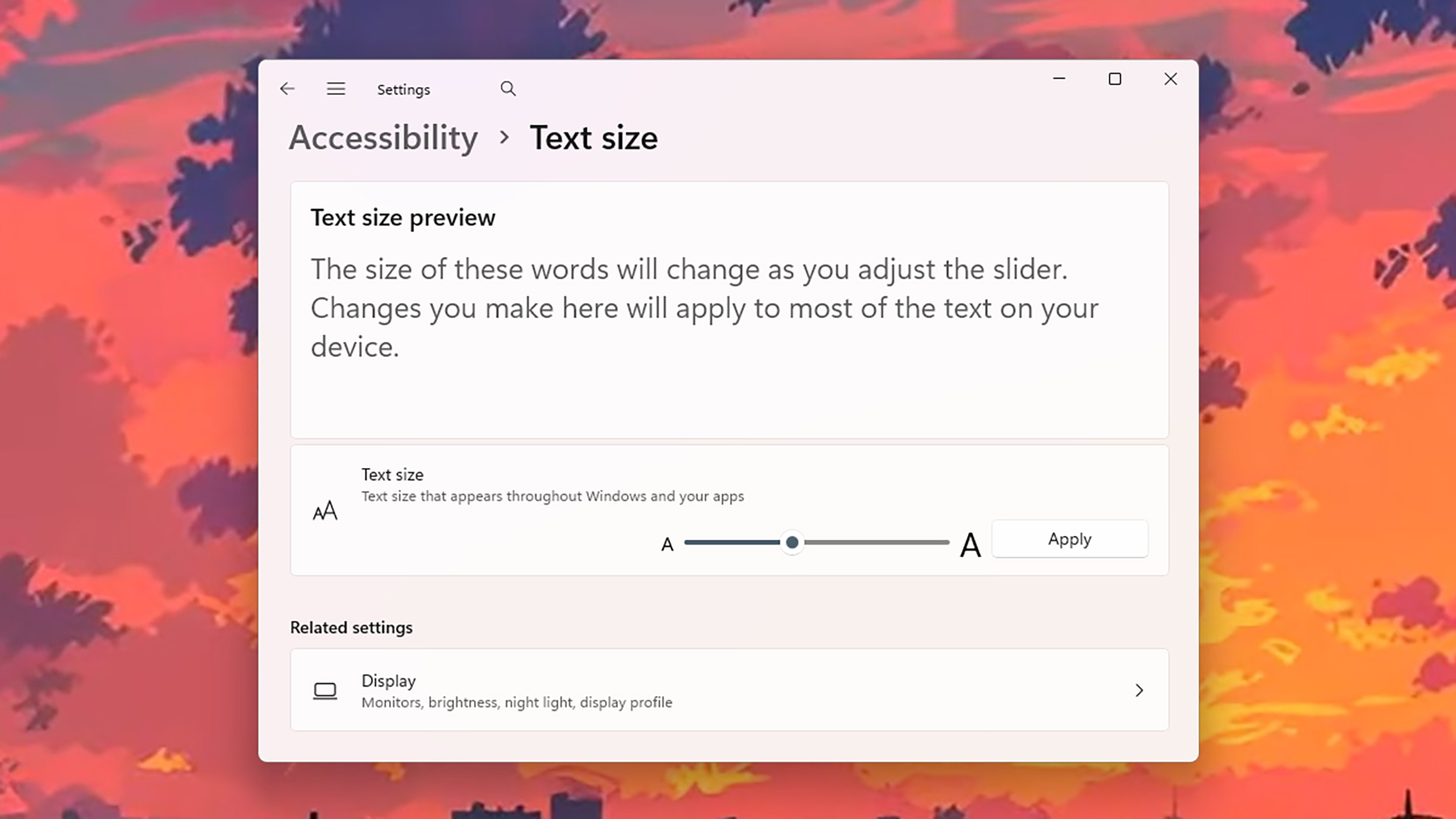
On Windows computers, you can adjust the text size by clicking Settings on the Start menu, then selecting Accessibility > Text size. Here you get a simple slider that you can move to adjust the text size, with a preview: tap Apply to apply the changes.
Windows also offers useful scaling settings, which essentially allow you to zoom in on the entire interface, without sacrificing too much quality. Text and other elements should therefore always appear sharp on the screen.
To access these settings, choose System > Displaythen use the Ladder drop-down menu to change the zoom level. You can also change the values in the Display resolution drop-down list to enlarge the pixels, but it’s not as elegant a solution.
macOS

To change the size of text and menus on a Mac, click the icon Apple button (top left), then System Settings. Below Accessibility click Text sizeand you get a slider at the top: drag it left or right to change the system text size (there is a Default marker on the slider if you want to return to the original setting).
Next to Menu bar sizeyou can choose between Default And Bigand this last option enlarges the text of the macOS menu bar a little. There are several other settings on the same screen that can improve text readability, including toggle switches to increase contrast and reduce transparency.
There is another option you can check out, which is under Appearance In System Settings: It’s a Sidebar icon size drop-down menu, and if you replace it with BigSidebar icons and their associated text labels will be larger than normal in the menus of all your macOS apps.

The best Black Friday deals for 2025


