How to turn on Airplane Mode in Windows


Just like smartphones, laptops (and even PCs) also support an airplane mode, sometimes called airplane mode, in which all wireless connections are cut off. Originally, this mode was intended to prevent signals from phones or computers from interfering with sensitive onboard electronics. But this risk is no longer present in modern aircraft.
Nowadays, airplane mode benefits more the users themselves. It allows them to block disruptive calls and notifications, avoid costly roaming charges abroad and, by turning off network features, put their phone or laptop into power-saving mode.
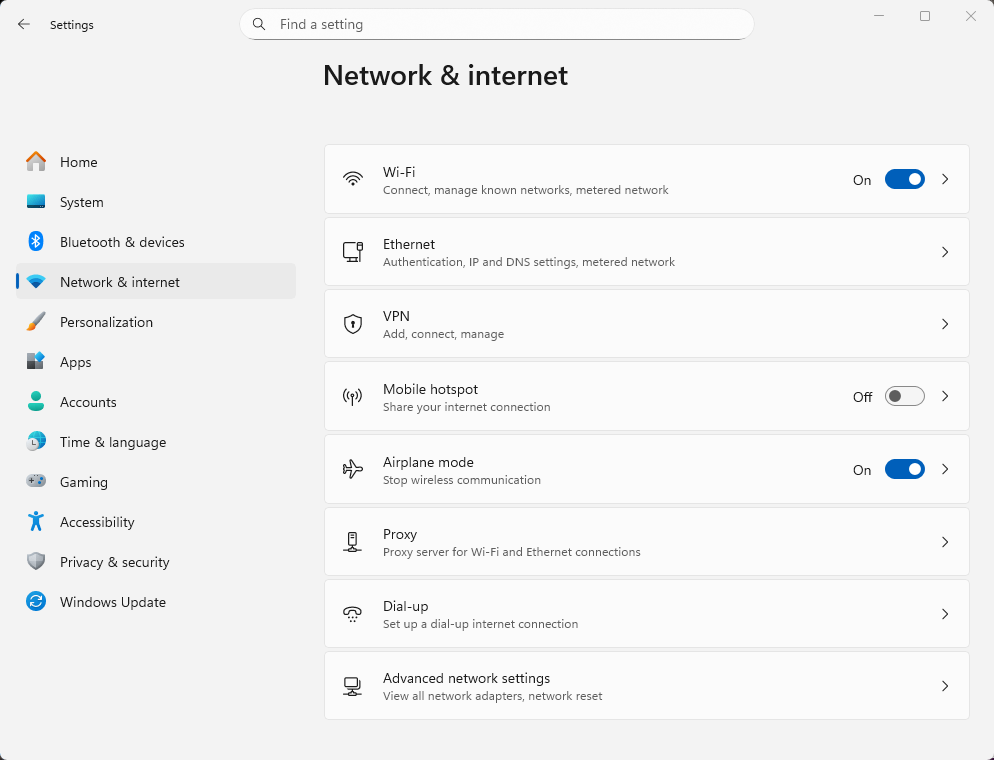
In airplane mode, Windows prevents any wireless communication with the outside world. You can activate this mode in the Windows “Settings”, among other places.
Sam Singleton
There are several ways to enable airplane mode on a Windows laptop. Many devices have a dedicated function key; just check your keyboard or the manual. You can also click the combination of network icon and volume control in the lower right corner of the taskbar to open the settings window. Click the button for airplane mode. Or open “Settings” from the Start menu, go to “Network & Internet,” then set the “Airplane mode” switch to “On.” Here’s another tip: If you click on the “Airplane Mode” entry at this point, you can specifically turn off Wi-Fi and Bluetooth in the next window.
Finally, you can also enable airplane mode on the Windows login screen: if you click on the network icon here, a button to turn airplane mode on and off will appear.


