I’m an iPhone expert. These are the 10 settings I always change first


When you set up a new iPhone, iOS asks you for certain preferences to customize certain things, such as theme, access to location services, and Siri. Still, there are many hidden features in iOS that many users don’t even know about, even those who have been using iPhones for a long time.
Whether you’re setting up a brand new iPhone or have just restored yours, read on as we detail the settings you may want to change on your device to get the most out of it.
Name your iPhone
Did you know that your iPhone has its own name? It not only appears in the list of devices connected to your iCloud account, but is also visible to other people when you AirDrop them.
Changing your iPhone’s name to something more personal than “iPhone 17 Pro” is a good way to start after setting up your new device. To do this, go to Settings > General > About and press Name. You can type whatever you want.
Just keep in mind that other people will see the name you choose if you leave AirDrop enabled, so keep it clean.
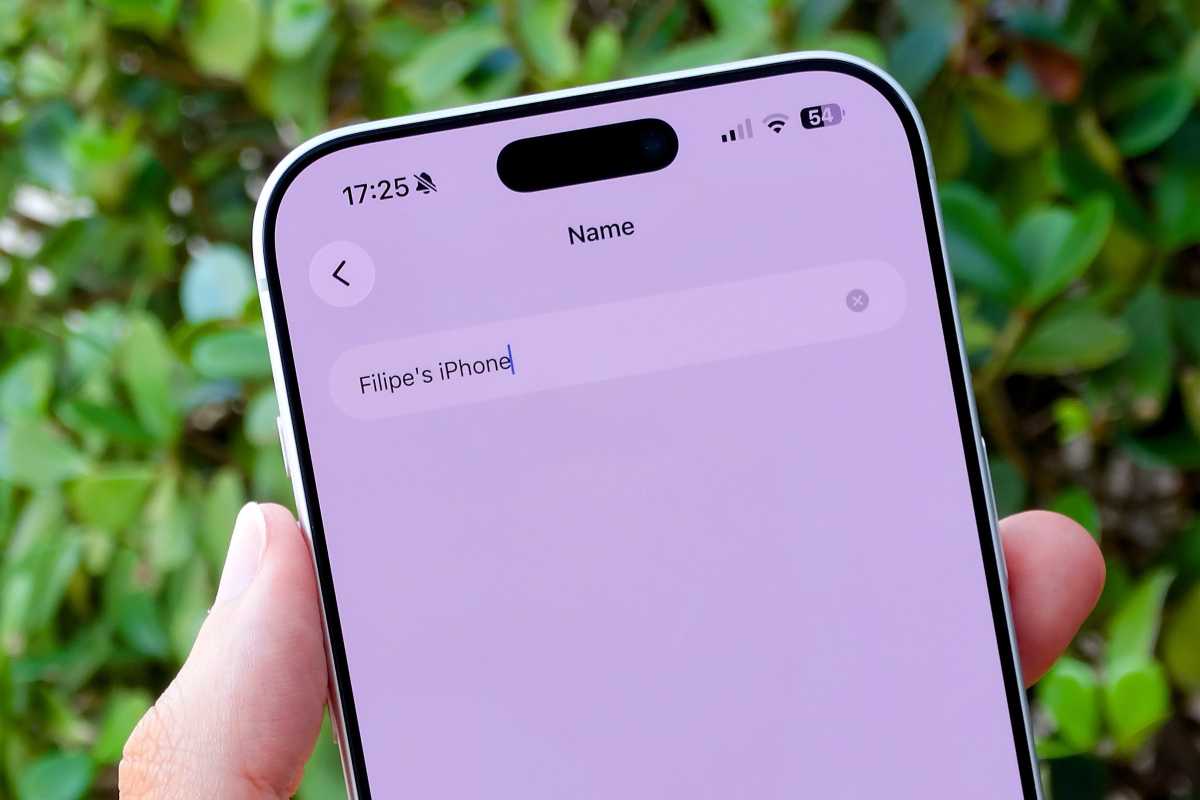
Make your iPhone your own by giving it a personal name.
Foundry
Limit background app refresh
By default, iOS apps can keep their content updated in the background, even when you’re not using the app. This allows apps to be ready with the latest content available when you open them. However, keeping this feature enabled may drain your battery faster.
Reviewing this setting is a good way to ensure that your iPhone won’t drain your battery or waste your cellular data plan if you don’t want it to.
Go to Settings > General > Background app refresh and press Background app refresh at the top of the list. You can choose from three options:
- Off: Turn off background updates completely (you’ll still receive notifications from your apps).
- Wi-Fi: Your apps will download new content only when your iPhone is connected to a Wi-Fi network.
- Wi-Fi and cellular data: Your apps will download new content whether you’re connected to Wi-Fi or 5G.
If you choose to keep this feature enabled, you can also limit it to specific apps. All you need to do is disable the apps you don’t want to allow to download content in the background.
Automatically switch between light and dark modes
When setting up iPhone, you can customize things like text size and whether you want to use your iPhone in light or dark mode. However, there are many other options available when it comes to display settings, and reviewing them can make your experience better and more comfortable.
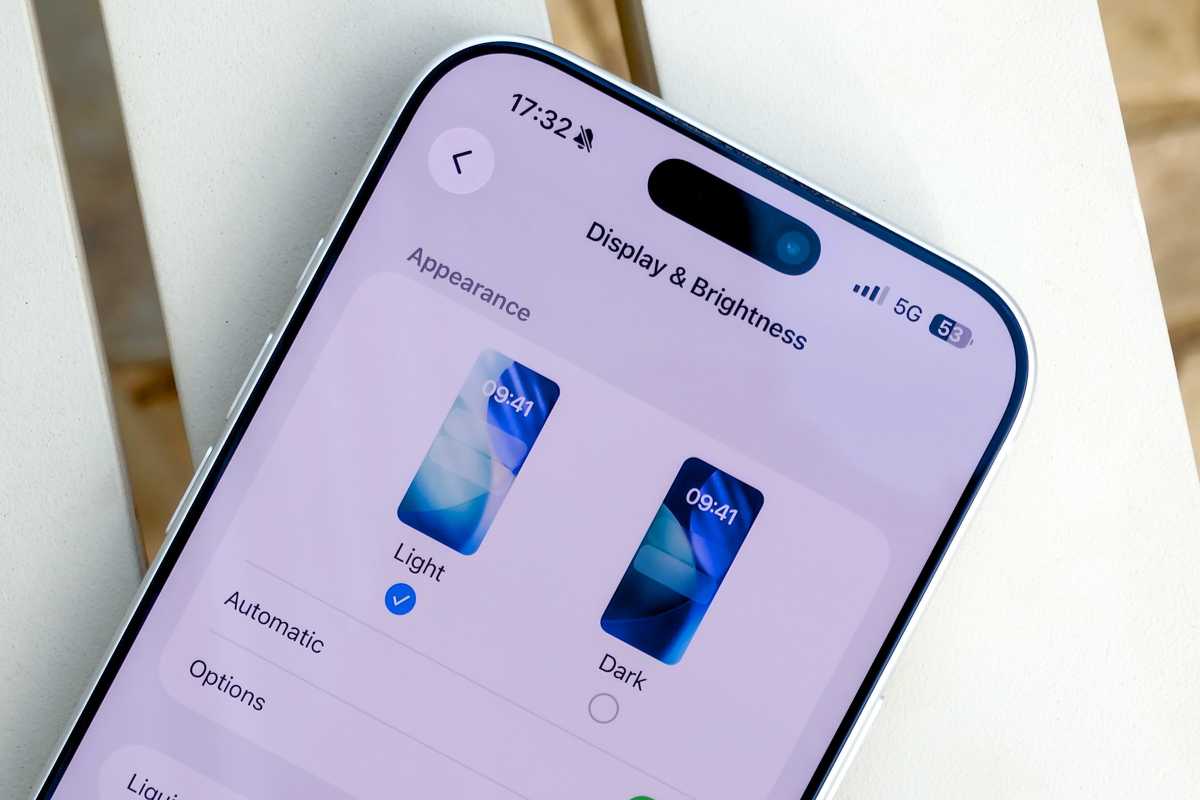
You can set a schedule for when your iPhone goes into dark mode.
Foundry
For example, your iPhone can automatically switch between light and dark modes. To do this, go to Settings > Display and brightness and press Possibilities under the Appearance section.
You can choose between “sunset to sunrise”, which will automatically select the best time of day for each theme, or set a custom schedule.
Make liquid glass more opaque
In the same Display & Brightness menu, you will also find a “Liquid Glass” option. By default, iOS 26 comes with Erase Mode enabled, which makes the entire interface more seamless. Choose “Tinted” for a more opaque look with better contrast.
Please note that this option is available on iOS 26.1 or later. So if you don’t see it on your iPhone, make sure to update it to the latest version of iOS.
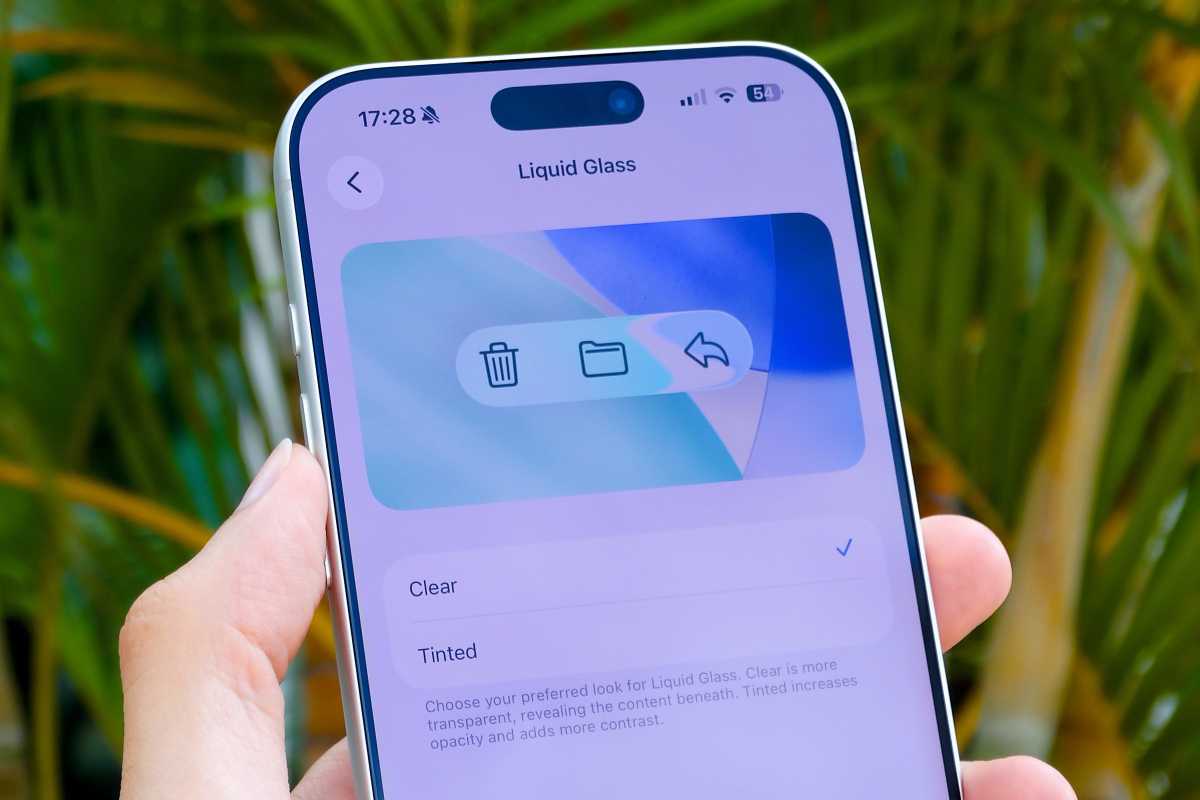
If you don’t like Liquid Glass, you can tone it down with the “Tint” option.
Foundry
Enable Always On (or not)
Some iPhone models have the Always On Display feature, which keeps the display on and shows information even after you lock the screen. If you don’t like this mode or just want to turn it off to save a little battery, here’s how to do it.
Go to Settings > Display and brightness and press Always visible. Here you can either customize how Always On Display works or disable it completely.
For example, you can choose to turn off the wallpaper and only keep the clock in Always On mode. There is also an option to show or hide notifications. If you don’t want an always-on display at all, just turn off the main toggle.
Disabling it will make your screen completely black when you lock your phone, just like in the old days.
Don’t see the option? Always On Display was only available on Pro models starting with the iPhone 14 Pro. However, all iPhone 17 models support this feature, including the base model and the iPhone Air.
Save your eyes at night
Here is another hidden feature you will find in the Display and brightness settings: Night shift. Introduced with iOS 9, this feature essentially reduces the blue light on your screen, making it appear warmer. The idea is to make the screen more comfortable for your eyes, especially at night.
You can manually activate Night Shift from sunset to sunrise or set a custom schedule. There is also a slider to adjust the intensity of the effect on the screen.
Enable professional camera features
If you want to take advantage of everything your iPhone has to offer in terms of camera, it’s definitely worth checking out the Camera in the Settings app.
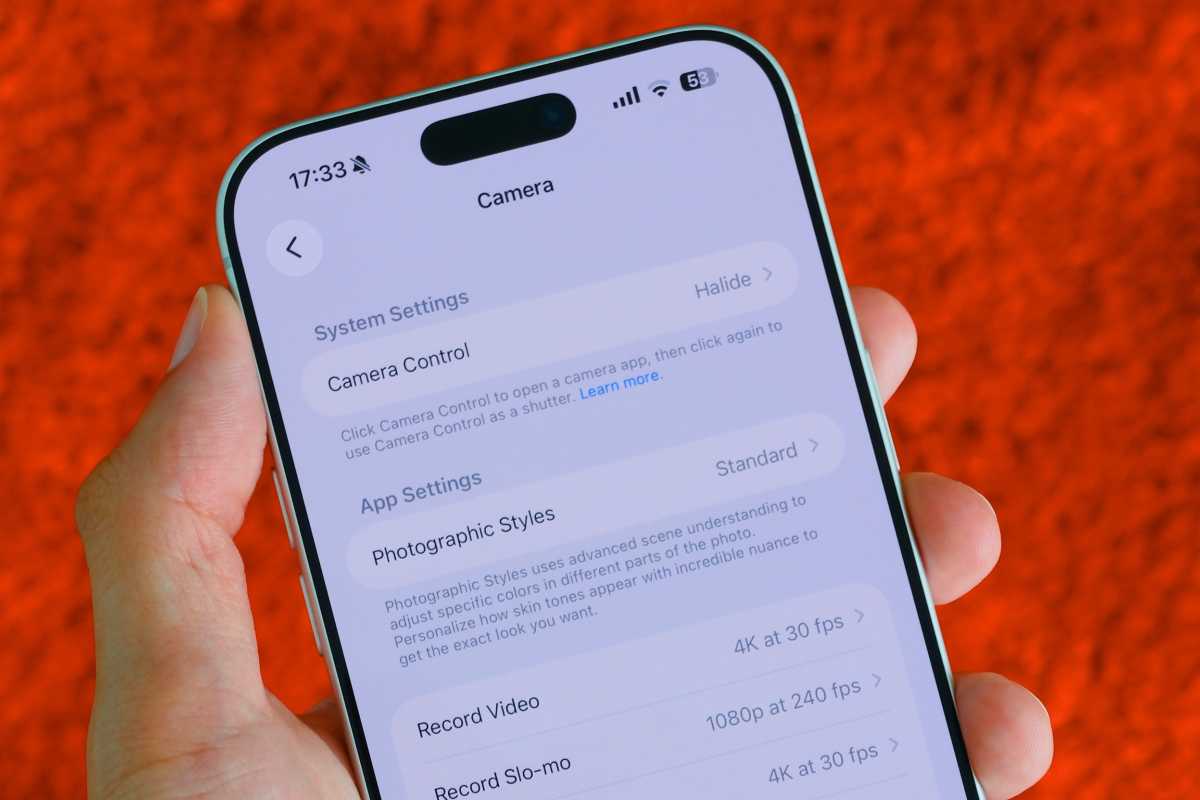
Even if you don’t have an iPhone 17 Pro, plenty of professional camera settings are at your fingertips.
Foundry
By default, iPhone is set to record 1080p video. You can change the default resolution to 4K in the “Record Video” menu. There you can also disable HDR video if you want.
If you have an iPhone 12 Pro or later, you can also enable ProRAW in the “Formats” menu. After enabling ProRAW, you will see a button to turn it on or off in the Camera app when taking photos.
You can also consult the “Composition” section in the Camera settings. Personally, I like to enable “Grid & Level” to help me take better photos.
Disable Control Center on Lock Screen
Control Center on iOS allows users to quickly access some useful settings, such as managing Wi-Fi and Bluetooth, changing the volume, enabling Do Not Disturb, or even turning AirDrop on or off.
You can access Control Center from anywhere by swiping down from the upper right corner of the screen. It works not only from the home screen or apps, but also from the lock screen.
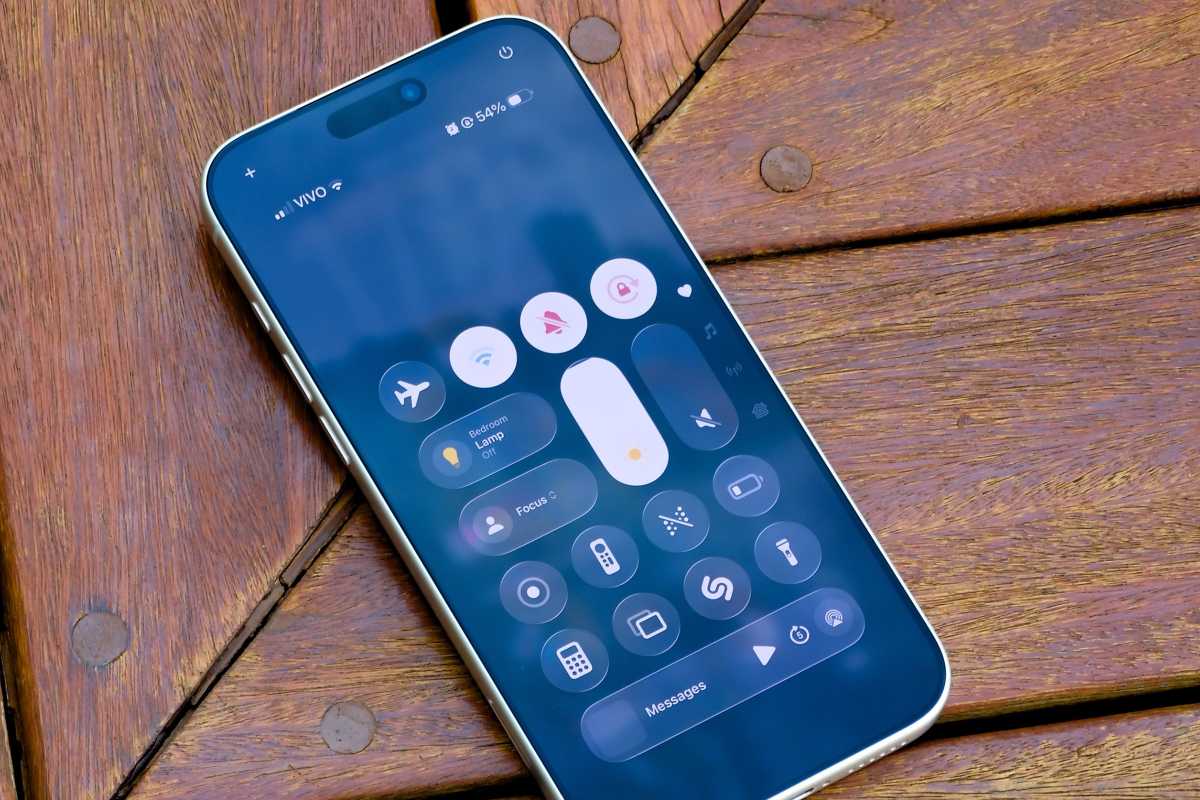
You can limit access to the Control Center in Settings.
Foundry
However, this also means that anyone who gets their hands on your phone can change the settings in Control Center, but there is a way to change this.
First, go to Settings > Face ID. Scroll down until you find Allow access when locked. Next, turn off the “Control Center” option. You can also disable other options to prevent their access from the lock screen, giving you more privacy and security.
After disabling them, you can only access Control Center or other features from the lock screen after authenticating with Face ID.
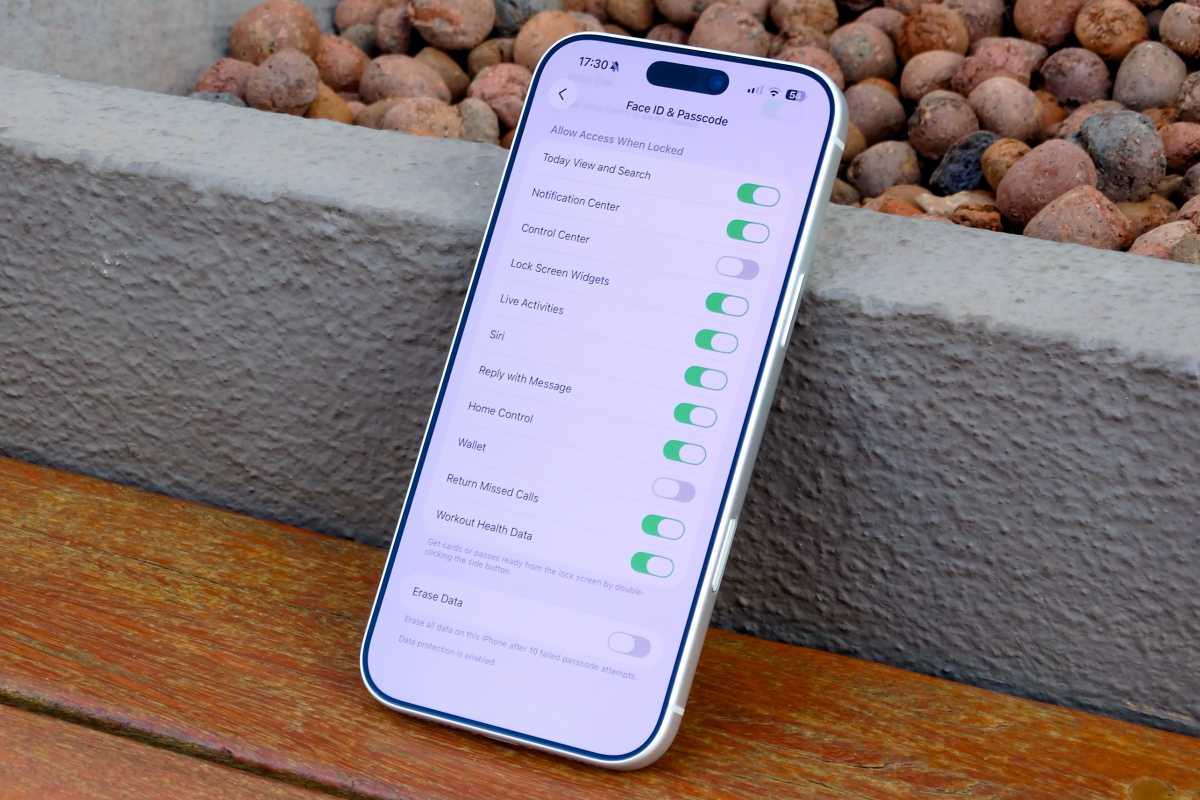
You’ll find additional levels of security if you browse Face ID’s settings.
Foundry
Enable stolen device protection
Introduced in iOS 17, Stolen Device Protection adds an extra layer of security to your iPhone in the event of theft, especially if someone also knows your password.
When enabled, sensitive actions like changing your Apple ID password, turning off Find My, or accessing saved passwords require Face ID or Touch ID, without relying on the password. In unknown locations, iOS may also impose a security delay before allowing these changes.
To enable it, go to Settings > Face ID and passcode > Protecting Stolen Devices and enable the feature.
This is one of those settings you hope you never need. But if your iPhone is lost or stolen, activating it can make a huge difference.
Setting up an emergency contact ensures that first responders, or anyone trying to help, can reach someone they trust if something happens to you.
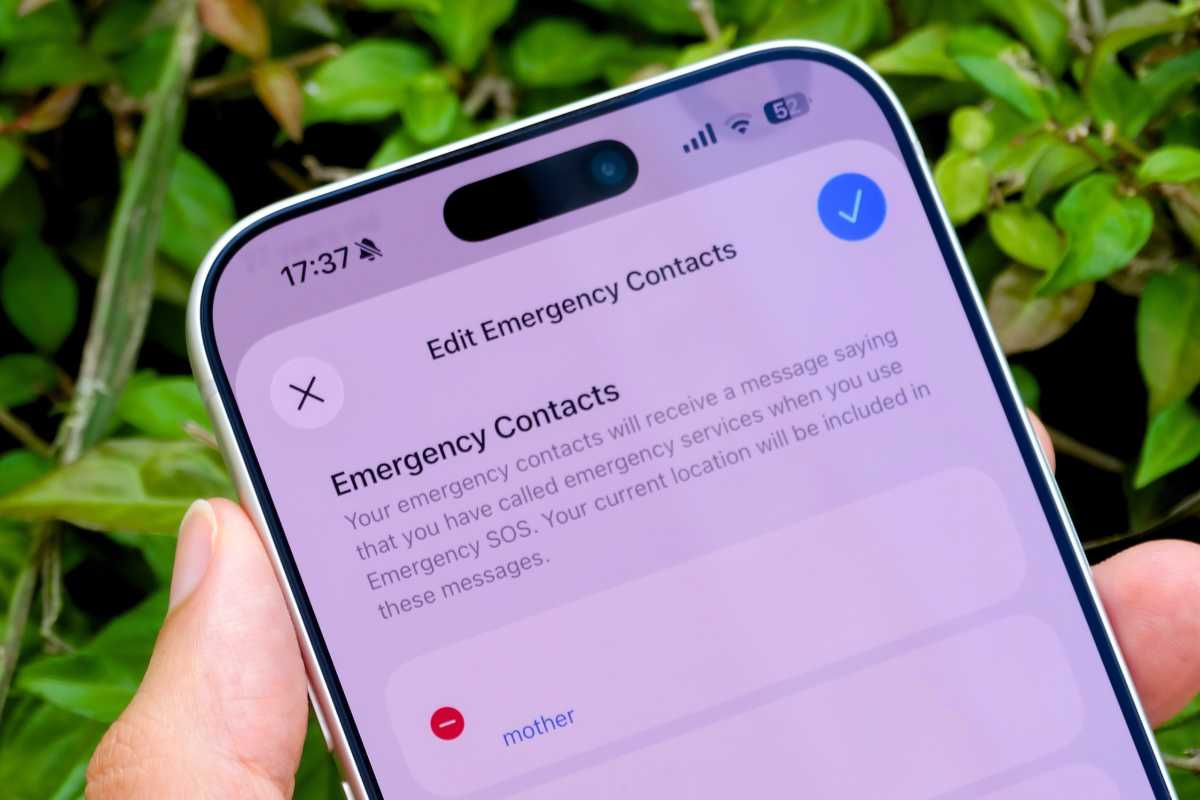
An emergency contact is a set-it-and-forget-it feature that could save your life.
Foundry
Emergency contacts can be accessed directly from the lock screen without unlocking the iPhone, and they are also used by features like Emergency SOS and Medical ID.
To add an emergency contact, open the Health app, tap your profile picture, then go to Medical ID card > To modify. From there, you can add one or more emergency contacts and include other useful information such as allergies, medications, or health conditions.
It only takes a minute to set up, but it can prove invaluable in a real emergency.
You are now ready to get the most out of your iPhone
Now that you know which settings are worth revisiting, you can make sure your iPhone is set up correctly from the start. A few thoughtful changes can improve everything from battery life and security to the comfort of using your iPhone throughout the day.


