Thousands of files provided by a whistleblower at Interpol expose for the first time the extent of Russia’s apparent abuse of the international policing agency to target its critics abroad.
The data provided to the BBC World Service and French investigative outlet, Disclose, reveals that Russia is using Interpol’s wanted lists to request the arrest of people such as political opponents, businessmen and journalists, claiming that they have committed crimes.
Analysis of data also suggests that over the past decade, Interpol’s own independent complaints unit has received more complaints about Russia than anyone else – three times more than the next highest country, Turkey.
In addition, it indicates complaints against Moscow’s requests have led to more cases being overturned than for any other country.
After Russia’s full-scale invasion of Ukraine, Interpol introduced extra checks on Moscow’s activity “to prevent any potential misuse of Interpol’s channels in relation to the targeting of individuals within or beyond the conflict in Ukraine”.
But the leaked documents suggest these did not prevent Russia abusing the system and the whistleblower told us some stricter measures were quietly dropped in 2025.

Interpol says it has systems in place to avoid misuse and these have been strengthened in recent years [OLIVIER CHASSIGNOLE/AFP via Getty Images]
In response, Interpol says that every year, thousands of the world’s most serious criminals are arrested thanks to its operations and that it has a number of systems to avoid misuse which have been strengthened over the last few years.
It also says it is aware of the potential impact requests for arrest can have on individuals.
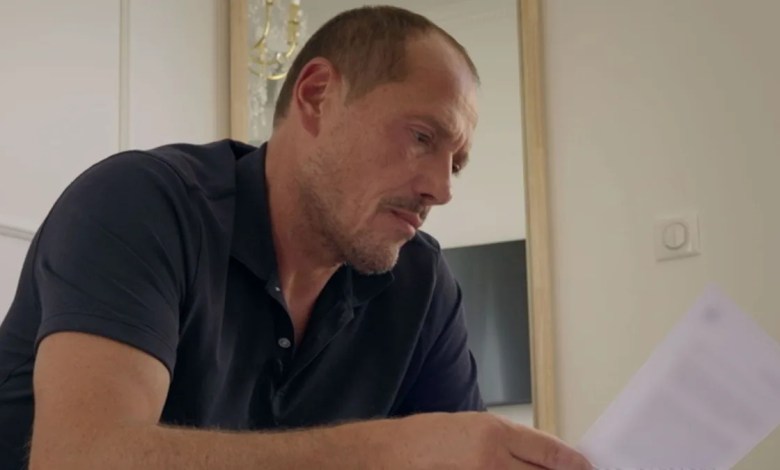
“When you’re hit with a red notice, your life changes completely,” says Igor Pestrikov, a Russian businessman, whose name appears in the leaked files.
Interpol is not a global police force itself, but helps police across the world to co-operate.
A red notice is an alert to all of its 196 member countries, asking them to locate and arrest a person. A red diffusion is a similar request but is only sent to individual countries.
Pestrikov found he was named in a red diffusion after he fled Russia in June 2022 – four months after the invasion of Ukraine – and applied for asylum in France.
He felt he had two options: “Go to the police and say, ‘I’m in the Interpol system,'” and risk arrest or lie low. This may mean “you can’t rent an apartment, your bank accounts get blocked”, which is what happened to him, he says.
“It’s constant nerves, all the time,” he adds, explaining he was always looking over his shoulder. For safety, his daughter and her mother moved to another country. The police can “break into your house at any time… that’s why you’re like a cornered rat”, he says.
“It’s the stress, the nerves, the pressure, the lawlessness inflicted on you,” that breaks families apart, he adds.
Pestrikov had been a major shareholder in large metals companies in Russia that were privatised in the 1990s, most notably Solikamsk Magnesium Plant.
In the months leading up to the 2022 invasion of Ukraine, he says government ministers pressured him to stop selling his products abroad and only supply the Russian market. He believed this would mean his products could be used to make components for military hardware, such as fighter jets and tanks.
He says it wasn’t just that he was against “having to sell much cheaper and to whoever the ministries told me to” but that “it was a moral issue as well… no-one wanted to get involved even indirectly in the production of something used to kill people”.
Pestrikov believes his refusal to comply and the fact his wife at the time was Ukrainian led to his companies being nationalised and to Russia investigating him for financial crimes.
After he fled to France, he was worried that the Kremlin might try to target him there, so he contacted Interpol and was told about the red diffusion request, which had passed the agency’s checks.
Pestrikov decided to challenge it through Interpol’s internal, independent watchdog, the Commission for the Control of Interpol’s Files (CCF), arguing that Russia’s request was politically motivated.
Interpol’s constitution expressly states that the organisation cannot be used “to undertake any intervention or activities of a political, military, religious or racial character”.

Pestrikov fled Russia after its full-scale invasion of Ukraine began – one of the first cities to be attacked was Chuguiv in eastern Ukraine [ARIS MESSINIS/AFP via Getty Images]
After Pestrikov had spent almost two years on the wanted list, the CCF ruled that his case was predominantly political. He showed us CCF documents that said the information Russia had provided was “generic and formulaic” and there had been an “inadequate explanation” of the alleged crime. Interpol cancelled the request for Pestrikov’s detention.
Interpol only releases very basic data about illegitimate requests for arrests and since 2018 has not revealed which countries are the subject of complaints and inquiries. This lack of transparency makes it difficult to assess the scale of the problem, but for the first time, the leaked documents reveal a much fuller picture.
One batch of files shared with the BBC contains a list of complaints sent to the CCF.
The data is not complete, but it covers a broad range of countries, and where the nation requesting an arrest is listed, there are more complaints about Russia than anywhere else – this has been the case for the past 11 years.
The files also show that in the past decade, at least 700 people who were wanted by Russia complained to the CCF, and at least 400 of them had their red notices or diffusions overturned – that is more than for any other country, according to the data we received.

The files show Russia attempted to use Interpol’s messaging system to get information about journalist Armen Aramyan after he left the country [BBC]
“Historically it has been Russia who is one of the main perpetrators of abusive red notices,” says British barrister Ben Keith, who has represented many clients wishing to have their names removed from Interpol’s wanted lists.
He thinks Interpol has a particular problem with Russia and that the agency’s attempts to prevent abuse have not been successful.
He says that he has “a steady flow of clients who are subject to Russian red notices who are either politically connected, or often pro-Ukraine, or alternatively as a result of corporate raiding”.
International lawyer Yuriy Nemets, who specialises in Interpol matters and extradition, agrees that Interpol’s extra scrutiny of Russia’s requests for arrests, introduced after its full-scale invasion of Ukraine, has not proved effective.
He says he is aware of a number of cases in which Russians opposed to the war “have been targeted for speaking out against what’s going on and were charged with financial… or other ordinary crimes and put into the database based on that”.
“It’s not hard to game the system,” he adds.
As well as information on notices and complaints, the Interpol insider also provided the BBC with thousands of messages sent between individual countries via Interpol’s messaging system, revealing another, less formal route to trace people abroad.
One message from Moscow to law enforcement agents in Abu Dhabi explained how Interpol had denied a request for a red notice, but that it still wanted help in tracing the subject’s whereabouts. This goes against Interpol advice that members should not use its channels in this way.
The leak also contains a message about Armen Aramyan, a journalist who had fled Russia after he was convicted of “engaging minors in dangerous activities” for reporting on student protests that supported the opposition leader Alexei Navalny in January 2021.

Riot police were deployed when thousands of people across Russia protested against the arrest of opposition leader Alexei Navalny, who died in suspicious circumstances in prison in 2024 [Aleksey Fokin/SOPA Images/LightRocket via Getty Images]
Aramyan went to Armenia and then on to Germany. The message from Russia to law enforcement entities in both countries sidestepped the more formal red notice and red diffusion process, and asked for “any useful information” about Aramyan as well as his whereabouts.
The message was sent in February 2023, during the time Russia was under restrictive measures and its messages were being checked before being sent. We can’t say for sure whether the message was delivered, but based on the source of the data, the whistleblower believes that it was.
When the BBC showed Aramyan a copy of the message, he said he was shocked but not surprised.
“I don’t think they expected that Germany [would] send them my address, my phone number, and extradite me, but if they could at least get some sort of tiny bits of information it would still be valuable for them.”
The leak contains other messages in which a foreign law enforcement agency responds to Moscow’s request for information. It sent details about the movements of an ally of Navalny, Lyubov Sobol, and high-profile defector Gleb Karakulov. The exchange relating to Karakulov happened after Interpol announced its additional vetting of Moscow.

One report says Russia requested red diffusions on ICC judges – this came after the court issued arrest warrants for Vladimir Putin and Russia’s commissioner for children’s rights, Maria Lvova-Belova, over Ukraine [Sputnik/Mikhail Metzel/Pool via REUTERS]
The BBC also gained access to internal Interpol reports from 2024 and 2025 which show ongoing concern around Russia’s activities from senior directors within the organisation.
In one, a senior figure expresses directly to Russian delegates “serious concerns” about the country’s “wilful misuse” of Interpol systems, stating that there were instances of “flagrant violations” of Interpol rules.
Despite the extra restrictions on Russia, the reports show that approximately 90% of Russia’s requests were still passing initial checks in 2024. And yet, in the same period, the CCF was overturning roughly half of all Russian requests that it received complaints about. This raises questions about whether the measures had been stringent enough.
One report describes how in 2024 Russia attempted to place red diffusions on judges and a prosecutor at the International Criminal Court, after the body issued arrest warrants for President Vladimir Putin and another government official for their actions in Ukraine. These requests from Moscow were rejected.
Even while concerns about Russia’s misuse of Interpol’s systems were being expressed inside the organisation, the reports also show that discussions were taking place in 2024 and 2025 about whether to remove additional restrictions on Russian activity.
This seems to have been settled in Moscow’s favour. The whistleblower told the BBC that in 2025 Interpol quietly dropped some extra measures against Russia — it is not clear how far this softening may have gone. Despite repeated requests, Interpol said it was not able to comment due to its “strict rules on the processing of data”.
The BBC was unable to disclose all the details of the leak to Interpol as doing so could reveal the source. However, when asked about the issues raised in the investigation, Interpol said it was “concerned that a number of the accusations seems to come from a misunderstanding of how Interpol and CCF systems work, or factual errors about data and changes within Interpol’s systems”.
“It is untrue to say that we prioritise police co-operation over preventing abuse – Interpol follows its constitution that expressly forbids the use of our systems on information that is of a predominantly political, military, religious or racial character.”
And in the past, it has said it can do more good to prevent crimes by ensuring that lines of communication remain open.
We asked Russia’s ministry of internal affairs for comment, but it did not respond.
Lawyers Yuriy Nemets and Ben Keith agree that Interpol should do more to prevent misuse of its systems. “If countries are found to be significantly and persistently abusing red notices and diffusions, then they should be suspended from the system for a period of time,” says Keith.
Otherwise, Igor Pestrikov fears that Russia, “with the push of a button, can enter anything, pin any crime on you – this lets them persecute you further around the world”.
Additional reporting: Andreea Jitaru and Ned Davies


