Microsoft warns these 2 features can slow down your Windows PC


In a new support document offering “tips to improve PC performance on Windows,” Microsoft warns that two features of Windows 10 and Windows 11 can impair system performance. Older and/or weaker PCs will particularly suffer.
In addition to well-known tips like staying on top of system updates, keeping storage space free, and checking for malware regularly, Microsoft highlights OneDrive and visual effects as performance killers. We show you how to get around these problems.
Pause OneDrive sync
Joel Lee / Foundry
OneDrive’s cloud auto-sync feature is convenient and convenient, but it consumes computing power and bandwidth. “Syncing can slow down your PC,” Microsoft confirms on the support page, and the user will experience delays, especially during heavy use.
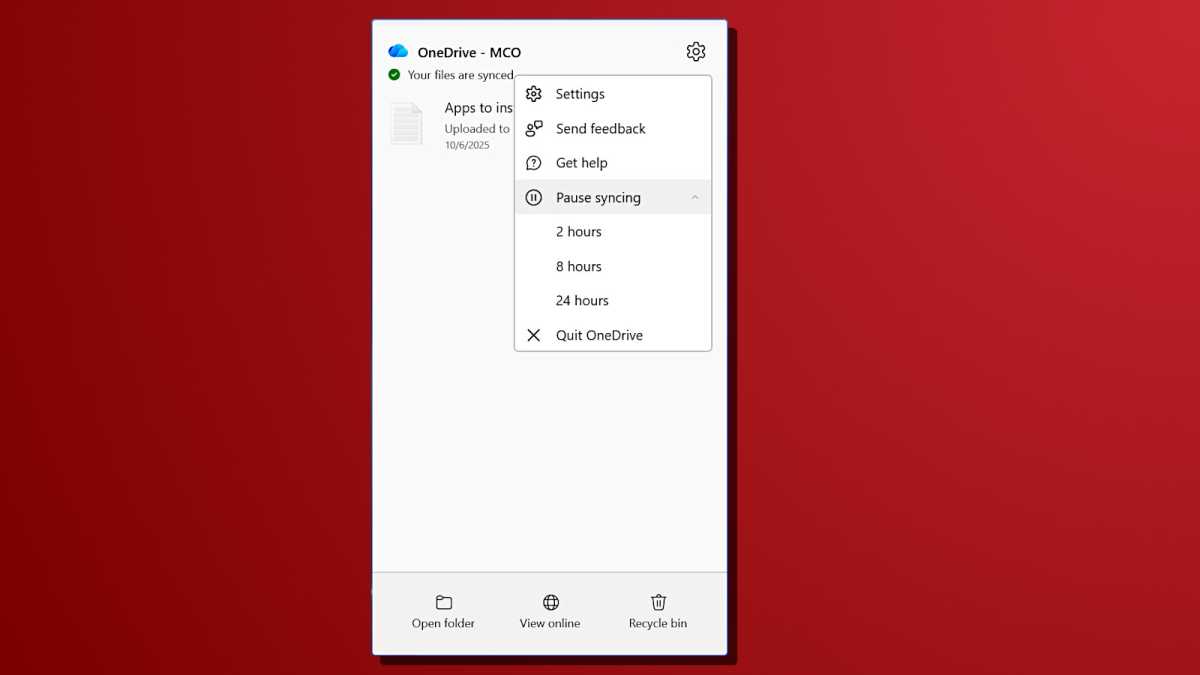
The solution? Click the OneDrive icon in the system tray, click the Settings cog, and then click “Pause syncing.” Select a break duration (2, 8 or 24 hours). Your PC should now be faster.
Turn off Windows visual effects
Joel Lee / Foundry
Windows 11’s UI animations, transparency effects, and shadows are sleek, but they’re also RAM and GPU-intensive. “These [effects] They look great, but they can also use additional system resources and slow down your PC,” Microsoft warns. This is especially noticeable on devices with less RAM (less than 8 GB).
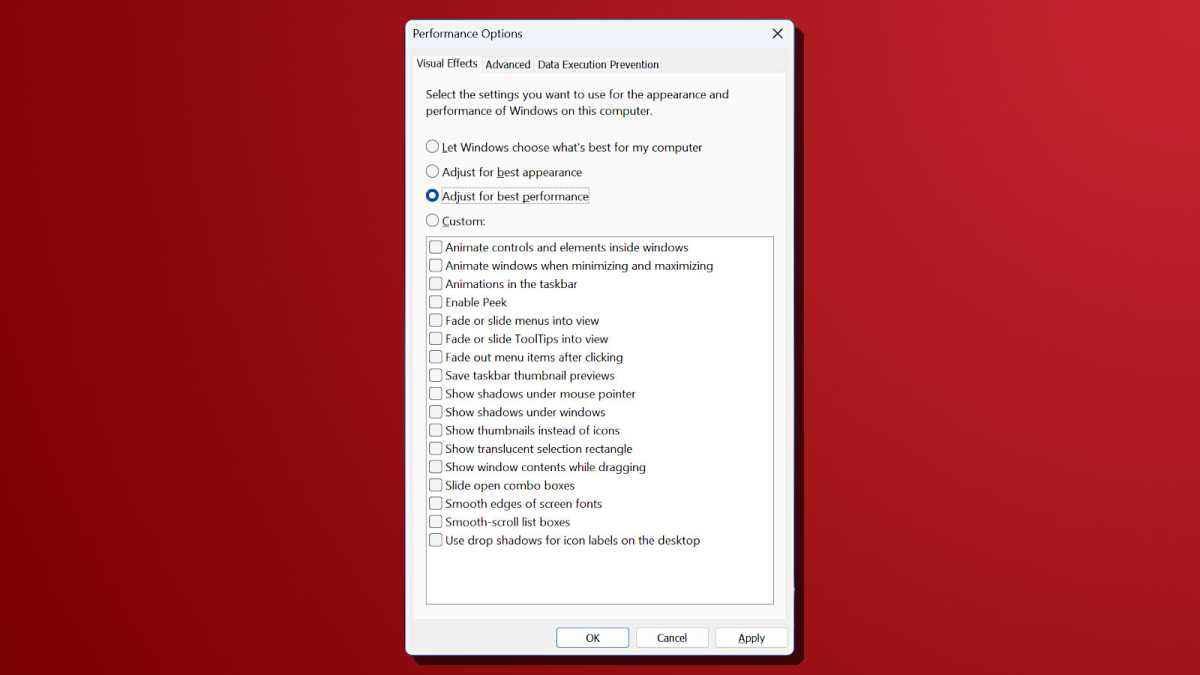
To turn off visual effects, go to the Start menu, search for “performance” and select the result labeled “Adjust Windows appearance and performance.” There, under the Visual Effects tab, click the option labeled “Adjust for best performance,” then click Apply and OK. This will disable resource-intensive visual features.
This article was originally published on our sister publication PC-WELT and has been translated and localized from German.


