My favorite iOS 26 feature has banished spam callers once and for all


There are few iPhone experiences more frustrating than receiving an unwanted call. Whether it’s interrupting your work or your playtime, it doesn’t take much for an unwanted call to take you out of the present moment.
The problem is that they are apparently extremely difficult to stop, and no matter what you try, a few still seem to make it through the net. At least, that was the case before iOS 26’s call screening feature arrived. Since I installed iOS 26, it has stopped unwanted calls, leaving me in spam-free bliss all day long.
How call screening works is extremely simple. When you receive a call from an unknown number, the caller will first be directed to an automated voice that will ask them to identify themselves and the reason for their call.
Once done, your phone will ring and display a transcript of the caller’s response. At this point you can decide whether or not you want to answer the call. If you don’t do this, the caller is disconnected. You’re not disturbed while the other person is talking to your screen robot, except for a brief alert you receive that someone is online. You are then buzzed again once the identification is complete. It’s short, simple and extremely effective – and you never have to pick up the phone when an unknown number pops up.
A win-win situation
I’ve found that call screening works wonderfully and significantly reduces the number of times I’m bothered by frustrating calls throughout my day.
Interestingly, calls from unknown numbers tend to be forwarded in one of two ways. Either the caller hangs up immediately when they realize they need to identify themselves, or they present themselves as a spammer, allowing me to quickly decline the call.
Before using call screening, spammers got through relatively easily. Apple’s “Silence Unknown Callers” feature quarantined good and bad numbers, so I kept it turned off, and blocking individual numbers was rarely effective against number spoofers. I’ve lost count of the number of times I’ve picked up the phone, only to hear a long pause and a clamor of voices in the background, before an obvious scammer comes on the line to try to convince me that he works for Apple and needs my login information. I often hung up before even hearing a voice. The routine became so familiar that I knew within a second or two that I had made a mistake answering my iPhone.
It may not seem like much, but these calls often disrupted my day, whether I was trying to work or hang out with friends. A call like that is an annoyance that can ruin your concentration and distract you from your business, no matter how brief. But with call screening by my side, I don’t have to worry about that anymore.
Of course, sometimes a call from an unknown number comes from someone I would like to hear from. But in such cases there is no problem anymore, because call screening does not block them. In fact, it helps them get over it faster. Once they identify themselves, I can decide whether to respond or not.
In other words, call screening stops the bad guys and lets in the people I actually want to hear from. I would call it a win-win situation.
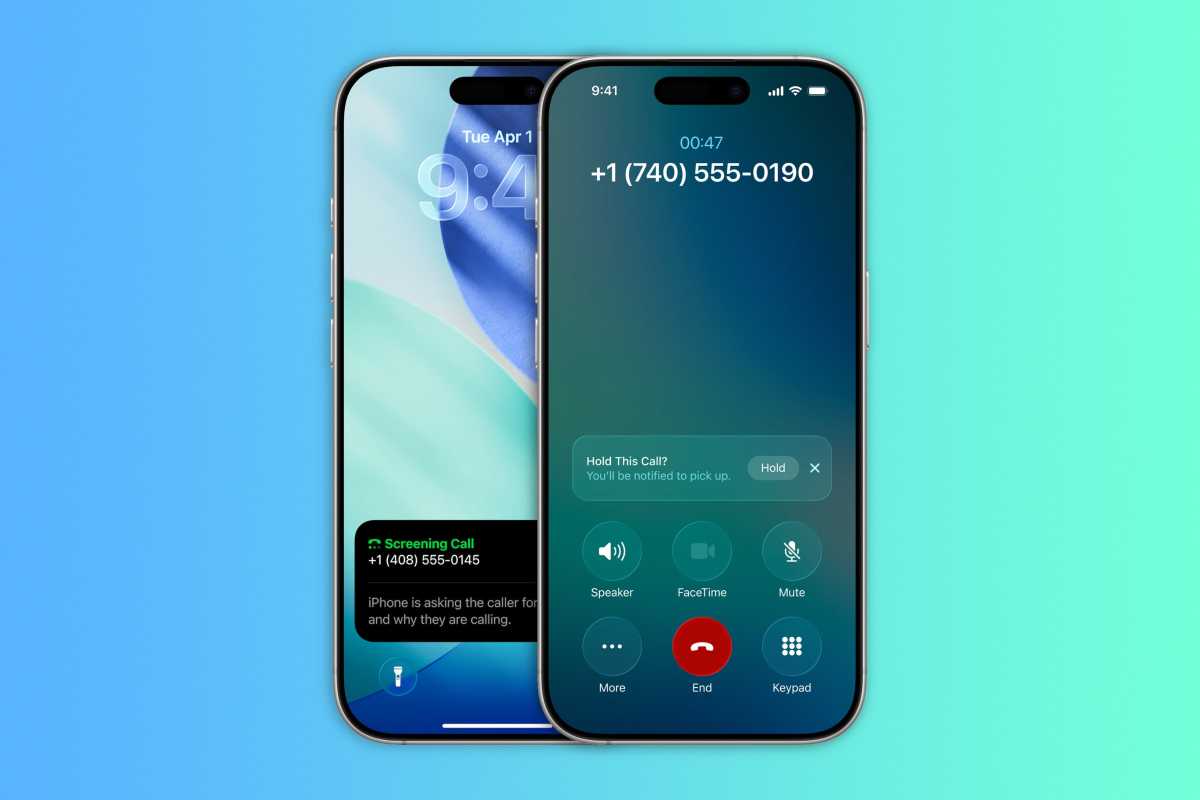
Call screening in iOS 26 will send unwanted calls to oblivion while letting important calls through.
Foundry
How to enable and use call screening
To get started with call screening, you’ll need to have a compatible iPhone running iOS 26. This includes everything from the iPhone 11 line (released September 2019).
Once iOS 26 is installed on your iPhone, you don’t need to install anything else to get call screening up and running, and it doesn’t depend on Apple Intelligence being enabled, for example. When you first receive a call from an unknown number, you may see a prompt asking you to activate Call screening. Otherwise, you can adjust the feature settings manually. To do this, open the Settings app and go to Apps > Phone. From there, scroll down to the Filter unknown callers section. You will now have three choices: “Never”, “Ask reason for call” and “Silence”.
Selecting “Never” will disable call screening, allowing any unknown numbers to reach you in the normal way. “Ask reason for calling” means unknown callers will be asked to provide more information before reaching you. “Silent” simply means that calls from unknown numbers are silenced, sent directly to voicemail, and will appear in your Recents list.
Select “Ask reason for call” and call screening will be activated, giving you an extra layer of protection against the scourge of unwanted calls.
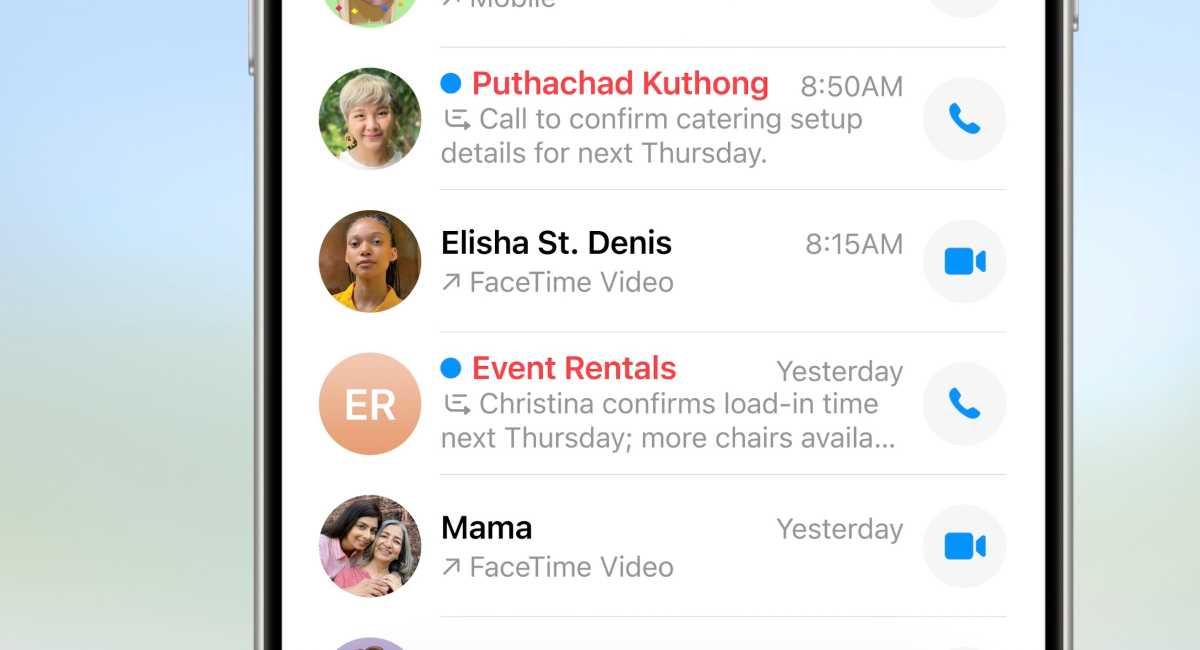
Callers with unknown numbers can identify themselves so you know when to pick up.
IDG
Exclude spammers
I’m not the only person who has felt the benefits of iOS 26’s call screening: social media is full of accounts of other users who feel the same way.
A Canadian Reddit user said it was “Literally the best feature. I finally have relief.” They added that they had not received any unwanted calls for more than 24 hours, whereas previously they received three to 10 calls a day. It has been described as “hands down my favorite feature” in iOS 26 and “an absolute joy” by other social media users. It is not difficult to find a litany of equally enthusiastic praise elsewhere.
Every time Apple updates iOS, the changes it unveils are often met with skepticism or outright hostility from some quarters. And while the Liquid Glass redesign has received its fair share of criticism, it’s hard to see Call Screening receiving so much negativity. Judging by the online response and my own anecdotal investigations, it’s hard to find anyone who is totally opposed to it.
If you haven’t already, I encourage you to try call screening. You may find that it brings a little peace and quiet to your day – and definitely keeps spammers out.