New feature turns AirPods into iPhone camera remotes


The iOS 26 software update just keeps on giving: not only did it add upgrades like a Favorite Places feature in Apple Maps and a battery saver mode, but there’s also something new for your connected AirPods.
With iOS 26, you can use your AirPods as both remote controls for video recording and as a pair of external mics. If you record yourself speaking in any scenario, you should get a much higher quality result in the end.
It also saves you from having to pay to purchase separate remote and mic accessories. While high-end gear will certainly perform better than your AirPods, Apple’s headphones should be enough for most casual users and hobbyists.
What you need

First, you need to make sure your iPhone is updated to iOS 26. To check for pending updates, open Settings on your iPhone, then tap General > Software Update. And after you try this AirPods trick, check out the other new features in iOS 26.
You’ll also need a pair of compatible AirPods. It works with AirPods Pro 2, AirPods Pro 3, and AirPods 4 (with or without active noise cancellation). If you haven’t already connected them to your iPhone, simply charge the AirPods in their case, then bring the case and earbuds together.
Choose to pair the AirPods with your iPhone when you see the prompt appear on the screen, and you should see them connected to each other within a few seconds. If these are brand new AirPods, you may want to wait a few hours before continuing, so that all the latest earbud firmware updates can be found and applied (this happens silently in the background, so you don’t have to do anything).
How it works
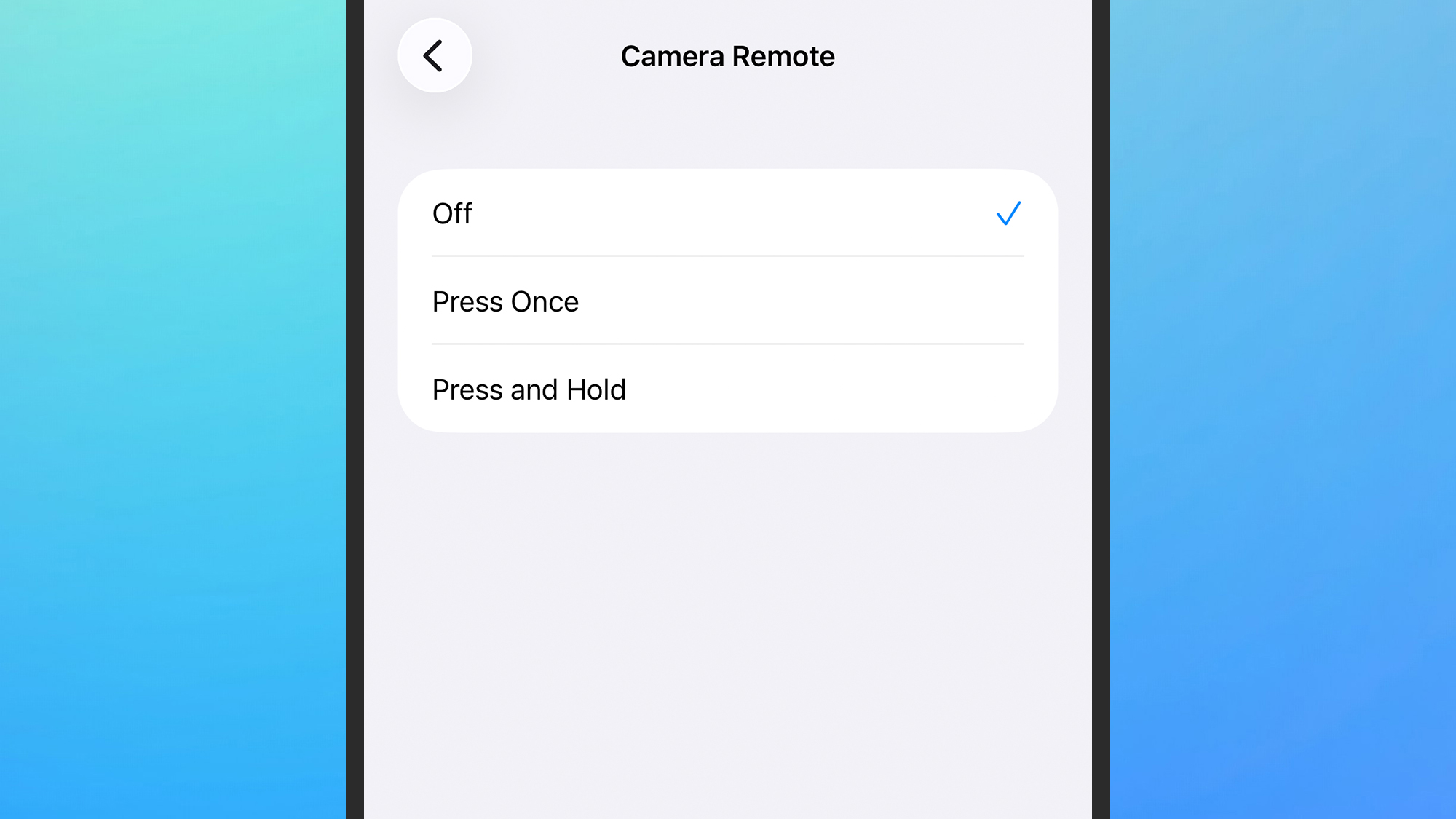
Once setup is complete, you should see a new Remote camera The option appears if you tap your AirPods in iOS Settings. This menu lets you decide whether the remote record trigger works by pressing and holding the stem of your AirPods, or by long-pressing the stem of your AirPods (or you can turn the feature off).
When you open the Camera app, the new feature should be ready to use and this trick will also work with a variety of third-party camera apps. Simply frame the video (or photo) taken as usual, then use the tap gesture or press and hold on your AirPods to start recording or take a photo.
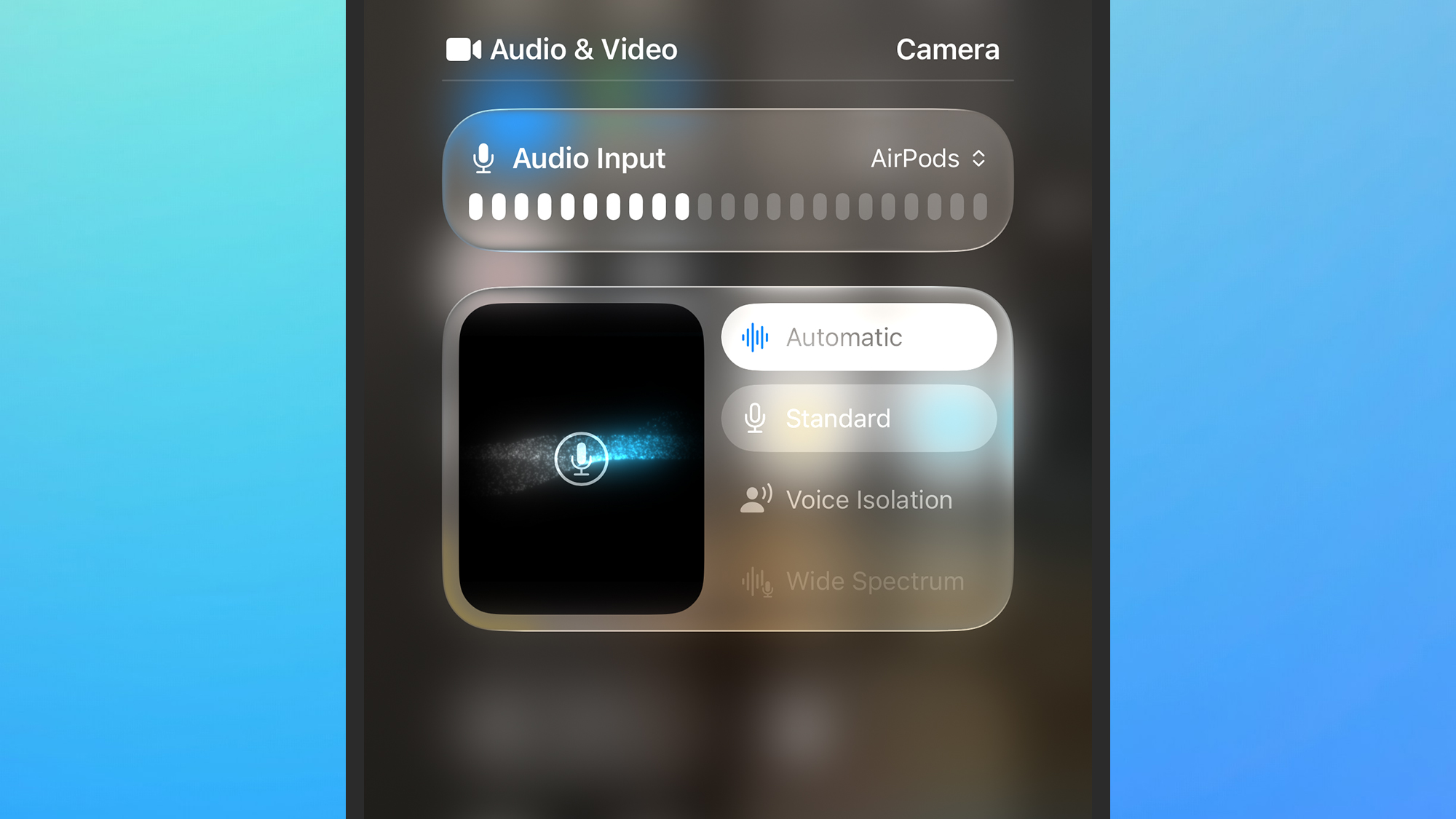
To switch to your AirPods for voice typing, swipe from the top-right corner of the screen to open Control Center, then tap the green bar at the top of the screen. Select Audio inputthen choose your AirPods. The multiple recording modes offered by your AirPods will also be displayed on the screen, so you can choose between them.
What to keep in mind
It’s all very simple and can make a real difference to the quality and professionalism of your video recordings: just like using AirPods on a video call. Keep in mind, though, that your AirPods actually have to be in your ears for this to work (you can’t use them as a Bluetooth remote, for example).
Note that if you configure this, other gesture shortcuts on your AirPods will be disabled while you record video or take photos. You may lose the ability to switch between media tracks, for example, or activate Siri, but these features will return once you exit the Camera app.
There’s still no way to switch between cameras on an iPhone when shooting video, so make sure you’ve selected the correct camera to begin with (via the button in the bottom right corner). It’s also a good idea to select your mic source before you start recording, so you don’t miss anything.

PopSci Outdoor Gift Guide 2025