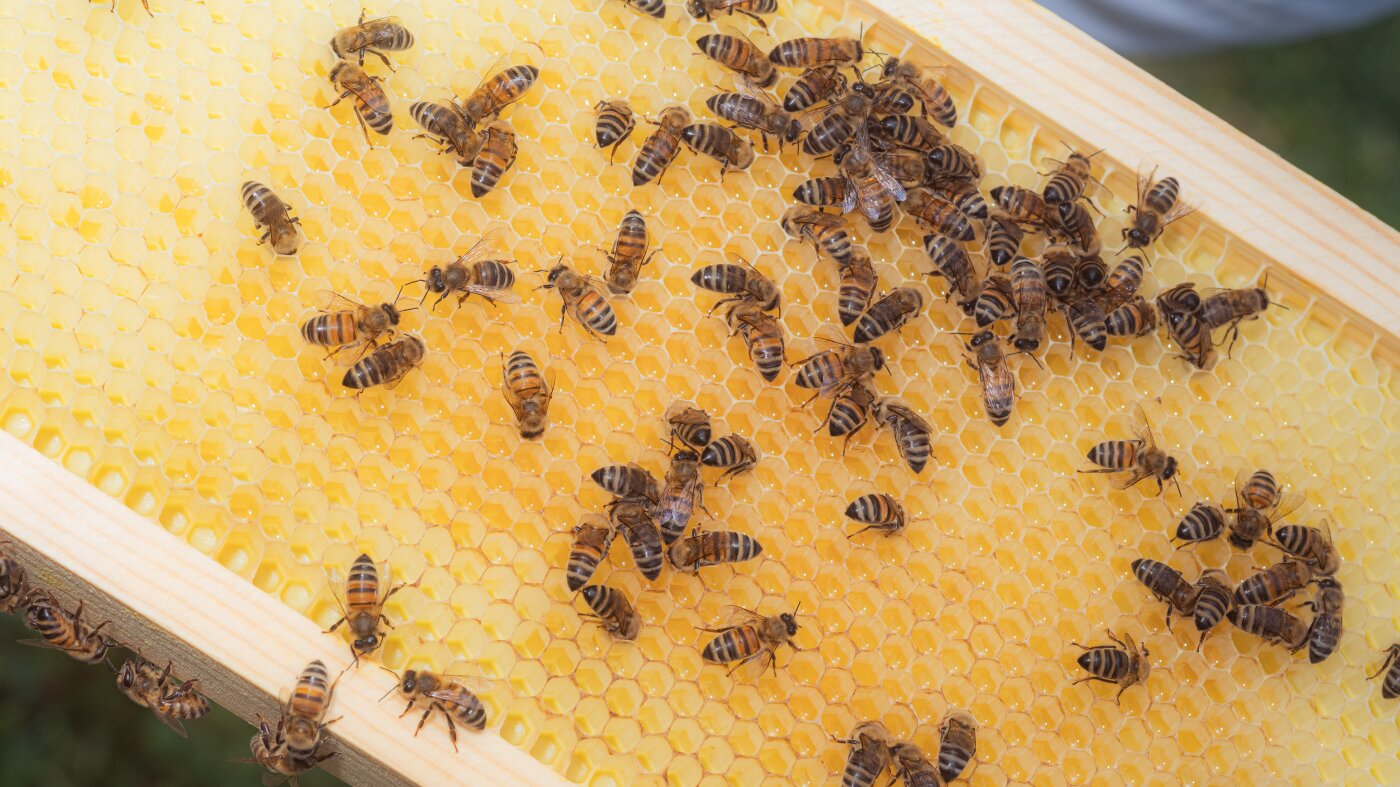

Bees in a hive in San Diego, Calif. Beekeeping has been a practice for thousands of years.
Alan Nakkash for NPR
hide caption
toggle caption
Alan Nakkash for NPR
When Kendal Sager lifts the top of her beehive, tens of thousands of bees waggle across the honeycomb — their cells filled with bright yellow, orange and pink pollen collected from flowers in Sager’s neighborhood.
Sager, a California master beekeeper, said bees do far more than produce that sweet substance: they pollinate crops for hundreds of types of nuts, fruits and vegetables.
“Even if you don’t like bees themselves, you have bees to thank for the food on your table,” she said.
This Wednesday is World Bee Day, which was established by the United Nations in 2018 to raise awareness about the need to protect the insects. So this installment of NPR’s Word of the Week looks at the mystery behind bees’ buzzy name — and why they need more of our attention than ever.

Kendal Sager is also the founder of Sager Family Farm, which provides educational “reverse” field trips where bees visit the students.
Alan Nakkash for NPR
hide caption
toggle caption
Alan Nakkash for NPR
Why the origin of ‘bee’ is difficult to trace
Doug Harper, founder and editor of Etymonline.com, an etymology dictionary, said that unlike many words, the meaning of “bee” has pretty much remained the same over time.
“A word like ‘bee’ has always been ‘bee,’ as far back as you can trace it,” he said.
According to Harper, “bee” came from the Old English “beo.” Some poets in the past would use the term “beowulf”, meaning “a wolf to bees,” to describe bears.
But the exact origin of “bee” itself remains a linguistic mystery largely because of the insect’s long history on the planet, Harper said. Bees have existed for millions of years, and beekeeping has been a practice for over a millennia.
“The words that have been here forever, we’ll never know probably,” Harper said.

An engraving of various bees engraved by J. Bishop, circa 1800.
Hulton Archive/Getty Images
hide caption
toggle caption
Hulton Archive/Getty Images
One theory is that it relates to the buzzing sound that the insect makes, he added. Throughout history, other words have been used to refer to the pollinator, like the Latin word “apis” which led to “apiary,” or the places where beehives are kept.
But “bee” endured like none other. It now belongs to an array of phrases and idioms: making a “beeline,” being a “busy bee,” minding your own beeswax. That’s a testament to how humans have closely watched and appreciated bees for centuries, according to Harper.
“ When I look at words like that, they don’t even look like words. They look like landscape. They’re so ancient,” he said. ”Those things are sort of rare and valuable just for that.”
The bees are not all right
Over the years, it’s become harder to keep bee colonies alive. That was most apparent last year, when commercial beekeepers in the U.S. reported losing nearly 56% of their honeybee colonies — the largest decline since the annual U.S. beekeeping survey began in 2010.
“The worry is that at some point they won’t be able to keep up anymore,” said Mateo Kaiser, a fifth-generation beekeeper in California and the managing director of Swarmed, a resource for beekeepers.
There’s a number of factors behind last year’s huge collapse, including habitat loss, exposure to harsh pesticides and a tiny, but destructive, parasite known as the Varroa mite, which arrived in the U.S. from Asia in the 1980s.

Bees are extremely sensitive to changes in the climate, according to Mateo Kaiser, who is a fifth-generation beekeeper in California.
Alan Nakkash for NPR
hide caption
toggle caption
Alan Nakkash for NPR
More broadly, bees are extremely sensitive to changes in the climate, according to Kaiser. If the spring season is too dry, flowers and trees cut back on nectar production, causing bees to go hungry. If there’s a sudden cold snap in the spring, it could set bees back in their progress for the whole season, Kaiser added.
“As the climate changes and becomes less predictable, it becomes harder for beekeepers to know what to expect and to make sure that they’re taking the best possible care of their bees,” he said.
Each year, bees make millions of trips across the country. Their travels not only pollinate crops and produce honey, but also provide insight into how the environment is faring.
“Anything the bees are coming into contact with, it’s affecting them and it’s telling us something about the health of our communities, and how local biodiversity and ecosystems are being impacted,” he said.
As a result, Sager said bees have made her more attuned to the weather and when flowers are blooming. That’s one more way that bees are making an impact on humans.
“ So even if you don’t care about the bees,” she said, “it’s pointing at a lot of other issues that may cause problems for everyone and other species.”