
Your NAS is often the place where you store all your most important files. Backups, photos, movies, and so on—there’s a reason why all that stuff isn’t just rotting on your PC and is instead being actively kept safe. But there’s an easy way to sabotage all that security, and it comes down to port-forwarding your NAS to the public internet.
It may feel convenient, but it’s opening up your NAS to a world of danger. Here’s why exposing your NAS to the internet can be a bad idea, and how to do it safely if you want to do it.
Why exposing your NAS to the internet is so risky
It has its benefits, but also its fair share of risks.

If you frequent various NAS-related communities, chances are you’ve heard that you shouldn’t “expose your NAS.” But what does that really mean? Exposing a NAS means making it directly reachable from the public internet, and the most common way people do that is by port forwarding.
Port forwarding a NAS means telling your router to take incoming connections from the public internet, and those connections are sent straight to your NAS on your home network. The goal is often to reach your NAS’s web dashboard (like DSM/QTS), Plex streaming, or file-sharing services when you’re not at home, and it sounds great, but it comes with some major caveats.
The main problem is that this doesn’t just make your files available—it can make the NAS itself reachable from anywhere. When you consider that your NAS is an always-on device that contains all your most important files, plus it’s connected to the rest of your home network … well, that can be a problem.
It might seem like you’d need to share the specific IP and port for an attacker to discover your device, but it’s not that simple. Attackers don’t find you manually. Automated scanners and exploit kits sweep the internet for exposed services, and they might eventually stumble upon yours. A NAS makes a great target for ransomware like DeadBolt or eCh0raix, which specifically scan for exposed storage devices to encrypt your data.
The worst part about all of this is perhaps that your NAS might be exposed without you specifically making it so. UPnP (Universal Plug-and-Play, a set of networking protocols) is often enabled by default on consumer routers, and it means that some ports may be open to the public and you may not even know it.
The safer alternatives to port forwarding
Your NAS doesn’t have to stay offline forever.

The most obvious way to protect your NAS is to simply let it live within your home network with no inbound access from the internet.
This, of course, means you won’t be able to access your home network remotely. This can be an issue if you regularly access your files from outside your local network, or if you want to be able to stream your media library via Plex. But Plex can be set up without internet access or routed through a secure VPN instead of direct port forwarding. Besides, you can just copy them to a portable SSD and watch on the go, anyway.
If you’ve got your heart set on having some access to your NAS, the answer is simple: Don’t expose the NAS; expose a private way into your home network and guard it well.
This can be done in multiple ways, and setting up a VPN is the most obvious one. An overlay network like Tailscale is another option. Beyond that, if you haven’t built your own NAS or repurposed an old PC to perform this role, and instead bought a ready-made one from a company like Synology, it’ll often come with built-in security tools that make remote access safer and easier to set up.
If you absolutely need your NAS to be public, keep the access window as tiny as can be. One service, one port, and secure protections all over the network will go a long way toward keeping your exposed NAS safe.
If you insist on remote access, start here
Always hope for the best, but prepare for the worst when it comes to online NAS access.

If you’re making your NAS reachable to outside networks, lock it down as best as you can.
Build a solid foundation by keeping your NAS OS/firmware up to date, then update all the installed apps, distros, and packages. Get rid of everything you don’t actively use that could potentially be a cybersecurity liability.
Next, dive into the most important router settings to bolster security. Disable UPnP and automatic router configuration on both the router and the NAS to make sure you have a full overview of your port forwarding.
Enable and use the NAS firewall. Create a rule that allows your home network IPs through so that you don’t lock yourself out, then set another rule to deny anything you don’t absolutely need by default. Ideally, only allow VPN connections or overlay subnets.
Next, follow the basic rules of secure data storage, including enabling multi-factor authentication when possible, turning on auto-block for failed login attempts, and securing all your passwords, router very much included.
The best way to set up remote access
The more, the better.
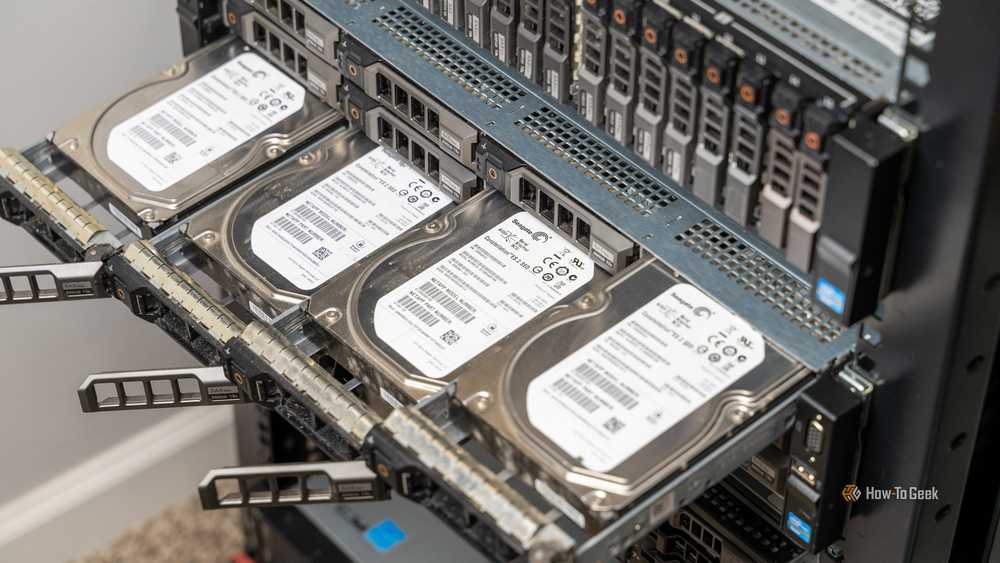
The least-bad exposed NAS setup usually begins with a secure VPN or an overlay network that acts like one.
Self-hosted VPNs running on WireGuard are popular. However, it’s best if you host the VPN on a different device than the NAS itself, but for many home users, that’s the only always-on device in the home.
You’ll typically run WireGuard on your router or a small always-on mini PC that hosts it, then that device acts as the connection between your remote device (let’s say a phone or a laptop) and your NAS.
If you’d rather use an overlay like Tailscale, enforce device/user sharing and Access Control Lists (ACLs) so that connections are targeted. Use split tunneling where you can.
If you’ve already exposed your NAS, here’s what to check right now
A quick list of things to keep your NAS secure.

Start by turning off port forwarding for NAS services and disabling UPnP. If it’s off, you’re all good.
Next, look through all your accounts. Enable 2FA everywhere, change passwords, and review login logs for access attempts. Audit all installed apps and figure out whether you need them, and if you do, whether you trust them to have internet access while still sharing the same home as the rest of your files.
Exposing your NAS doesn’t automatically mean disaster, but it does mean you need to think twice. Make the window of access as small as possible. If you frequently need to access your NAS remotely, cloud storage might be a better option for those files.
Remember to follow the 3-2-1 rule for secure backups and keep your most important files backed up on multiple devices that aren’t all on the same network.


