You’re not making the most of the clipboard on your Android phone


The clipboard on your Android phone can be just as useful as the same feature on your Windows or macOS laptop. Although it may seem like cut, copy and paste functions are not used as well on mobile as they are on desktop operating systems.
Whether you’re pasting an image from the web into an email or copying an address from Google Maps into a chat conversation, the Android clipboard can save you a substantial amount of clicking and swiping, if you know how to use it correctly.
The default Android clipboard actually comes with more features than you might have imagined, and it’s likely that you’ll want to use them to their fullest, once you know what they are. This is how the clipboard works on Pixel and Galaxy phones.
The clipboard on Google Pixel phones
To some extent, the features available through the clipboard on Android depend on the keyboard app you have installed. If you’re using a Google Pixel phone, it will default to Google’s Gboard, but you can install this keyboard on just about any Android phone you want and access the same features.
Open Gboard in any app (such as a messaging app) and you’ll see a clipboard icon above the rows of letters. Tap it, then turn on the toggle switch or choose Enable clipboard to access all the features offered by Gboard, including a clipboard history. You’ll immediately see some on-screen tips to help you get started.
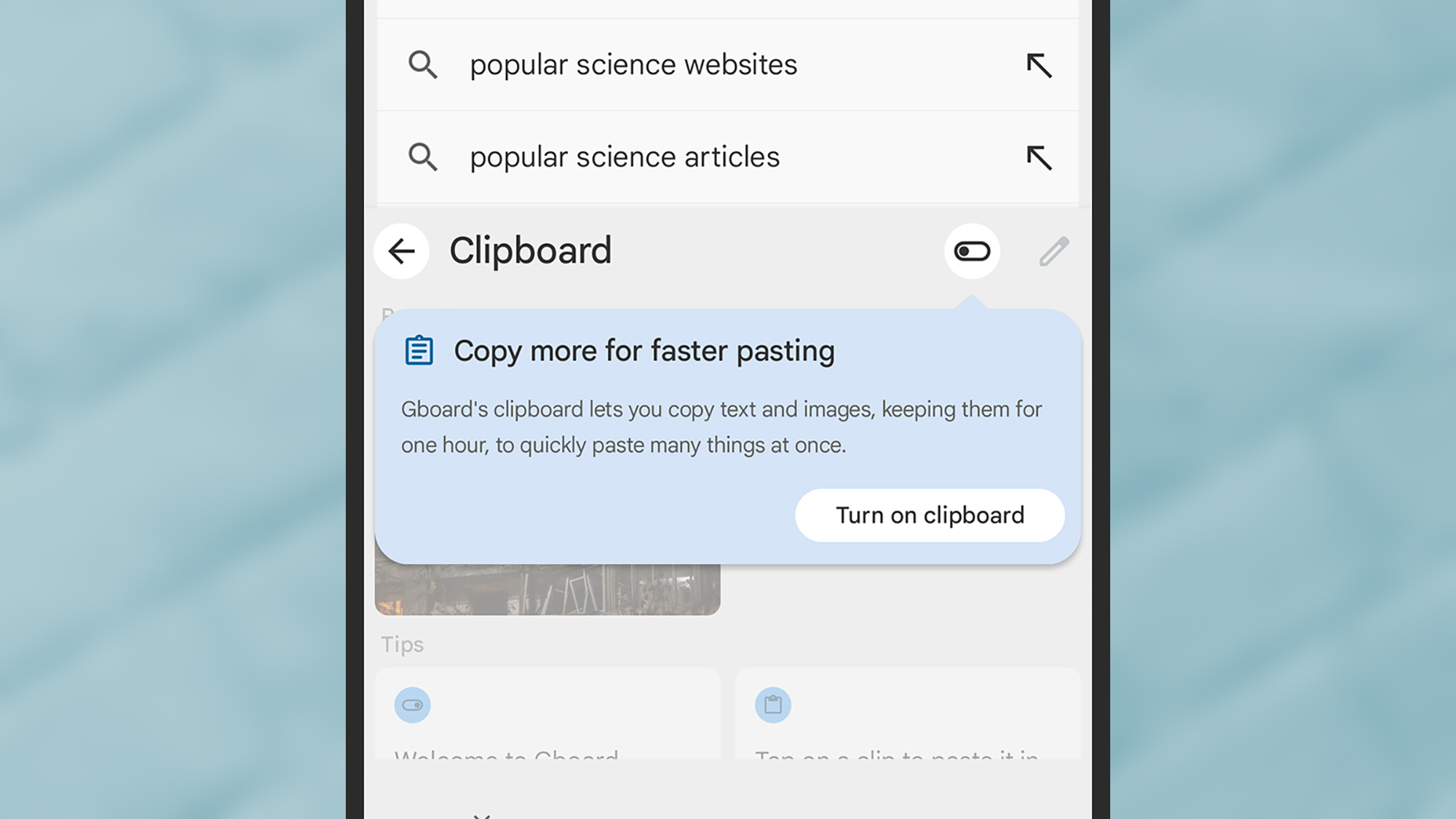
There are several ways to display text, links, and images on the clipboard, depending on the application you are in. In Google Chrome, for example, long-press an image, then choose Copy image to send it to the clipboard. In WhatsApp, long-press a message, then tap the copy icon (the two rectangles) at the top of the screen.
As soon as you copy or cut something, you will see a small preview in the lower left corner. Tap the share button immediately to the right of the preview window and you can quickly paste the text, link or image into another app. First, you’ll see your most used apps and the contacts you communicate with most frequently.
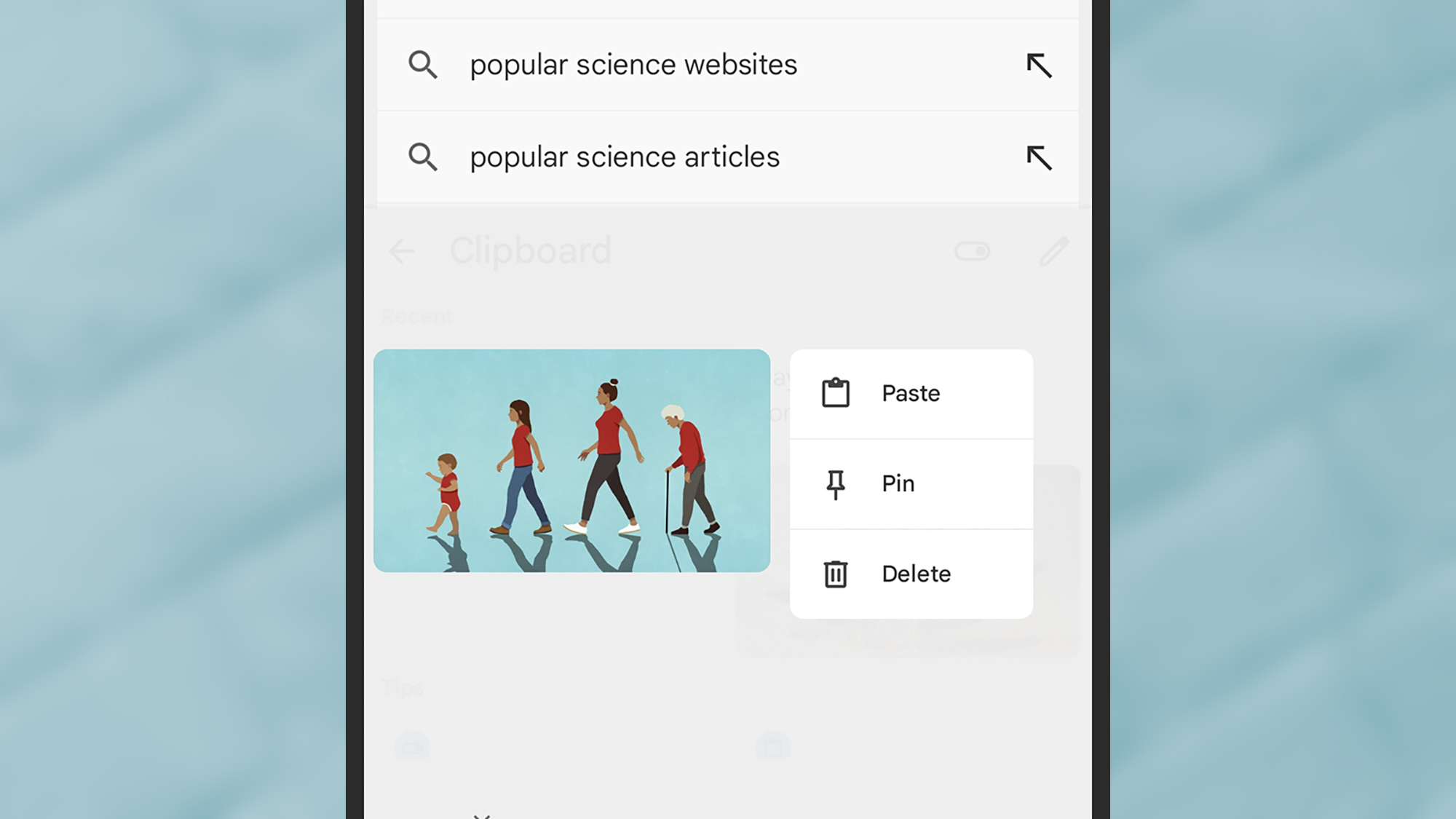
To see clipboard items at any time, tap the clipboard icon in Gboard. You can then long-press any item to paste, delete, or pin it. Note that anything not pinned automatically disappears from the clipboard after an hour. You can also tap the pen icon at the top right to select multiple items at once.
Finally, you can also access some clipboard settings by tapping the four dots in the upper left corner of Gboard, then Settings And Clipboard. The toggle switches on the next screen allow you to view recent clipboard items in the keyboard’s suggestion bar, store screenshots to the clipboard, and select phone numbers and addresses for items.
The clipboard on Samsung Galaxy phones
On Samsung Galaxy phones the clipboard works slightly differently, unless you have Gboard installed of course, in which case everything works largely as above. On Galaxy handsets, the default keyboard is the imaginatively named Samsung keyboard, which appears whenever you need to enter text in an app.
You’ll notice that this keyboard has its own clipboard icon, just above the rows of letters. This time, however, there is no need to enable the full clipboard functionality, as is the case on Pixel phones: the Samsung keyboard clipboard stores several items right from the start, which you can view at any time by tapping the clipboard icon.
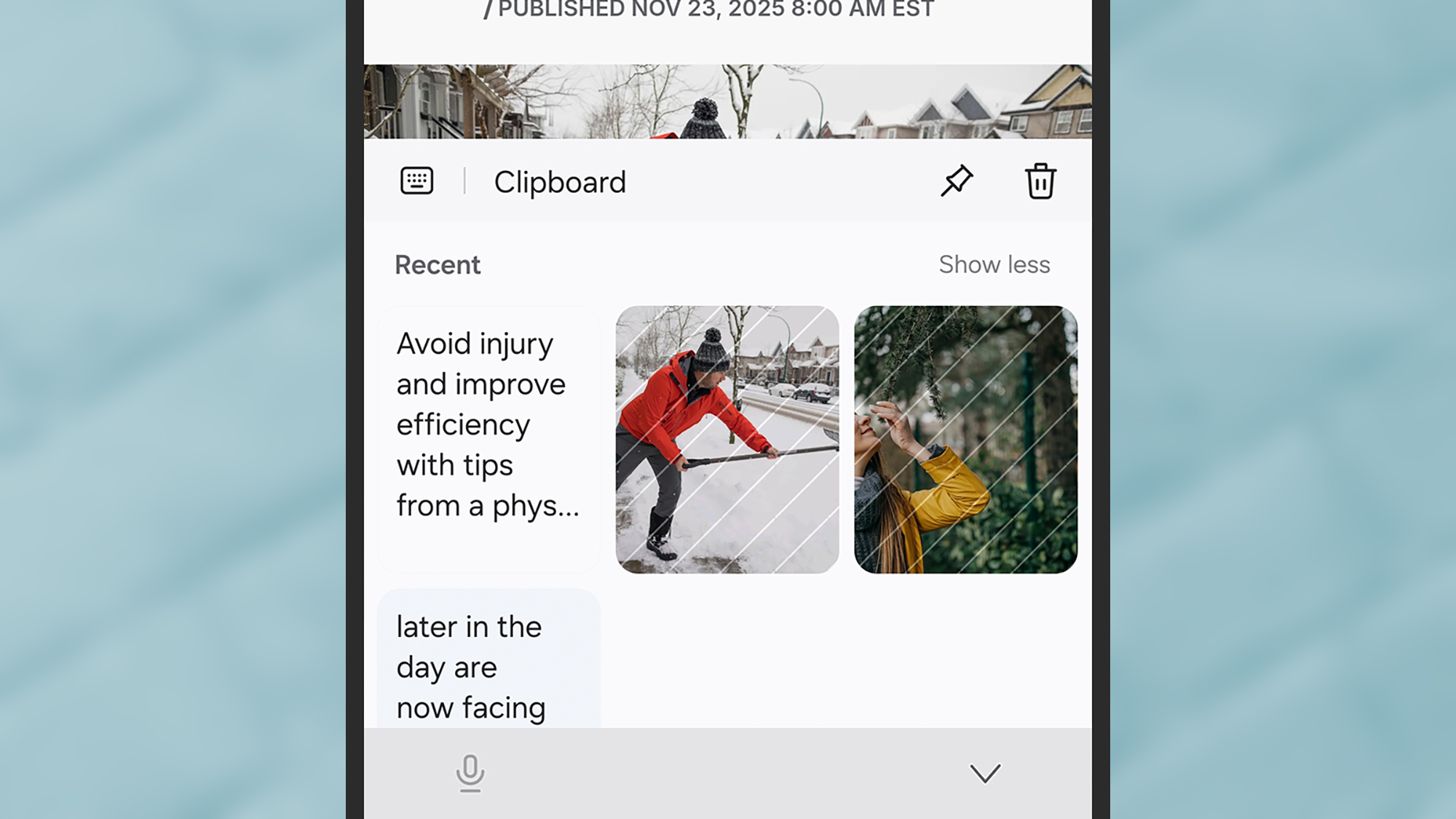
To paste something from the keyboard into the box or field you currently have selected, simply tap it. Tap and hold, and you have the option to delete items or pin them so they’re still accessible. Samsung doesn’t specify how long unpinned items stay, but if you want to make sure something doesn’t get lost, pin it.
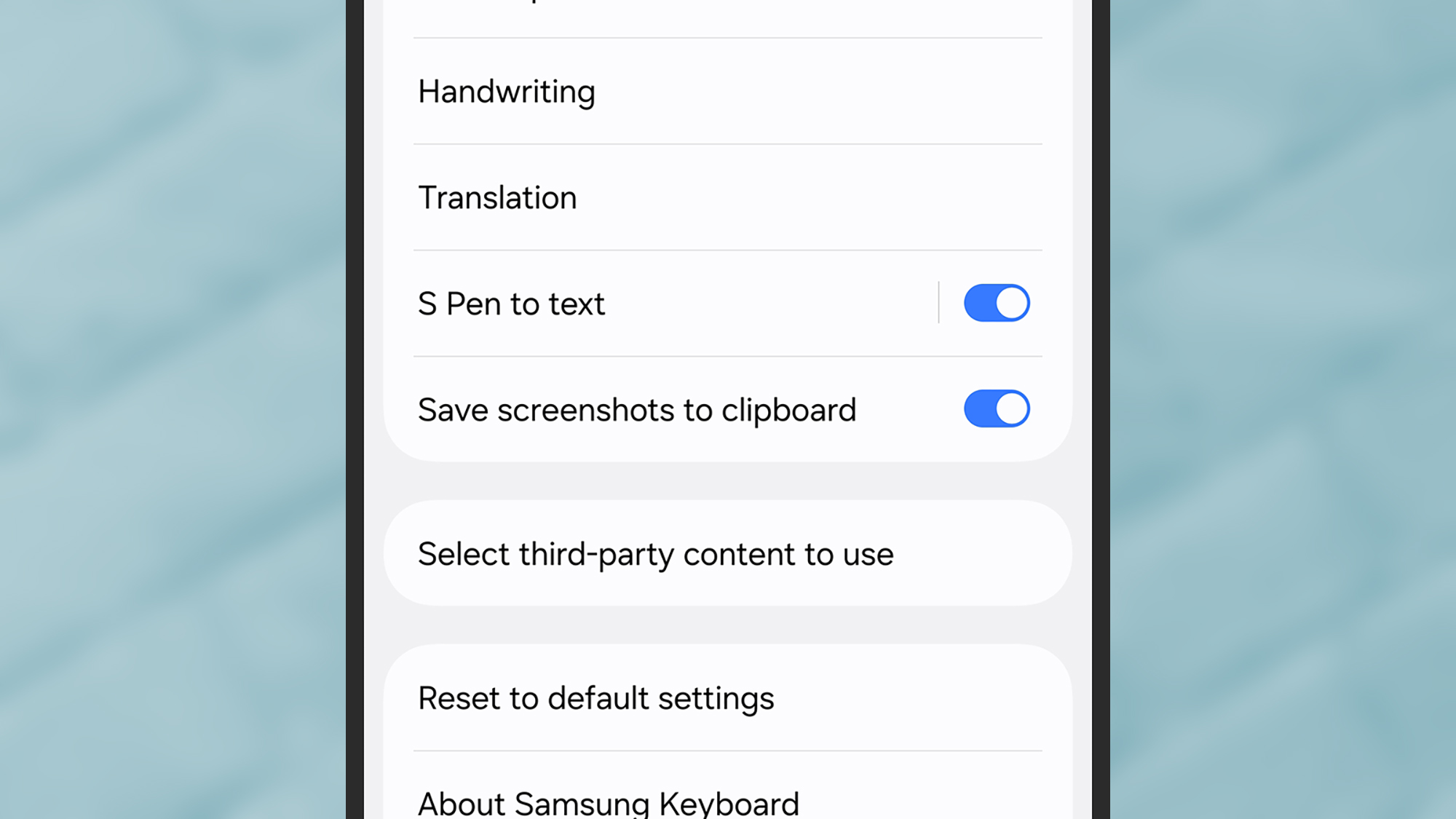
To access your Samsung keyboard settings, tap the gear icon, which is located just to the right of the clipboard. There is only one setting to note here, related to the clipboard, which is the Save screenshots to clipboard toggle switch: Turn this on if you also want to see screenshots captured in the clipboard.
Like on Pixel phones, copying and pasting depends to some extent on the app you’re using. In the Samsung Internet browser, for example, you can long-press an image and then choose Copy image to send it to the clipboard. If you select text on a website, long press on it you will see a Copy on the context toolbar above.
You don’t get the clipboard preview that you get on Pixel phones, but you can paste the most recently added clipboard item anywhere with a long press on the screen, usually in a text field somewhere. In addition to obtaining a Stick option, you will also see a Clipboard button that takes you to the full clipboard view.

PopSci Outdoor Gift Guide 2025


