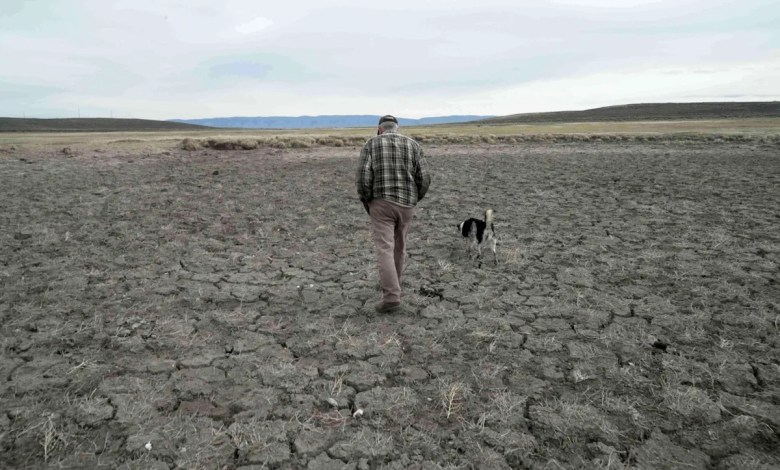
Drought in the contiguous United States has reached record levels for this time of year, weather data shows. Meteorologists said it’s a bad sign for the upcoming wildfire season, food prices and western water issues.
More than 61% of the Lower 48 states is in moderate to exceptional drought — including 97% of the Southeast and two-thirds of the West — according to the U.S. Drought Monitor. It’s the highest levels for this time of year since the drought monitor began in 2000.
The National Oceanic and Atmospheric Administration’s comprehensive Palmer Drought Severity Index not only hit its highest level for March since records started in 1895, but last month was the third-driest month recorded regardless of time of year. It trailed only the famed Dust Bowl months of July and August 1934.
Because of record heat, much of the West has had exceptionally low levels of snow in the first few months of the year, which is usually how the region stores water for the summer. A different drought — connected to the jet stream keeping storms further north — has put the South from Texas all the way to the East Coast into a separate drought that just happens to coincide with what’s going on in the West, said Brian Fuchs, a climatologist with the National Drought Mitigation Center.
It would take 19 inches of rain in one month to break the drought in eastern Texas and more than a foot of rain to solve the deficit for most of the Southeast, NOAA calculated.
“Right now 61% of the country is in drought and that’s steadily been going up for the calendar year,” Fuchs said. “We just haven’t seen too many springs where this amount of the country has been in this kind of shape.”
Sticking out like a sore thumb is a highly technical but crucial measurement of “the sponginess” of the atmosphere — or how much moisture the hot, dry air is sucking up from the land it’s baking. It’s called vapor pressure deficit. It’s 77% above normal and more than 25% higher than the previous record for January through March in the West, said UCLA hydroclimatologist Park Williams.
That level of moisture-sucking from the ground “wouldn’t have appeared possible” before now, Williams said.
Drought usually peaks in summer, not spring, and that’s what worries meteorologists.
“Fire tends to respond to heat and drought in an exponential manner,” Williams said. “For each degree of warming, you get a bigger bang in terms of fire than you got from the previous degree of warming.”
In Arizona, cacti are blooming months early and the worry about water has already started, said Kathy Jacobs, director of the Center for Climate Adaptation Science and Solutions at the University of Arizona.
“Those of us who are dependent on the Colorado River, of course, are very concerned about the fact that we don’t have a negotiated path forward in the middle of what appears to be possibly the worst year of drought that we’ve all experienced,” Jacobs said. “We have lots of reservoirs that are not full.”
Yale Climate Connections meteorologist Jeff Masters said his biggest concern is what drought will do to agriculture and then food prices. If America has a poor crop year because of the drought, it could be a global problem. A strong natural El Nino weather oscillation is predicted, which often reduces crop yield in other places across the globe, such as India.
UCLA’s Williams said the drought and hotter weather are driven by both natural variability and human-caused climate change with randomness a slightly bigger factor.
“All weather is now affected by climate change,” Arizona’s Jacobs said. “There is no such thing as weather that’s divorced from climate trends. But this extreme event is extreme in the way that we’ve been expecting: extreme heat waves, intense drought.”
___
The Associated Press’ climate and environmental coverage receives financial support from multiple private foundations. AP is solely responsible for all content. Find AP’s standards for working with philanthropies, a list of supporters and funded coverage areas at AP.org.


