This iOS 26 toggle just fixed a problem that’s plagued my iPhone for years


Updates since iOS 26 arrived have brought many changes and features to our iPhones, including the ability to dim Liquid Glass, a new way to ensure you don’t accidentally turn off an alarm, better AirDrop security, and much more. But one of my favorite tweaks has nothing to do with any of that – it’s more about the lock screen.
Originally released in iOS 26.1, you can now disable the swipe gesture that opens the camera right from your lock screen. You’re probably very familiar with this gesture: it’s a quick way to get the Camera app working without having to unlock your phone and access it for a long time. When you need to move quickly and capture a fleeting moment, this is a great option.
But chances are you’ve also accidentally activated it more than once. And it’s exactly this problem that makes me so happy to finally be able to turn it off.
Persistent irritation
I’ve lost count of the number of times I’ve taken my iPhone out of my pocket, only to find that the camera app is open without me realizing it. This is more than just a nuisance: it’s entirely possible to inadvertently launch the camera and leave it in your pocket for a considerable amount of time, draining the battery without you knowing.
This turns this gesture from a slight inconvenience into a much bigger problem, especially if my iPhone is low on juice to begin with. I’ve never had my iPhone die due to an unintentional camera move, but I’m sure there are people who have.
Thanks to this new setting in iOS 26, I can forget this is happening. A quick foray into the Settings app and I can permanently disable the camera gesture, nipping this problem in the bud once and for all.
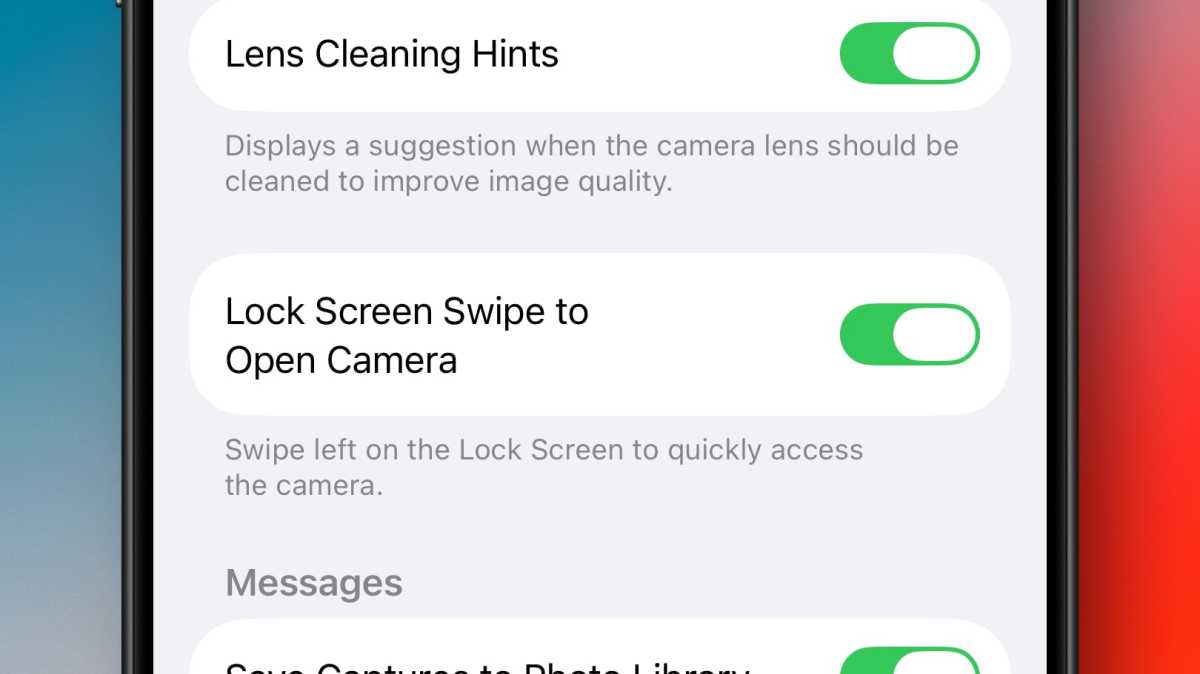
iOS 26 now lets you disable the lock screen swipe gesture that launches the Camera app.
Foundry
How to Disable Camera Gesture on Lock Screen
Disabling the gesture that launches the camera from your lock screen is quick and easy. Follow the steps below and you’ll never have to experience accidental camera-induced battery drain again.
- 1. Open the Settings app on your iPhone
- 2. Access the Camera section and tap it
- 3. Scroll down the list until you see Swipe the lock screen to open the camera
- 4. Tap the toggle next to this text to turn off the feature
Now swiping your finger from right to left on your lock screen will do nothing – no more camera damage and no more unintentional battery drain while your phone sits idle in your pocket.
Of course, you might ultimately change your mind and decide that you actually want this gesture back. In this case, simply return to the Settings app and turn the toggle back on, thereby undoing the change. Apple hasn’t removed the offending gesture entirely and simply made it an optional feature that can be turned on and off as you wish.
That said, I can’t remember the last time I had to use this gesture to open the camera, especially now that controlling the camera is a much quicker and more reliable method. Failing that, I have the Camera app icon on my lock screen, which is harder to activate accidentally because it requires a long press rather than a swipe.
I will therefore miss the gesture that has tormented my iPhone for so long. Instead, I now know that every time I take my phone out of my pocket, I’ll be greeted by a blank lock screen instead of a dead battery. And it’s the kind of small adjustment that can make a big difference.


