Your SSD isn’t too small, you are just using it wrong


SSD prices have risen sharply recently, in part due to global memory shortages and high demand. For many PC users, upgrading storage has become an expensive proposition, making now the perfect time to get creative and make the most of the space you already have.
SSD prices are astronomical and unlikely to drop anytime soon
Modern NVMe SSDs (the blazing-fast drives in most gaming PCs and laptops) rely heavily on both NAND flash for storage and DRAM as cache to increase speed.
As AI data centers gobble up the entire global supply of memory chips, DRAM and NAND are now in severe shortage, causing many NVMe SSDs to surge up to (and likely even above) 250%. These types of exorbitant NVMe SSD prices make storage upgrades difficult to justify.

And while you can take your chances by waiting out the shortage, many reports suggest it could last several years or more. So you only have two options: upgrade if you can still afford it, or make smart use of the storage you already have.
However, if you’re smart about how you use your storage, you can get by with just 1TB, or even 500GB, even if you play modern games.
Free up SSD space without spending a cent

One of the best tips I learned as a kid is to only keep games that I actually play on my PC. I carried this “play at a time” habit into adulthood, which has served me well given that many games can now take up well over 100 GB.
Even now that I have a decent sized 2TB NVMe SSD, I try to keep my installed games in the single digits, not counting small indie games that only take up a few gigabytes or less.
If you’re low on disk space, you should also consider following this “download, play, finish, uninstall” strategy. You may even find that you’re more motivated to play and complete the games you start, because it reduces the decision-making paralysis that comes with installing too many games.
You can also extend this tip to apps. Keep only your essential tools installed and make an effort to uninstall anything you haven’t opened in a few months.

If you want to be very frugal, consider switching to lightweight programs (preferably open source). Depending on your workflow, you can even switch to cloud tools entirely: why keep Adobe Photoshop or Microsoft Word installed if Canva and Google Docs can do the job?
And when you uninstall files, make sure you do it correctly. Many games and programs will leave junk files behind if you use the standard uninstaller, but with a tool like Revo Uninstaller (free and paid options) you can perform a clean uninstall.
Speaking of cleaning, an easy way to free up potentially double-digit gigabytes on Windows machines is to use the Disk Cleanup tool. It deletes temporary files, such as browser cache and files created during Windows updates, empties Recycle Bin, clears thumbnails, deletes old memory dump files, etc.
I hadn’t emptied my Trash in a while, so a quick run of Disk Cleanup freed up over 20GB of unused junk.

Move large files to HDD or NAS to expand your SSD space
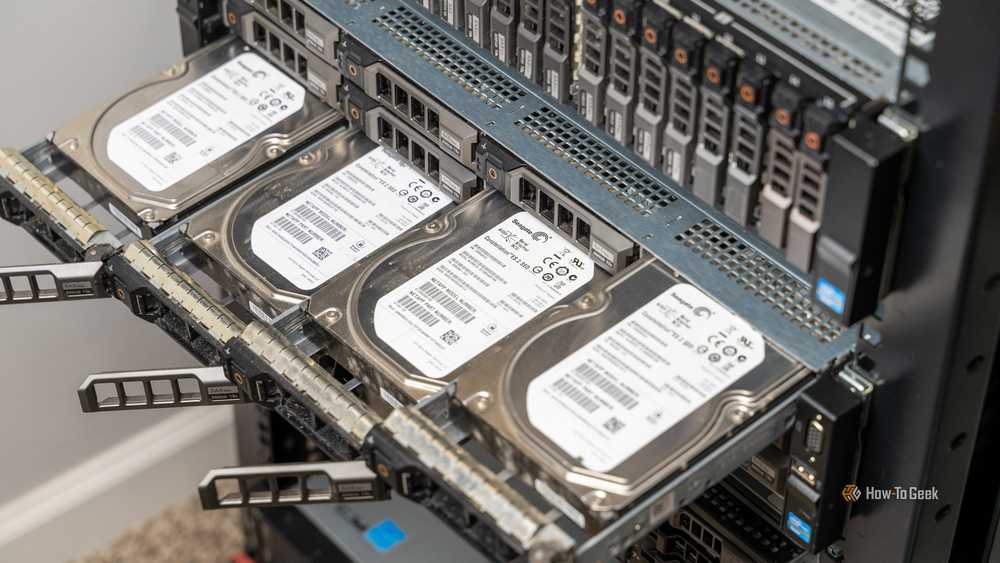
Although the tips above can help you with day-to-day storage management, they are still not a complete solution. If you want to free up potentially hundreds of gigabytes on your NVMe SSD, one of the best ways is to move your large files elsewhere. You’ll still want to keep quick access to frequently used apps and games that you actively play on your SSD, but almost everything else can be offloaded.
Videos, photos, movies and anything else you don’t need to access multiple times a day can be moved to a hard drive or, better yet, to a NAS if you have one. You will still be able to easily access the files: it will only take a few extra seconds.
It’s worth noting that hard drive prices have also increased: hard drives are cheaper and more reliable for long-term storage, which is why they make up the bulk of storage in data centers.
That said, they still cost a fraction of an SSD per gigabyte. For example, you can currently get a 5TB Seagate external hard drive for around $140, while you’d be lucky to get 1TB of NVMe SSD storage for around the same price.

- Storage capacity
-
1TB, 2TB, 4TB, 5TB
- Brand
-
Seagate
The Seagate Portable External Hard Drive is a compact USB 3.0 drive that makes it easy to store and access files on Windows, Mac, PlayStation or Xbox. Simply plug it in and drag and drop your content for quick backups on the go.
If you don’t have a hard drive or don’t plan to buy one at the moment, cloud storage or USB drives are good alternatives. Although accessing files may require an extra step, it is still a cost-effective way to store large files and even programs in the case of flash drives.

10 Portable Apps I Always Keep on a USB Drive
Get to work immediately, wherever you go.


