
A fresh Windows installation takes time, and after all that effort, we want to use the device right away. While that’s fine at first, there are a few steps you shouldn’t delay for long—they help keep your system stable, protect your privacy, and make recovery much easier.
Create a Restore Point
When Windows starts acting up, we often try surface-level fixes to solve the problem. Sometimes, though, nothing works. That’s where Windows System Restore comes in—a built-in feature that allows you to roll your system files and settings back to an earlier point in time, often resolving the issue. Since System Restore is disabled by default, you should enable it first.
To turn it on, type View advanced system settings into the search bar, then open the matching result. Next, go to the “System Protection” tab, click “Configure,” and select “Turn on System Protection.”
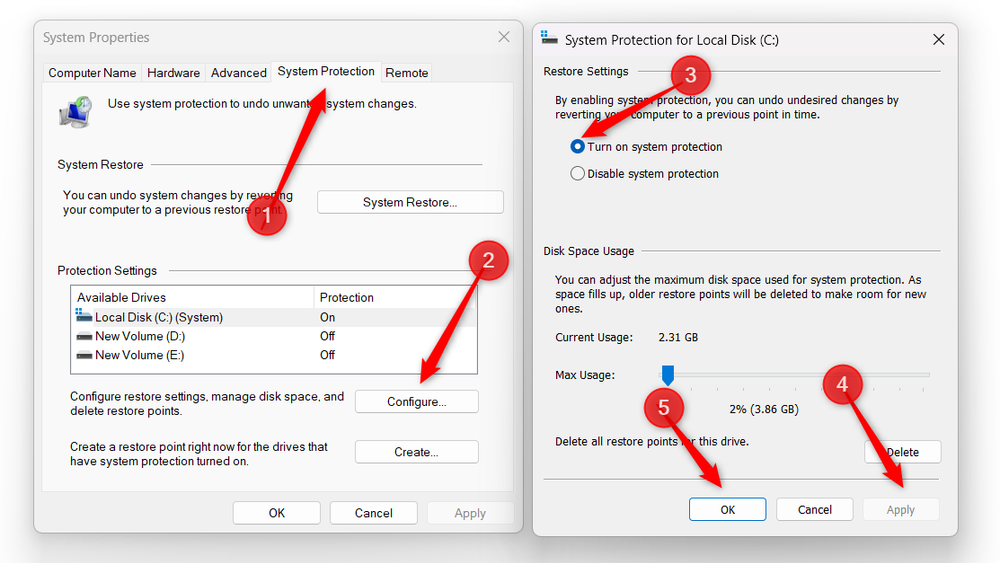
After enabling it, create your first restore point. Return to the “System Protection” tab, click “Create,” give the restore point a name, and follow the on-screen instructions to complete the process.

Back up your BitLocker recovery key
Windows now turns on BitLocker device encryption after a clean installation, encrypting your drives by default. To access this encrypted data, you need to sign in with your Microsoft account. As long as you can access that, everything works fine. But if you ever lose access to it, you won’t be able to unlock your data unless you have the recovery key.
While BitLocker protects your data if your device is lost or stolen, there’s a slight risk that it could lock you out of your drive. That’s why you should back up your recovery key. To do this, sign in to your Microsoft account online, go to “Devices,” choose your device, click “Manage recovery keys,” and you’ll see a list of your recovery keys. Copy each recovery key along with its ID and store them securely.

Go through your privacy settings
A fresh Windows installation resets many privacy settings to their default values, so you should review what the system is allowed to track, access, and share before you start using it. Right-click the Start button and open “Settings,” then head to Privacy & Security > General and turn off any permissions you don’t want to allow.

Next, open “Diagnostics & Feedback” and disable options such as “Optional Diagnostic Data,” “Improve Inking and Typing,” and “Tailored Experiences.”

Finally, review the Location, Camera, Microphone, and other privacy sections, and disable app permissions you don’t want Windows or apps to access.

Install any pending updates
You might think a fresh Windows install puts you on the latest version, but that isn’t always the case. If your installation media was created earlier, some updates may still be pending. Using the system without installing them means missing critical patches and security fixes. That’s why you should check for and install updates—including optional ones that are easy to overlook.
To do this, right-click the Start button, open the “Settings” app, go to “Windows Update,” and click “Check for Updates.” If updates are available, select “Download and Install” (or a similar prompt).

After that, open “Advanced Options,” select “Optional Updates,” choose the updates you want to install, and click “Download and Install” to complete the process.

Optimize key system settings
Just like privacy settings, a clean Windows install also resets key system settings you may have previously optimized. For example, you might prioritize performance, but Windows could default your battery settings to favor power savings. To fix this, right-click the Start button, open the “Settings” app, go to System > Power & Battery, and set it to “Best Performance.”

Similarly, Windows may enable visual effects to improve appearance, even if you prefer higher performance. To adjust this, type Performance Options in the search bar, open the matching result, and select “Adjust for Best Performance.” Then click Apply > OK. You should also review and tweak any other settings that could affect your system’s performance or usability.

Create a reliable backup plan
Even though Windows is most stable right after a clean install, it doesn’t take long for accidental deletions, ransomware, or software corruption to strike, potentially erasing weeks or months of work in minutes. That’s why you should set up a reliable backup plan. You can use built-in or cloud backup options, but I recommend a trusted third-party service like Backblaze.
That’s because, unlike built-in backup options that only cover a few folders, third-party services allow you to back up your entire computer. While it’s a paid service, the investment is worth it. Keep in mind that you shouldn’t just create a backup and forget about it—regularly test it to ensure it works correctly and avoid any unpleasant surprises when you need to restore it.
A fresh Windows installation is the perfect chance to start anew, but skipping the steps above can cause headaches later. Take the time to apply these tips to keep your system stable, protect your data and privacy, fine-tune settings, and more—ensuring a faster, more reliable, and stress-free experience right from day one.


