Why your Home Assistant automations feel slow (and how to speed them up)


Slow automations can make your smart home unresponsive, which can ruin the user experience. Diagnosing the problem can be difficult, as there are many variables to consider. Here are some things you should start with when trying to find the cause of your problems.
Integrations that rely on cloud surveys

If an integration (and any automation built around it) depends on polling the cloud, that means Home Assistant must actively check for any state changes before any action is taken. The service that such an integration relies on will only report its status to its own backend, rather than pushing an update to Home Assistant.
Ergo, you may be waiting for an automation to trigger while Home Assistant does this check. For example, let’s say you have an electric vehicle charger that only reports the current charge level to the manufacturer’s servers, and you want to receive a notification when a certain charge percentage is reached. It is very possible that by the time you receive the notification, your electric vehicle has been charging longer and is already at a higher percentage.
While this isn’t a problem in situations like the example above, for critical notifications that depend on timing, it’s rather overwhelming. You can tell that an integration depends on cloud polling by looking at its description and looking for the cloud polling icon next to its name when adding it to Home Assistant.
Low CPU and RAM availability

\A poorly functioning server will naturally feel slow in the same way as a regular computer. You can check the strain on your system via the Settings > System > Hardware menu. A restart can help temporarily resolve any issues you may be experiencing (head to “Settings,” then click the three-dot icon in the upper right corner and choose “Restart Home Assistant”).
If you have Home Assistant add-ons installed, you can audit them and remove those that are hogging your resources. To do this, go to Settings > Add-ons, then click on an add-on to see its RAM and CPU usage. You can click “Stop” next to all currently running add-ons and disable “Start at startup” for the ones you don’t need.
You can also use your Home Assistant server for other tasks such as streaming media, downloading files, running a local DNS server, or any other homelab projects. Take a break by killing processes and examining whether or not server responsiveness improves. If it works, you should consider moving these tasks elsewhere (like an unused mini PC) or upgrading to a more capable machine.
For example, a single-board computer like a Raspberry Pi is an ideal starting point for a Home Assistant server, but it can scale poorly if you want to use the same server for many different tasks. In these cases, you might be better off opting for a mini PC that’s less power efficient but has plenty of storage, RAM, a better GPU for high-quality media transcoding, and a more capable CPU. You can easily move your Home Assistant installation by creating a backup and restoring it elsewhere.
Finally, if you run Home Assistant on a virtual machine, you risk artificially limiting the amount of available RAM and CPU cores. Make sure to give your server at least 2GB of RAM, but consider doubling that to 4GB if you’re having problems and can spare it.
Failing storage disk

If the drive your Home Assistant server is installed on begins to fail, you may experience slowdowns and general unresponsiveness. This is particularly relevant for anyone running a Home Assistant server on a Raspberry Pi with a microSD card.
microSD cards are not designed to withstand the same level of writing and reading as desktop storage devices like SSDs and even hard drives. Although the Home Assistant project has modified the connection in an effort to protect Raspberry Pi microSD card installations, it is still best to use something like an NVMe drive when possible.
Having a RAM-limited server can make the problem worse, as Home Assistant will have to use paging files to constantly write and read data from the drive. If you’re sticking with a Raspberry Pi, consider pairing an M.2 HAT+ (for the Raspberry Pi 5 Model B) with a compatible NVMe drive instead.
Mesh network interference and poor reception

Weak signal and interference can cause issues with certain types of devices, especially low-power mesh networks like Zigbee, Thread, and Z-Wave. The troubleshooting method depends largely on what you’re using and your network configuration.
First, remember that Wi-Fi devices are subject to the same issues as any other device using your wireless network. Wi-Fi dead zones can result in slow transfer speeds or devices not working at all. Having too many devices on your Wi-Fi network and using up all your available bandwidth could realistically impact smart device response times (especially thirsty devices like cameras).
Zigbee is a type of mesh protocol that uses the same 2.4 GHz frequency as older Wi-Fi devices. In your Zigbee adapter’s preferences, you can choose different channels, which can help avoid interference from nearby Wi-Fi networks that cause problems. Thread also uses the 2.4 GHz band. For best results, use a Wi-Fi analyzer to detect nearby networks that might be using similar channels and choose something different.
These adapters are notoriously susceptible to interference from USB 3.0 ports, so much so that they should ideally be connected to USB 2.0 ports whenever possible. Home Assistant’s two proprietary Zigbee adapters, the ZBT-1 and ZBT-2, put the distance between the antenna and the server using an extender for this very reason. This also applies to Z-Wave. If your adapter looks like a flash drive hanging from your server, get a repeater and add some distance.
No matter what low-power mesh networking technology you use, don’t overlook compromised range. Zigbee, Z-Wave and Thread can all use powered devices such as smart plugs and switches to act as range extenders. Consider adding a few additional mains-powered devices between slow-responsive (or non-responsive) devices.
Some protocols are just slower (but worth it)
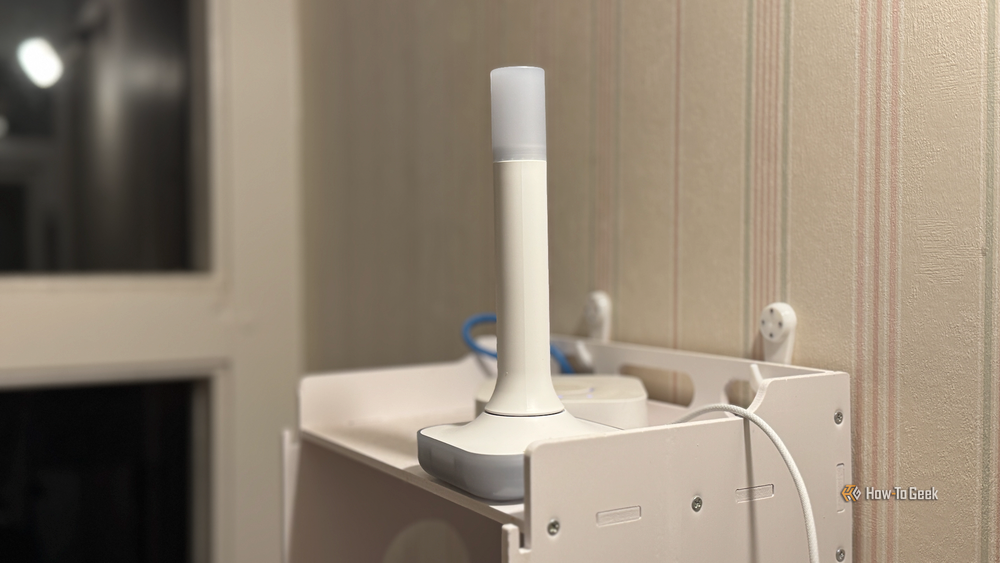
Finally, you’d be forgiven for noticing a slight slowdown if you switch from something like Wi-Fi to Thread, Zigbee, and especially Z-Wave. Wi-Fi is a faster technology, but much more energy intensive. In comparison, mesh networks are designed with low power consumption but have slower transfer rates.
Ditching a house full of Wi-Fi smart plugs for Zigbee could result in slightly more delay when controlling devices and triggering scenes. The further away the devices are from your server, the slower the response will be. You probably shouldn’t wait more than a second (in my experience the time is about half that at most), but you’d be forgiven if mesh networks seem a bit slower than Wi-Fi.
The choice of protocol can make all the difference here. While Thread and Zigbee have a similar speed profile (250 kbps), Thread generally has lower latency and is the faster of the two. Zigbee is faster than Z-Wave (which itself only handles 100 kbps), but Z-Wave has the advantage in range.
Any way you slice it, removing Wi-Fi from the equation is a net gain because it allows devices to continue working even when your router doesn’t. You can also do cool things like tie switches to light bulbs, so they work even when your server is offline.
Home Assistant is great, but it’s not perfect. If you’re still having issues, consider searching and posting on the official Home Assistant community forum.


