4 quick security upgrades I always do on a new PC


Place a brand new laptop or desktop computer in front of most people and they will start installing their favorite programs. Me? I check its security configuration.
It’s not just about making sure the basics like antivirus are active. I also look at Windows and installed applications to make sure the entire computer is set up to cover my butt when I’m online. Of course, I remain careful when I’m on the web. But it’s also a good idea to put security measures in place.
So here are the four things I always emphasize – and you should too.
Antivirus software
Foundry
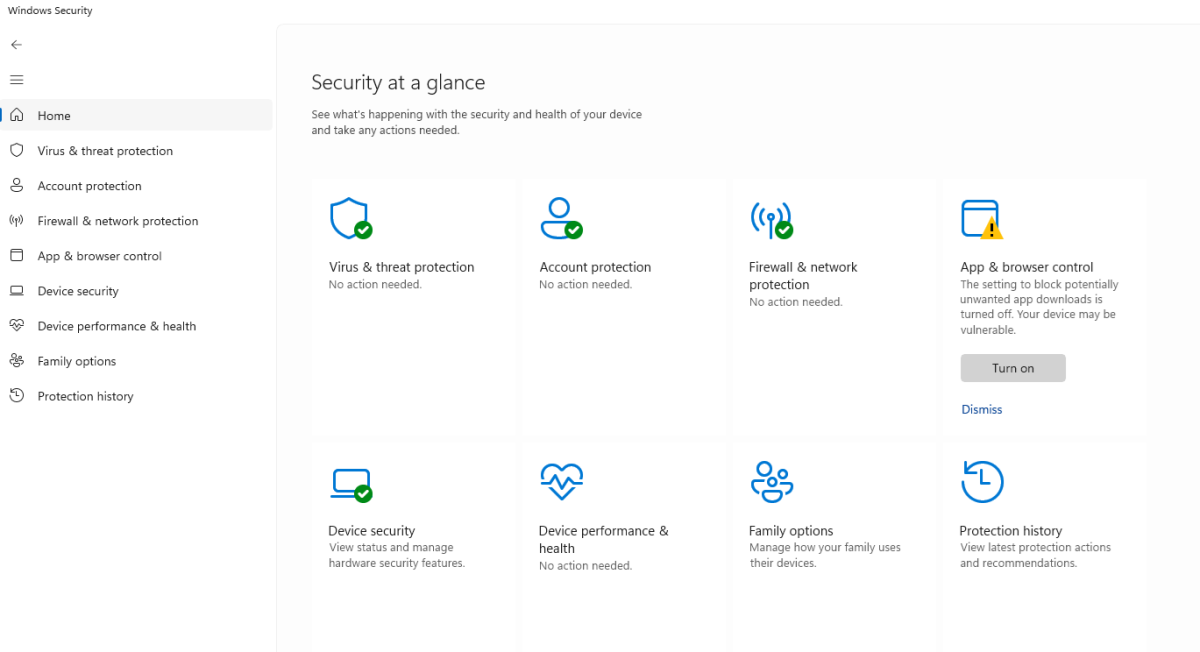
The very first thing I look at is the antivirus application settings on the new PC. In some cases, this may be Microsoft’s built-in Windows Security application. Other times it’s standalone antivirus software, usually a trial of one of the paid subscriptions we review for our best antivirus roundup.
The main difference between the two is the interface and features: Windows Security lives silently in the background, with notifications only appearing if something is wrong or needs attention. The interface is also very simple and does not explain the different features in depth. Meanwhile, third-party software tends to enrich its software offerings with additional features (some even superfluous) and more attractive and better explained user interfaces. You also tend to have more control over the settings.
Since new PCs often come with paid antivirus trials, I immediately try to choose the best antivirus program for the person who uses the machine the most. Don’t like a lot of snappy screens or busy interfaces, or don’t want to be forced to continually pay for AV? Windows Security works well. I will, however, change the settings to enable ransomware protection and various app and browser protections, and also check that core isolation is already active.
Do you prefer a specific set of features (like robust parental controls), more explanation of what’s happening with analytics, or additional security tools (like a password manager and/or VPN) in a single interface? A third-party AV option will be best, and with all the options available, there should be one that fits both the feature set and the desired budget.
Password manager
Alaina Yee / Foundry
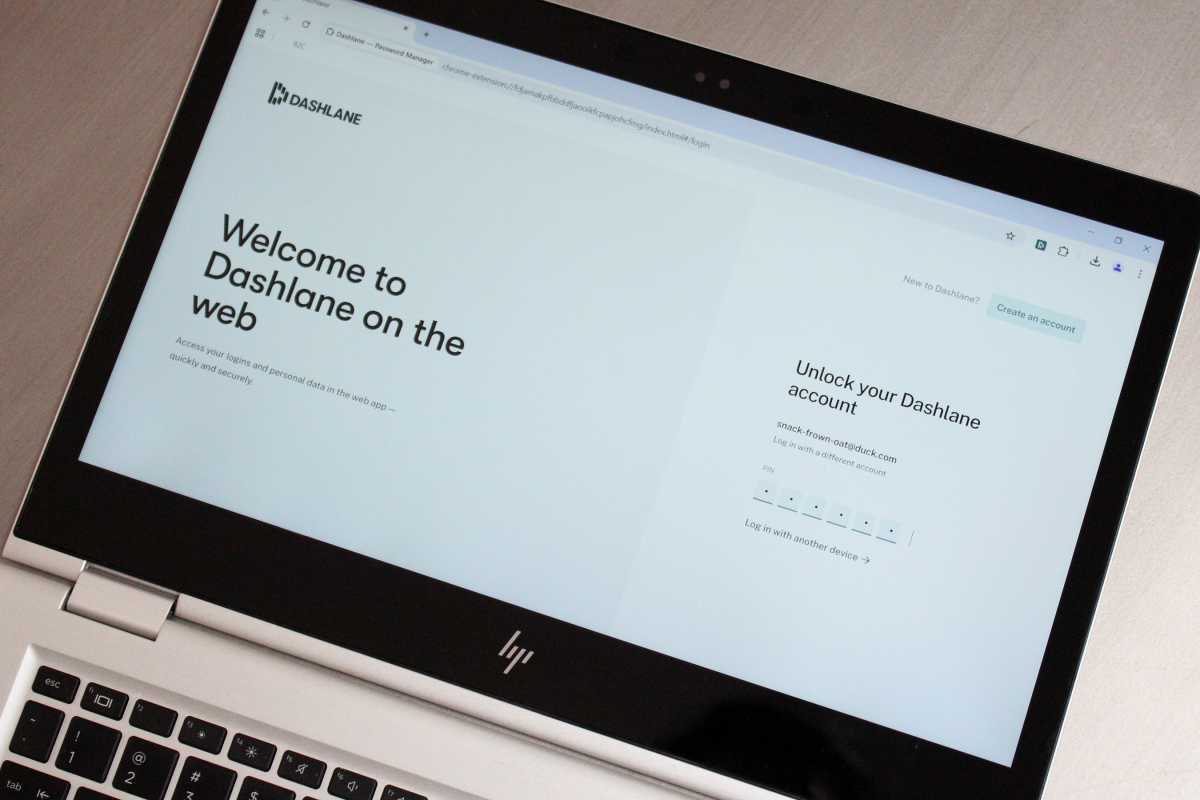
The next thing I like to set up is a password manager. You can use the password management built into a browser like Edge or Chrome, but I recommend an independent service like Bitwarden or Dashlane (or even a local app like KeePassXC, if you want to manage your own backups).
Using the password manager in Edge or Chrome is usually tied to a Microsoft or Google account, respectively. So, if the account is hacked or the password stolen, you run the risk of losing access not only to your email and files, but also to all your passwords. Keeping these items separate helps prevent the damage from being too severe.
(That said, for people who can’t manage too many accounts, Password Management from Microsoft, Google, or Apple is fine. They don’t have as many features as dedicated services, but the basics are in place.)
I tend to prefer installing a desktop app whenever possible, for a bit of added security. A browser extension of course makes using passwords much easier and faster, but it can be riskier, as they are a bit more vulnerable to attack. But again, it’s best to use whatever helps you use unique, strong, random passwords across different sites. Be aware of what other extensions you install on your browser, what apps you download, what sites you visit, and what links you click, and you should be fine.
For some services, you can log in through a web interface, but it’s not as seamless as a desktop app or browser extension.
Biometric login
Mark Hachman / Foundry
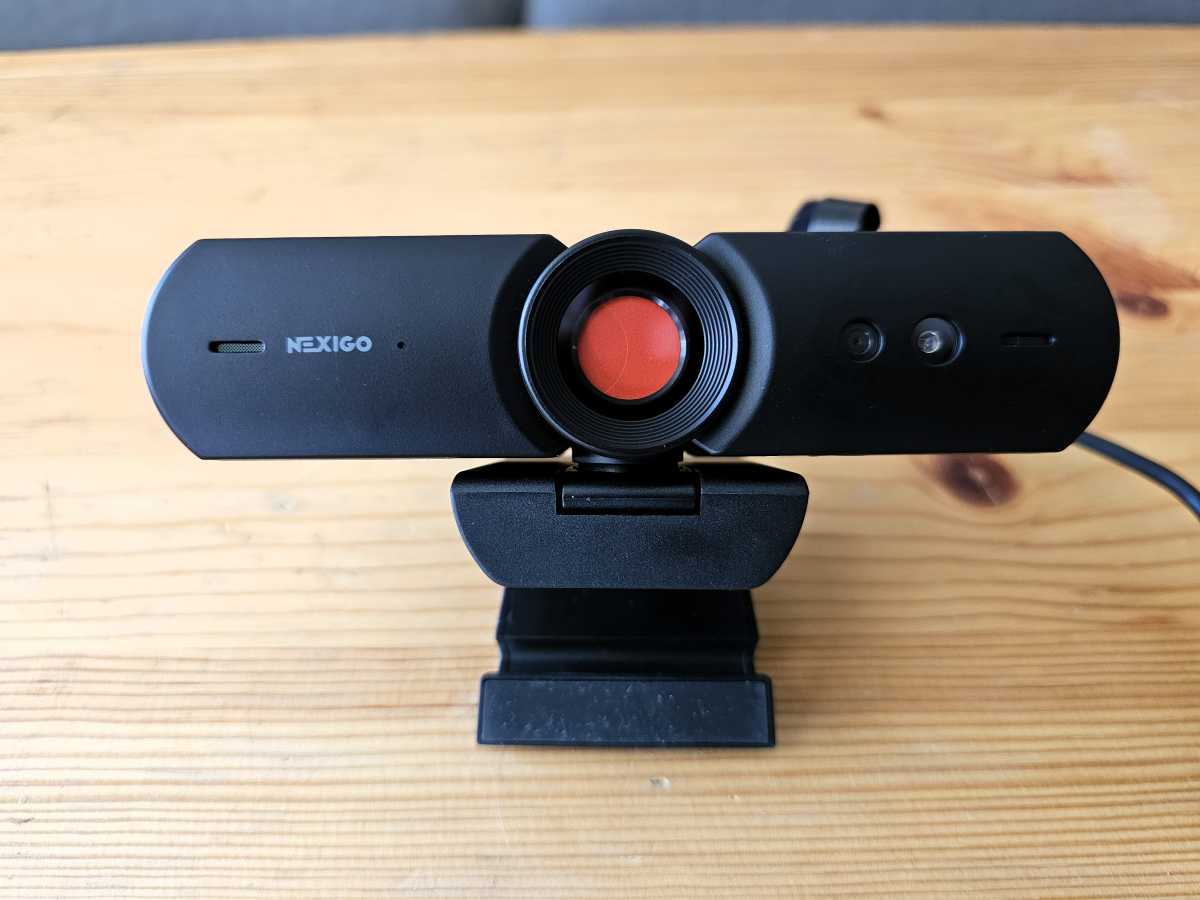
Third, I enable biometric login for Windows when possible. On desktops, this can be more difficult, as you’ll need to get your own Windows Hello-compatible webcam and/or fingerprint reader. But on a laptop, there’s a good chance the built-in webcam supports Windows Hello facial recognition.
Unless you’re worried about your system falling into the hands of government officials (like if you’re traveling to sensitive areas), a biometric login will generally be more secure than using a password or PIN to regularly unlock your PC. For example, someone cannot watch over your shoulder as you type in a public space. This can also reduce the difficulty of connecting for less tech-savvy users. Save the password securely (you don’t want to forget it!), then use biometric login for easier access. It is much better than no password or a very weak password to secure the PC.
Disk encryption
Chris Hoffman / Foundry
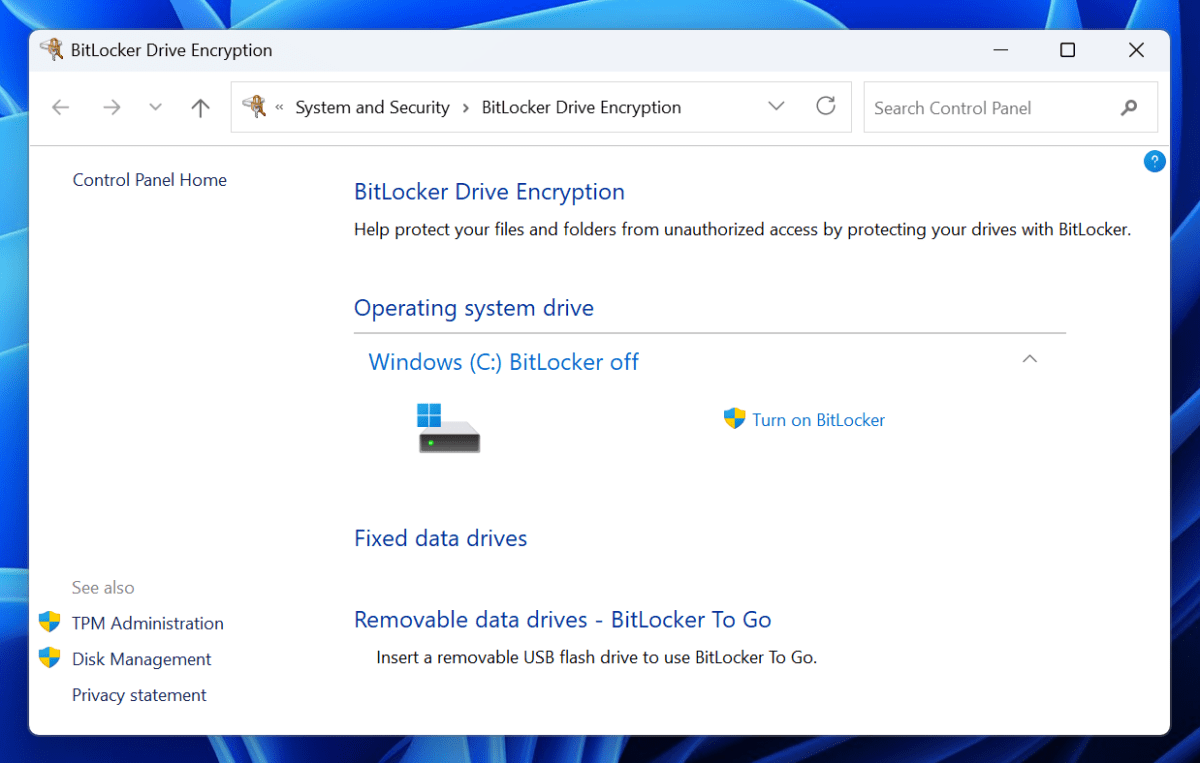
Finally, I check the encryption settings of a new computer. This is a quick two-step process: First, I like to make sure encryption is enabled in Windows, especially if the machine is a laptop or even a mini PC, as they are easier to steal. If the data on the PC is encrypted, it cannot be searched easily (and no sensitive files are immediately at risk). The encryption key would be required to use the data.
If you sign in to a Windows PC using a Microsoft account, it should automatically enable disk encryption. Windows Home users will not be able to change settings, while Windows Pro users will be able to via BitLocker. However, I’ve found that encryption isn’t always turned on automatically, so it’s worth checking.
Then, if disk encryption is active, I also check the Microsoft account (or ask the PC owner to verify their account) to see if the encryption key is saved. You can do this by going to https://aka.ms/myrecoverykey in a browser. Alternatively, if you are a Pro user, you can simply open BitLocker on your PC, where you save your recovery key. This will give you more control over where it’s stored, so you can save it to another cloud account or a local backup drive, etc.


