
An NVMe SSD is the fastest type of storage you can put in a PC, but it’s also a lot more temperamental than the old spinning hard drives they’ve replaced. Lately, my system hasn’t felt nearly as fast as when I first built it. I first noticed slightly longer loading screens, but sluggish file transfers between my PC and my NAS is what truly gave the problem away—it was my nearly full SSD.
I filled my NVMe SSD because I wanted to use every last gigabyte
Can’t leave all those gigabytes sitting empty
I have a 2TB NVMe SSD in my gaming system. I know that sounds like a lot, and given how expensive the market’s been lately, it kind of is, but the truth is that modern games take up a ton of space.
Starfield alone takes up around 140GB, and I have several other games on my PC that take up about the same. Add some of my personal and work files, additional backups, and some random stuff, and it’s easy to see how I managed to fill my NVMe in no time at all. Oh, and let’s not forget that a 2TB NVMe SSD actually reports only 1.81TB once it’s installed in a system.
Since NVMe storage is more expensive than ever, I wanted to use it to its fullest, so I only kept around 10% empty space on my drive, which is sometimes said to be the bare minimum if you want to keep your NVMe healthy. That’s a general rule of thumb, and I’ll explain shortly why not all NVMes are built the same.
I didn’t really notice the slowdowns in regular tasks that much, mostly because it happened gradually. But after recently building a NAS, I started moving a lot of files between it and my PC on a fairly regular basis. This occasionally pushed my NVMe closer to 5% free space instead of 10%, and I couldn’t help but notice that file transfers got slower and slower, despite still using the same gigabit Ethernet and external hard drive in my NAS.

SSDs are too expensive to leave empty: Why I fill mine to the limit
I use all the space on my SSDs and I don’t care about the warnings
Why a nearly full NVMe SSD slows down
Available space is more of a suggestion, if we’re being honest

Virtually all NVMe SSDs drop off in performance as they reach maximum capacity. When a drive is mostly empty, the controller has no trouble finding empty blocks to write data to, but as it fills up, there are fewer empty blocks available, and the controller has to reorganize existing data to make room, which slows down the drive.
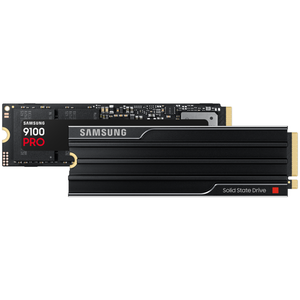
However, this is where differences in NVMe features and quality come into play. Many budget consumer-grade drives, like my Crucial P3 Plus, use QLC (quad-level cell) flash storage, which is significantly cheaper per gigabyte than the TLC (triple-level cell) found in high-end drives like the Samsung SSD 9100 PRO.
- Storage capacity
-
1TB, 2TB, 4TB, 8TB
- Hardware Interface
-
M.2 NVMe
The Samsung 9100 PRO NVMe SSD offers read speeds of up to 14.7GB/s and write speeds of up to 13.4GB/s, and it hits the mark. As the fastest SSD available as of March 2025, the 9100 PRO is made with professionals in mind. Designed to enhance AI workflows, as well as boost the speed of video and photo editing and exports, this SSD is purpose-built to help improve your efficiency.
A major reason why both QLC and TLC drives are faster when they’re empty is that they dynamically treat their free space as SLC (single-level cell) to use it as a cache. This isn’t the same as a true, fixed SLC cache (which is hidden from the user but helps performance), or even a hybrid setup, but it nevertheless significantly speeds up the maximum speeds.
Now, the difference between something like my cheap QLC and a higher-end TLC drive is the raw performance of the memory itself. TLC is much faster than QLC, which is why TLC drives stay significantly faster even as they fill up.
Another important factor is dedicated DRAM, which acts as a map of your data that the controller uses to quickly locate what you need. This ultra-fast memory is designed to work directly with the NVMe.
In contrast, cheap DRAM-less drives can use tricks like HMB (Host Memory Buffer) to borrow a small portion of your system RAM for the map. However, as the NVMe fills up, the limited space can no longer hold the entire map, resulting in random performance hiccups.

PCIe Gen 5 and DRAM are a waste of money: Capacity is the only SSD spec that matters
I always look for these factors when buying an NVMe
A quick test showed my full drive was the problem
It was a noble sacrifice, but it was worth the cause

Testing my NVMe speeds was fairly straightforward. I downloaded and installed CrystalDiskMark, then I configured the speed test for 5 passes to get consistent results, and a test size of 4GB to ensure the controller exhausts any potential caching trick and has to write directly to the raw flash storage.
Before we start comparing every metric, it’s important to note that the benchmark figures displayed here don’t show a perfectly linear progression due to a variety of different factors. For instance, the unusually low SEQ1M Q1T1 write speeds on the 89% full test likely occurred because the NVMe controller was busy with internal processes at that exact moment (possibly after the previous test finished).
Part of the fluctuation is the nature of the test itself—doing five passes instead of just one might have introduced a bit of temperature buildup, which is actually what I wanted to do in order to get a more realistic picture of performance during sustained workloads.
With that in mind, the most reliable parts of these results are the SEQ1M Q8T1 (max. sequential throughput) results, which represent the drive’s peak theoretical throughput (the numbers used in marketing materials), and the RND4K Q32T1 (random read/write using 4 kilobyte blocks with 32 simultaneous requests), which is a solid indicator of how the drive manages data under a real-world load.
Here’s how my NVMe SSD performed at 95% full.

This is the performance at 89% full.

And this is what happened when I got the drive down to 72% full.

As you can see from the data, there’s a clear correlation between more free space and faster speeds. While I expected a noticeable difference between the 95% and 89% results, I was surprised by just how large the gap was between the 89% and 72% full results—once I freed up a third of the drive’s capacity, it was able to breeze through the speed tests. Needless to say, freeing up space also led to faster loading screens and file transfers.
Stop treating free space as wasted space
If you think you’re wasting money because your expensive NVMe SSD is sitting half-empty, don’t feel bad. This is actually great for the drive’s performance and long-term health.
That said, don’t go overboard and delete everything except a single game. Keeping your drive around 20% free is a solid rule of thumb that helps maintain good performance and longevity.


