Best ways to download YouTube videos on Mac: Easy, free & premium options


Summary created by Smart Answers AI
In summary:
- Macworld reviews several methods for downloading YouTube videos on Mac, including YouTube Premium subscriptions, built-in screen recording tools, and third-party apps like Downie and EaseUS Video Downloader.
- YouTube Premium offers the most legitimate approach at $13.99 per month, allowing downloads at up to 1080p quality, while free screen recording requires playing entire videos and uses more storage.
- Third-party tools offer convenient alternatives with different pricing models, but users should consider YouTube’s copyright restrictions and terms of service. Detailed instructions are provided below.
If the thought of a long car ride or bedtime without an internet connection makes you tremble with fear, there is a solution. You can make a copy of YouTube videos that your kids (or you) like to watch to play offline.
There are two ways to get a copy of the video you want on your Mac, and many third-party apps that will do this as well.
The easiest option is to use Apple’s built-in screenshot tools to record what’s playing on your Mac. You’ll need to play the entire video and make sure you capture the audio, but it’s free. We will run this process below.
Before we begin, we must point out that you should be aware of copyright issues. Firstly, you should not download someone else’s video and then, for example, upload it to your own YouTube channel or use it to promote your business. You should also note that downloading YouTube videos goes against YouTube’s terms of service. The company states that “you should not download any content unless you see a ‘download’ link or similar displayed by YouTube.
A safe option is to pay for YouTube Premium, which will let you download videos to your Mac (and iPhone or iPad) and watch them ad-free. Once downloaded, you will be able to play videos offline.
There are also free and paid apps that will do this for you as well, and we’ll include some of those options below as well. Just be careful: if you see a warning that you need to install Flash to watch a video, it could be a scam or, in the worst case, malware!
We’ll look at your options below and tell you what you need to do to download YouTube videos to your Mac. We also discuss how to download YouTube videos to iPhone and iPad separately.
PROMOTION
Download YouTube Videos for Free – EaseUS Video Downloader
EaseUS Video Downloader is a free 4K video downloader on Mac, Windows and Android. Simply copy and paste the video URL and download YouTube videos, playlists, YouTube live videos and channels in any format like mp4, mp3 and WMV with Ultra HD definition resolution. Additionally, videos and live streams from Facebook, Twitter, TikTok, and Instagram are supported for download.
Now 25% off exclusive code: MACWORLD25
How to Download YouTube Videos for Free on a Mac
It’s very easy to record a YouTube video for free with the software that came with your Mac. You don’t need to download an app at all. Since the arrival of macOS Mojave in 2018, macOS has had a built-in screen recording feature. You can capture what’s playing on your screen with audio.
Just note that if your Mac doesn’t have a built-in microphone – if you have a Mac mini for example – you’ll need a separate microphone to capture audio. Note that your microphone will also pick up noise that’s not in the video, such as typing on a keyboard, so you may want to leave the room while you record the video.
Foundry
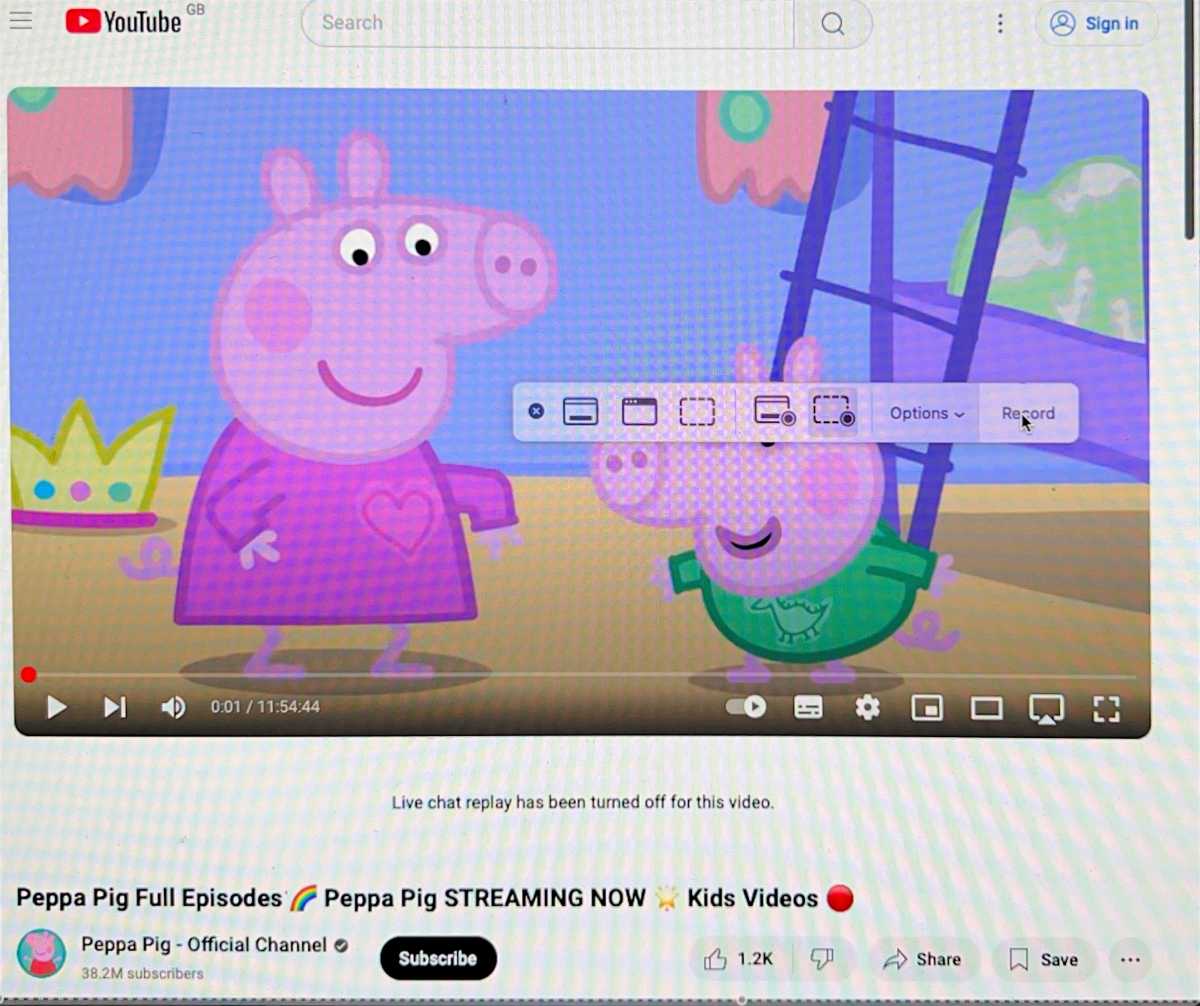
Here’s what to do if you want to save a YouTube video for free on your Mac:
- Open YouTube on your Mac. Find the video you want. Click the Full Screen option in the lower right corner.
- Press Command+Shift+5.
- Click Save then choose Record Entire Screen. (If you didn’t choose Full Screen above, choose Save Selected Part, drag the crosshairs to select the space where the video is on your screen).
- Click Options and make sure your microphone is selected.
- Click Save.
- Now start playing the video – make sure the volume is turned up.
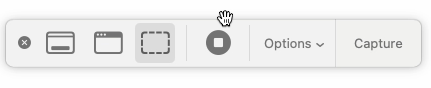
- Wait for the video to end, then stop the video. To stop screen recording, click the stop button in the menu at the top of the screen or in the box as shown in the image below.
Foundry
This is the cheapest way to record from YouTube on a Mac: it’s free! However, it is necessary to wait while the entire video plays and keep the noise to a minimum – and if your Mac doesn’t have a microphone, you won’t be able to record the video, and a short video can take up a lot of space on your Mac. So if you prefer to avoid these complications, we have alternative options for you.
How to Download YouTube Videos to a Mac with YouTube Premium

Using YouTube Premium means everything is flawless.
Foundry
There is another, more official way to download YouTube videos: YouTube Premium.
You can try this method with a free trial. There’s a one-month trial, but it turned out it was actually two months free when we signed up. At the end of the trial period it will cost $13.99/£12.99, but you can cancel this on the Membership Management page before renewing.
It’s very easy to download a video from YouTube if you have YouTube Premium.
- Find the video you want on YouTube.
- Below you will see a download icon. Click on it and it will change to read Download.
- Once downloaded, it will appear in your downloads.
Downloads remain available as long as your device has an active Internet connection at least once every 30 days. If you do not connect to the Internet again, you will no longer be able to play the video after 29 days.
You can change the download quality. By default, the download will be done in standard 480p, but you can switch it to High 720p or Full HD 1080p. Obviously, higher quality files will take up more space on your Mac.
Best Apps to Download YouTube Videos
There are also solutions offered that will download the YouTube video for you, rather than having to record your Mac’s screen while the video plays. This might be a preferred option if you don’t have time to sit and wait for an hour of Peppa Pig play. This should also result in much smaller file sizes.
Downie
Foundry
$20, 14-day trial or $9.99 per month as part of Setapp
Download Downie
Downie from developer Charlie Monroe costs $20 and can be used to download and save videos from thousands of websites.
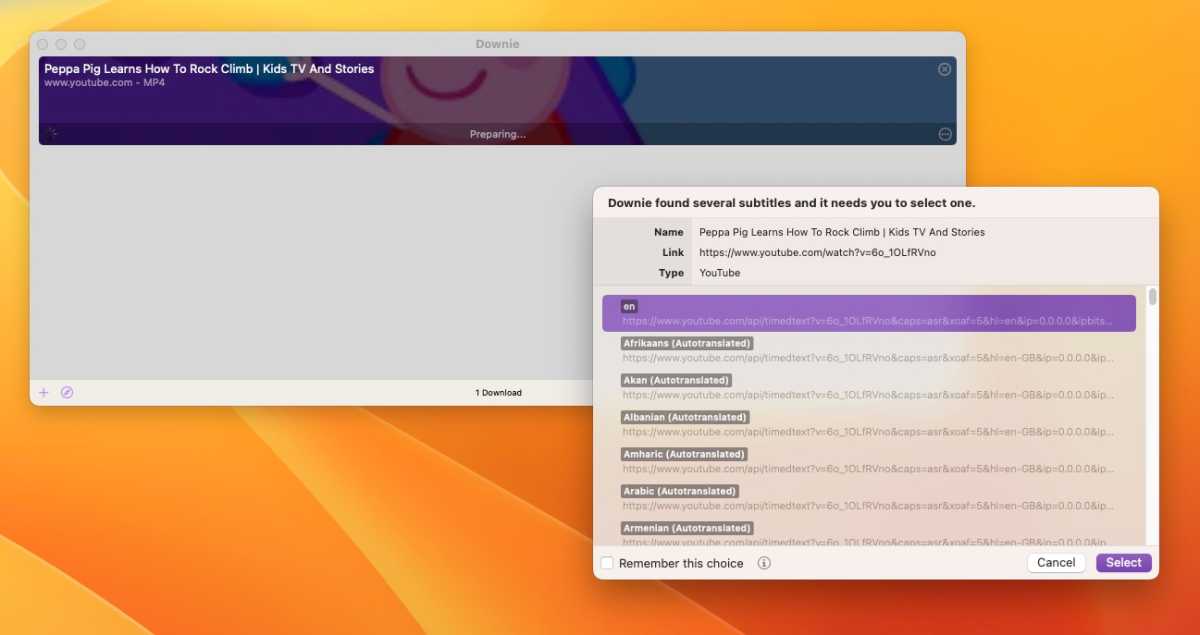
When you start the application, you can make various adjustments, for example, always download the best quality, force MP4 format and do post-processing. Downie is available as a browser extension for Firefox, Safari, and Chrome, but you can simply drag and drop a link from a browser to Downie in the Dock or its download window, and download the video. You can even choose relevant subtitles.
Downloading a 30-minute view took a few seconds and the resulting video was excellent quality and only took up 77MB of space on our Mac.
It includes a 14-day free trial.
EaseUS Video Downloader
Foundry
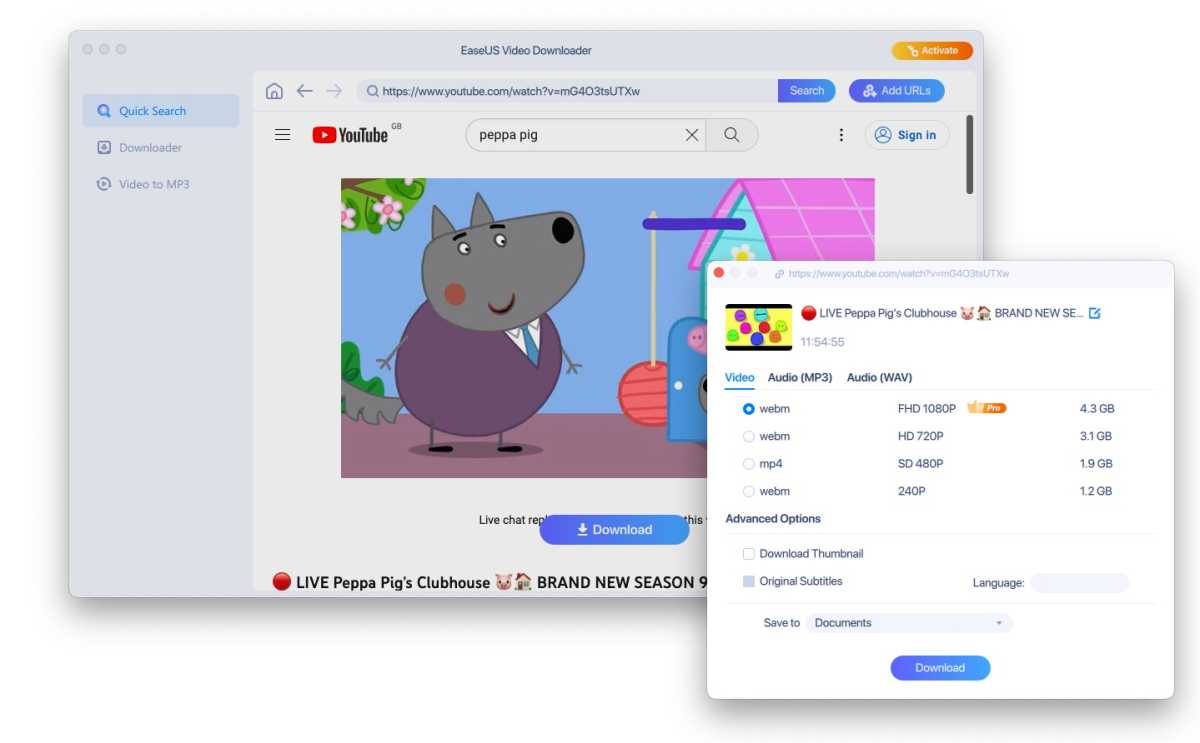
Video downloaded from EaseUS is simple to use. Once the app is installed, you can view content from a number of popular video hosting sites, including YouTube, and we were able to download videos (although we found a few that we couldn’t download).
There were four download options indicating the file size. It is also possible to simply download audio in MP3 format.
The software showed the duration of the download and counted the remaining seconds. We could hear the video playing in the background, but we couldn’t see it. Once downloaded, the video was saved to our Documents folder where we could play it.
The free trial allows you to download two items.
Parallels Toolbox
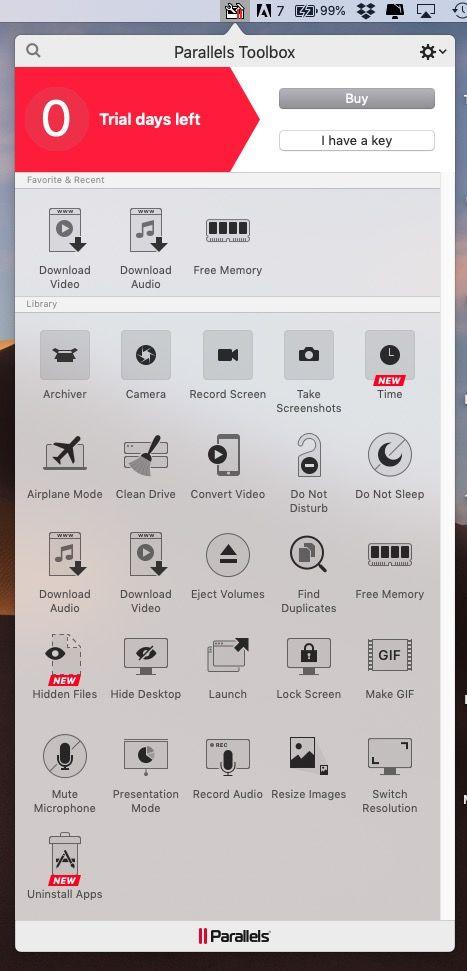
Assuming that choosing a well-known company means you’re more likely to not end up with bad software at best, malware at worst on your Mac, we’ll look at Parallels ToolBox (read our review).
Parallels (our top pick for software for running Windows on a Mac) has developed a number of tools that can be used to simplify a number of tasks on your Mac. ToolBox is the result of their experience running a help desk for their customers running Parallels on a Mac. So many customers called asking how to do various things that Parallels thought easy-to-use tools might be a good solution. This is how Parallels Toolbox was born.
- Once you have downloaded and installed Parallels Toolbox, you will see a toolbox icon in the menu at the top of your screen. Click on it.
- You will see a number of tools including airplane mode, free memory, do not disturb, create gif, and download video. Click Download Video.
- Toolbox will tell you that you need to enable a Safari extension to download the video. Click Activate.
- Now a video download box will open on your screen. Simply copy and paste the YouTube video URL and paste it into the box, or drag and drop it. An arrow will indicate that the video is downloading and a box will appear with the details, for example Downloading “Peppa Pig.mp4” and you can watch the download take place. Ours took around 10 minutes to download 88MB – but note that the speed will be determined by your connection.
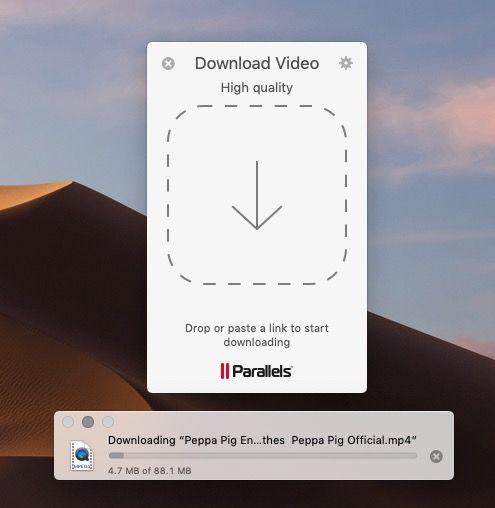
- Once the download is complete, you’ll find the video file in your Downloads folder (which may not be immediately obvious).
The file will be saved as an MPEG-4 movie. It will open and play in QuickTime on your Mac.
If you’re looking for an easy way to get the video from your Mac to an iPad or iPhone, one solution would be to copy the video to iCloud so you can access it from the Files app. You can then download it from there and play it whenever you want. We have more details on recording a YouTube video on an iPhone or iPad.