Don’t switch to Linux just yet—ask yourself these 5 questions first


There’s a version of Linux history where everything clicks and you wonder how you ever used Windows. There’s another one where it just becomes a second partition that you never boot into. Which ends up being your story Much depends on how honestly you answer these five questions.
Your Windows muscle memory is about to be disrupted
Are you ready to learn a new operating system?
If you’re moving to Linux, I’ll assume you’ve spent years on Windows (or macOS). You’ve developed muscle memory, mental shortcuts, and a whole way of navigating a computer. Linux is going to disrupt some, if not most, of this.
For example, you probably install software by visiting different websites and downloading EXE files. Under Linux, you can Look for executable app installers, but this is not the preferred approach and may present security risks. The default method is to install the software through package managers, which you can access through the terminal or a graphics software store, similar to the Google Play Store or Apple App Store.
Additionally, if you spend a lot of time managing files, you’ll need to become familiar with the Linux directory structure. There are no drives with letters like C: or D: drive. Linux organizes everything under a single root directory (/).
Now, I’m not saying Linux is harder than Windows (or macOS), but it is different. Your new Linux PC may not behave as expected and you will need to learn how to use it. Yes, there are beginner-friendly distributions designed to make the transition easier, but they only soften the learning curve, they don’t eliminate it. If you’re expecting Linux to mirror your Windows workflows, you’re going to be disappointed.
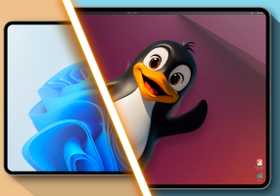
Linux is not a replacement for Windows: here’s how to approach it
The “Linux versus Windows” argument is simply ridiculous.
Alternative apps are good, but they won’t give the same feeling
Can your workflow accommodate new and different software?
Although many popular applications that you use on Windows also work on Linux, most do not, especially proprietary applications. The two most obvious examples are Microsoft Office and Adobe Creative Suite. None of them are officially supported on Linux. Now, if these applications are the core of your workflow, moving to Linux is going to be a problem.
That’s not to say Linux can’t handle creative tasks or office productivity workloads. You have LibreOffice and Only Office to help you edit documents and create spreadsheets. For image editing, GIMP handles raster work and Inkscape handles vectors. Granted, they’re not as good as advanced enterprise-grade tools, but they’re great for casual to moderate use cases and they’re free.
If your use cases don’t require very advanced features and you’re willing to learn these alternatives (or if you’re already using them), moving to Linux will feel pretty seamless on the software side. But if your work is deeply tied to specific Windows applications and you’re not ready to move, Linux will be a constant source of friction.
People will tell you to use compatibility layers to run Windows software on Linux. While this sometimes works for simpler applications, it’s not a reliable solution for professional-grade software like Office or Premiere Pro.
The game will not be plug-and-play
What do you think about modifying configuration files to play video games?
Linux games are all the rage right now. The Steam Deck, which runs Linux, is a big part of why this ecosystem has matured so quickly. Not only are more and more developers releasing native Linux versions of their games, but you also have the Proton compatibility layer, developed by Valve, which makes a large portion of Windows games playable on Linux.
Additionally, Linux is lighter than Windows and uses fewer system resources. This translates to more headroom for your games: potentially better frame rates and smoother performance compared to running the same game on Windows with the same hardware.
That said, gaming on Linux isn’t as easy as it is on Windows. If you go to ProtonDB and filter the top 100 most popular Steam games, you’ll find that only 31% of the titles are Platinum-rated: they work perfectly out of the box, without any configuration. Then you have a 57% Gold+Silver rating, which means they work well but require you to choose the correct version of Proton, add a launch option, configure an environment variable (or two), or edit a configuration file. In other words, running most Steam games on Linux requires some manual tweaking.
To be fair, none of this is particularly complicated: most tweaks are well documented by the community and take five minutes or less. But they require that you follow instructions carefully, pay close attention to formatting, and work with text files rather than graphics tools. A lost character can ruin everything. This can sound a lot like programming, and if you come from a non-technical background, it’s going to seem intimidating at first. The experience won’t be as plug-and-play as it is on Windows.

- Dimensions
-
298mm x 117mm x 49mm
- Weight
-
640 grams
- RAM
-
16 GB LPDDR5
- Storage
-
512GB or 1TB NVMe SSD
- Wireless connectivity
-
Bluetooth 5.3, Wi-Fi 6E
- Headset Compatibility
-
Bluetooth5.3
The Steam Deck OLED is a big improvement over Valve’s original handheld console, with a bigger battery, more storage, faster Wi-Fi, and more. Not to mention the larger, better-looking OLED screen that gives the device its name.
Terminal is not necessary, but you should use it
Are you planning to learn and use Linux terminal?
The Linux experience has always been centered around the terminal. Only relatively recently has desktop Linux developed GUIs robust enough to make the terminal optional. Even then, graphics applications mostly cover basic tasks. If you want to make significant changes to your system and unlock what Linux is truly capable of, you’ll need to use the terminal.
Here are some examples from my own setup. I use bash scripts to automate repetitive tasks in my workflow, tasks that would otherwise take time if done manually. I also configured my system to be able to shut down my PC remotely from my Android phone. None of this is possible through graphics settings alone. You need to be comfortable with terminal commands for this to happen.
The terminal is not just a backup solution in the event of a breakdown: this is where the real power lies. If you never touch it, you’ll still have a functional desktop, but it can feel strangely limiting for a platform built around freedom and control. You’ll essentially be using something closer to a de-Google Chromebook, and where’s the fun in that?

7 Reasons Why Learning Linux Terminal Is Worth It (Even For Beginners)
Find out why terminal learning is powerful and inevitable for all Linux users.
Don’t dual boot unless you intentionally want to
How do you plan to use Linux with Windows?
Here’s something I’ve learned from experience: If you’re coming from Windows, chances are you won’t be able to abandon it right away. This is especially true if you are a professional who depends on it for your daily work. As such, the most pragmatic decision is to dual boot Windows with Linux. Use Windows to work, then boot Linux to experiment, configure things, and gradually get the hang of it. This is exactly how I transitioned, and it’s what I recommend to anyone who asks.
But here’s what I’ve actually observed when friends follow this advice. They install Linux, feel good about it, then almost never boot into it. Days pass, then weeks, and they still default to the familiar Windows partition every time. The motivation was real when they put it together, but without the conscious discipline needed to use Linux regularly, it just sits there gathering digital dust. And SSD space isn’t cheap: have you seen storage prices lately?
Dual booting only works if you do it intentionally. The best way to make this last is to give each operating system a defined role. For example, use Windows only for work tasks and Linux for everything personal: browsing, media, DIY, whatever your daily life outside of work. When you change based on context rather than comfort, you actually develop a real Linux habit instead of just installing it and feeling good about yourself.

7 Things Nobody Tells You About Dual Booting Linux and Windows
The truths about dual booting I learned the hard way.
This is not a warning, it’s a checklist for success
None of this is meant to dissuade you from Linux. This is to ensure that when you change, you actually stick with it. Prepare yourself and Linux will reward you. Enter impulsively and it will just become a dusty partition on your SSD.

:max_bytes(150000):strip_icc()/Health-GettyImages-2189150331-f83c2e1aeae1458eae160de35bb91fd8.jpg?w=390&resize=390,220&ssl=1 "5 Things To Avoid When You Have Alopecia Areata")


