Meet Upscayl: This free AI tool turns blurry photos into high-detail images


The Upscayl tool uses multiple AI models to enhance your images. While unsightly edges and artifacts appear with conventional enlargement, Upscayl reveals additional detail.
This means that even slightly blurry or too small photos can be saved. This works thanks to AI guessing possible details. This is exactly what he is trained to do. Upscayl uses Real-Esgran and Vulkan architecture.
However, this means that Upscayl requires a Vulkan compatible GPU.
This does not work with most integrated GPUs. You can find out if your graphics equipment is Vulkan compatible on the vulkan.gpuinfo.org website or with the free GPU-Z tool. Most reasonably recent graphics cards meet the requirements.
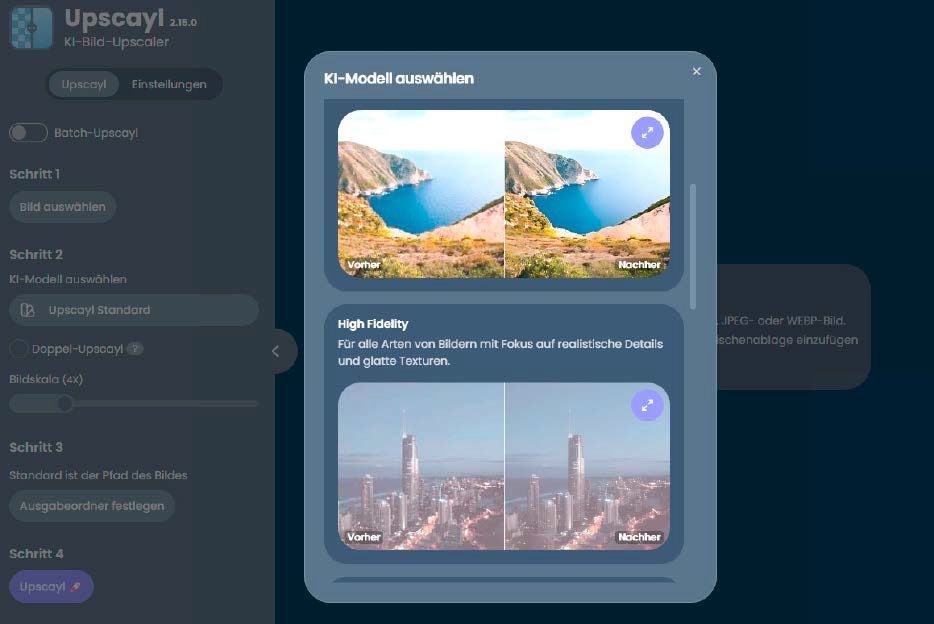
Upscayl uses multiple AI models with different specializations to resize and enhance images.
Foundry
The software can process different types of images, including photos, digital illustrations, and even medical images. Scaling is useful for improving quality or preparing images for printing.
Installing Upscayl
The first step is to install the tool. There are corresponding installation files for Windows, Linux and Mac. In addition to packages in DEB and RPM format, appimages, flatpaks and snaps are also available for Linux.
The first time you start Upscayl, set the language and determine whether Upscayl should update automatically.
You can also select a different design if necessary. However, all this can also be done later. A short introductory video follows.
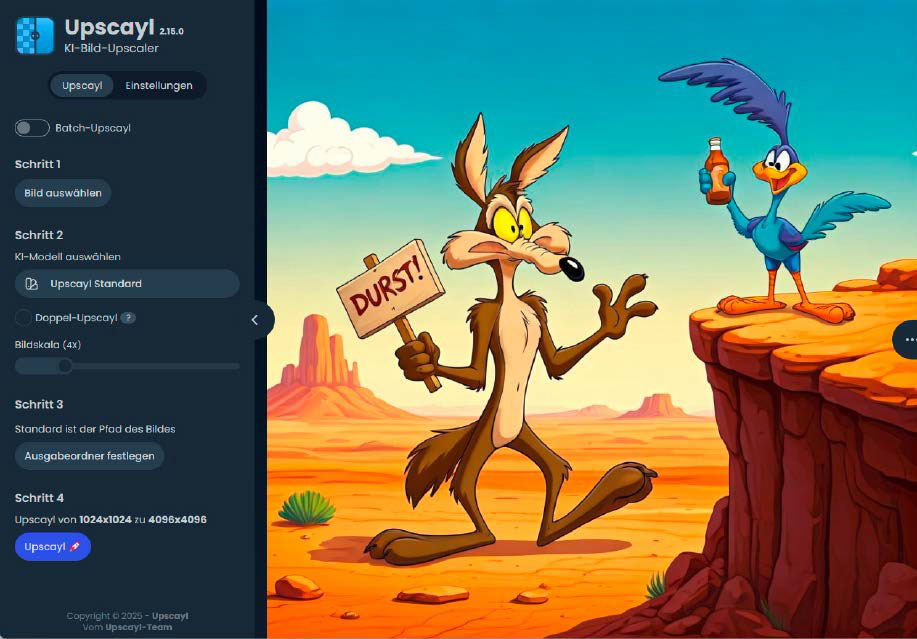
The neat interface makes it easy to load images and enlarge them with a single mouse click.
Foundry
Click “Settings” at the top left to configure the tool. Here you can set a different design and specify the format in which you want to save the enlarged images.
You can also specify a fixed width. The tool then adjusts the height accordingly. It is best to leave the image compression at “0” except for very large images, because compression is lossy and you will lose image information.
TTA mode is interesting. This stands for “Test Time Augmentation” and aims to provide even better results and eliminate artifacts. The program rotates the input image eight times, generates eight different outputs and combines them. The downside: the process takes eight times longer.
Load images and select template
Some photos are simply too small to meet today’s resolution and quality requirements. In the past, 640 × 480 pixels was considered high resolution.
With Upscayl, photos can be quickly enlarged and additional details can be highlighted. Upscayl resizes low-resolution images up to 16 times larger and also improves image sharpness.
There are many AI models to choose from, so you can select the perfect algorithm for your image pattern.
The tool also offers batch processing, which allows you to process a file in one go. Upscayl saves scaled images in PNG, WEBP or JPG format.
Once you open the program, the next step is to load the image.
The user interface is quite intuitive. You can drag and drop image files into the program window or add them using the “Select Image” button. If you enable the “Batch Upscayl” slider, you specify a folder. Upscayl then resizes all the images it contains at once.
AI models at a glance
Now select the AI model that should do the work and enlarge the image. The different models each have their own strengths.
1. The standard model is recommended for your first tests: “Upscayl Standard” is based on Real-Esgran. This model aims to achieve high quality results for a wide range of images. This is a good starting point for most images.
2. The “Upscayl Lite” selection prioritizes speed over image quality, although the quality loss is rather small. It is suitable for large volumes of images or when processing time is critical.
3. The “High Fidelity” model guarantees realistic details and soft textures and is suitable for example for urban shots.
4. The “Remacri” model is said to have the ability to enhance image details and colors. It is ideal for photos with complex details or textures and provides additional sharpness to images.
5. “Ultramix” offers a good balance between speed and image quality and between sharpness and detail. The “Ultrasharp” mode focuses on increasing sharpness, but this can come at the cost of image quality.
6. The “Digital Art” template is optimized for digital artwork and illustrations and aims to preserve artistic styles and details. It can also be used to scale graphics in pixels. In principle, other models in NCNN format can be added to Upscayl.
Adjust the magnification factor
By default, Upscayl enlarges images up to four times their original size. If you enable the “Double Upscayl” option, two passes are made, resulting in an enlargement of a factor of 16. Typically, this does not make sense.
The slider below sets the scaling factor to values between two and 16. A high scaling factor can be useful if you want to create high-quality prints. A factor of four means that the width and height are quadrupled. The end result is therefore 16 times the resolution.
An initial image of 2000×1200 pixels then becomes an impressive 8000×4800 pixels.
By default, the result is in the original folder, but the output folder can be specified according to your needs. Once you have made all the settings, start the process with “Upscayl”.
How long the process takes depends largely on the performance of your graphics card. The duration varies from less than a minute to well over an hour.
Checking the result
As soon as processing is complete, check the new image. To compare the original version and the improved version, Upscayl displays a slider.
Although at first glance it seems almost unchanged, zooming in reveals the differences.
Click the three dots to adjust the zoom level or switch to a lens view. Here you will also find some statistics on the average duration of scaling.

In the zoom view, the qualitative differences between the result file and the original are clearly visible.
Foundry
If you are not satisfied with the result, it is a good idea to try other models. Each model has different textures and details. You will only get the best results after some experimentation.


