How (and why) I use my Android phone as a wireless mouse


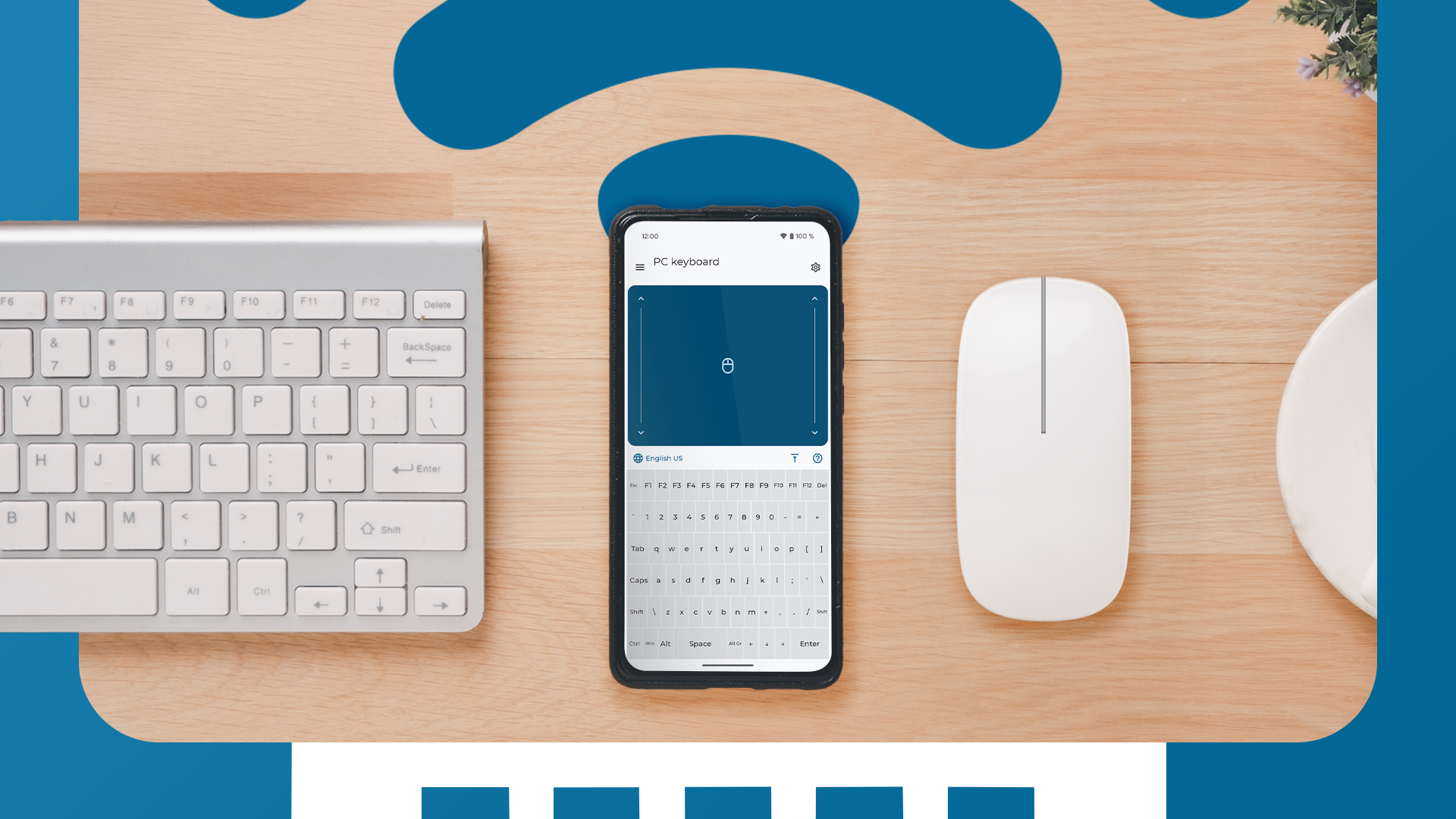
The idea of using your Android phone as a mouse or keyboard may seem gimmicky, but it works pretty well. With the right software, your phone becomes a wireless trackpad that’s always on hand when you need to handle difficult setups or when your usual devices let you down.
Why you might want to do it
You wouldn’t want to use your phone as a permanent replacement for a real mouse or keyboard, but it has its uses. For me, it was about being able to control the old Mac Mini that I was testing as a media server for my TV. If you’re traveling with a laptop and want a separate mouse, that’s one less thing to pack. Or if you’re giving a presentation, it lets you stay in control from any part of the room.
Not to mention that input devices sometimes let you down. Mouse batteries are dead and USB receivers are misplaced. You can never go wrong with keeping a spare device on hand in case of an emergency.
There are a few apps on the Play Store that will turn your phone into a wireless mouse. I first tried Unified Remote and Remote Mouse. Both were perfectly fine and working well.
If you’re willing to pay, I recommend Remote Mouse. It’s pretty and has a range of thoughtful features, including shortcuts for launching apps and dedicated music and browser controls. You can open new tabs and move forward and backward in a browsing session without needing to move your mouse pointer.
But while it’s free to use, many of these extra features are locked behind a paywall, in the form of a subscription or one-time fee. However, the app doesn’t specify which features are or aren’t available, and that was enough to make me look elsewhere.
Both apps also require you to install a server companion app on your computer. Looking for a simpler and more flexible solution, I finally opted for the very functional Bluetooth keyboard and mouse. This is also free with a cheaper paid upgrade and works only via Bluetooth. No additional software configuration is required and, in theory, it can work with any computer.
How to set your phone as a mouse
To get started, install the Bluetooth mouse and keyboard from the Play Store. Click through the opening screens and, when prompted, accept the permission for the app to search for Bluetooth devices.
Make sure Bluetooth is enabled on the computer you want to connect to and you should see it listed. If so, tap the computer and follow the additional on-screen instructions. And maybe that’s it.
If this doesn’t work for some reason, there are other ways to set up. Since I couldn’t connect to my Mac, I pressed “New Device” to see the other options. “Connection option B” is the one that worked for me. It allows you to connect from your computer to your phone and not the other way around.
Tap “Turn on visibility” followed by “Allow” when prompted. This will allow other devices to see your phone for the next five minutes.
Go to your computer’s Bluetooth settings and you should see your phone listed in the “Nearby Devices” or “Add Device” window. Select the phone and connect, then wait a few seconds for the operation to complete.
You can now test all the features. Dragging your finger in the main area should move the mouse pointer on your computer, and pressing buttons should correspond to mouse clicks. Select the keyboard icon to start typing. For each feature, you will be asked to confirm that it works when you test it.
How usable is it?
It’s quite simple to set up your Android phone as a mouse and keyboard. But how usable is it exactly?
Aside from some connection issues with the app (it can be a bit finicky), it’s actually surprisingly good. Latency is low. It’s not as responsive as a normal wireless mouse, but it’s well within usable limits. You can improve performance by adjusting the speed the cursor moves, as well as many other factors you’d expect on a mouse, like reversing the scroll direction. Gentle haptic feedback when clicking is also welcome.
You can also enable on-screen shortcuts for tasks like copy and paste, making common tasks much easier to complete. The keyboard is a little slower but still functional. I wouldn’t want to type anything other than a short message with it.
Unlocking the app with a one-time purchase opens up a range of exciting additional features. These include a neat “air mouse” mode that lets you control the mouse pointer by moving your phone rather than sliding across the screen, macros, and media shortcut buttons.
Using your phone as a wireless mouse and keyboard won’t replace your regular peripherals, but that’s beside the point. It’s a handy, low-effort trick that works (most of the time) when you need it.


