How to automatically switch Android themes using your ambient light sensor


System-wide dark mode is an awesome Android feature, but it’s not perfect. One of the main limitations is automation: your options are a rigid schedule or sunrise/sunset. With a simple app, you can toggle dark mode (and light mode) based on the lighting around you.
The app is called “Adaptive Theme: Auto Dark Mode” and while it’s not as simple as flipping a switch, you can set it up in less than two minutes. All you need is a USB cable and a secondary device with Chrome browser (it can even be another Android phone). Let’s get started.
Automatically Toggle Android Dark Mode Using Your Light Sensor
It’s easier than you think
Start by downloading “Adaptive Theme: Auto Dark Mode” from the Play Store on your Android device. Open the app and tap “Start setup”. The first thing you need to do is enable Developer Options if you haven’t already: tap “Open Settings” to do so. Once done, you will need to enable “USB Debugging” in Developer Options.
Next, you need a second device with a Chromium-based browser. This can be a PC or other Android device, and Chrome or Microsoft Edge will work. Connect the devices with a USB cable and tap “Continue” in the app. You will be prompted to go to lexip.dev/setup on the secondary device.
Once you are on the browser configuration page of your secondary device, select “Start configuration”. A context menu with available devices will appear: choose your phone and “Connect”. You will be asked to “Allow USB Debugging” on your primary device. Then, back in the browser, select “Grant Permission” and you’re good to go.

Every Android Developer Option Explained
Modern Android phones hide a menu called Developer Options. Most people never touch it. But if you’ve ever wanted to understand what your phone is doing under the hood, this is where you’re looking.
Customizing the lighting threshold
Decide brightness levels for dark and light modes
Once the setup process is complete, you will be returned to the main screen of the Adaptive Theme application. Enable it if you haven’t already. Now it’s time to decide how the themes will change with the “Brightness Threshold” slider. A higher threshold means that dark mode will be enabled in most conditions, while a lower threshold makes it easier to enable light mode.


The “Current Brightness” scale displays ambient brightness in real time: use it to determine when you want the lighting mode to be activated. Simply find a place with ambient lighting bright enough for when you want the lighting mode, then match the slider to that Lux number. Tap the three-dot menu at the top right to navigate to “Custom Threshold”.
One thing to keep in mind is the second sentence on the main app screen:
Changes only occur immediately after the screen is turned on, provided the sensor is not covered.
This means you won’t see the theme change instantly when you use your phone. The app takes a measurement from the light sensor when you wake up the screen, then the theme is adjusted accordingly. However, the theme does not change if the light sensor is hidden.
That’s it! You just need to decide whether you want a primarily dark or bright experience. Personally, I prefer light mode unless it’s almost completely dark. My threshold is therefore set at 30 lx. However, if you prefer dark mode except in direct sunlight, you’d want a threshold closer to 1000 lx. Now you have the power to choose how it works!
-
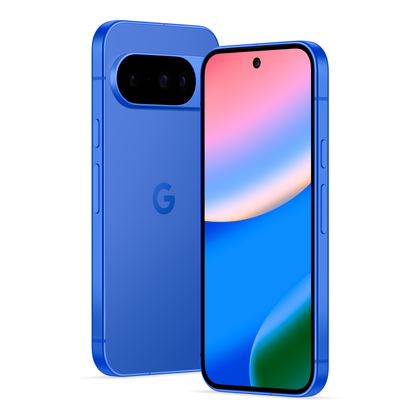
- Brand
-
Google
- SoC
-
Google Tensor G5
- Display
-
Actua 6.3-inch OLED, 20:9
- RAM
-
12 GB of RAM
- Storage
-
128 GB / 256 GB
- Battery
-
4970mAh
Looking to upgrade to a Pixel, but not sure if you need all the features of the more expensive models? You won’t be disappointed with the standard Pixel 10 model. Available in vibrant colors, Gemini features, and seven years of updates, you can’t go wrong with this purchase.
-
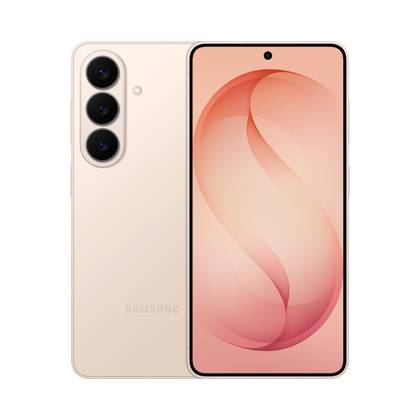
- SoC
-
Snapdragon 8 Elite Gen 5
- Display
-
6.3-inch 2x Dynamic AMOLED
- RAM
-
12 GB
- Storage
-
256 or 512 GB
- Battery
-
4,300mAh
- Operating system
-
Android


9 Tasks You Can Automate on Your Android Phone
Not everything on your Android phone needs to be turned on or off manually. You can automate many tasks on your phone, allowing it to perform useful tasks on its own. Here are some useful automations to use on your device.