How to Enhance Video and Image Quality with VideoProc Converter AI – All-in-One Toolkit


Poor quality visuals are still surprisingly common and frustrating. Old, heavily compressed home videos, DVDs, VHS tapes, and social media clips often look blurry, noisy, full of artifacts, washed out colors, and lacking detail. Even images shot with modern phones or cameras can be blurry, under or overexposed, or grainy when shooting conditions or camera settings are inappropriate, such as using low ISO, incorrect frame rate, or excessive zoom.
To solve these common visual problems, AI video and image enhancers have become essential, and VideoProc Converter AI stands out as one of the most user-friendly and cost-effective tools. By leveraging advanced AI, it transforms imperfect visuals into sharp, vibrant results, helping everyday users, content creators, and professionals easily enhance videos and photos.
What is VideoProc Converter AI?
VideoProc Converter AI is an all-in-one media toolkit that uses AI to enhance videos and images. It offers super resolution, frame interpolation, stabilization and image AI to increase resolution (up to 400%), reduce noise and blur, fix compression artifacts, stabilize shaky images, increase frame rates and improve facial details. It also includes color controls (brightness, hue, saturation) for better balance and a more natural look. Beyond improvement, it supports format conversion, trimming and ripping DVDs. With GPU acceleration, everything runs quickly and easily with minimal system load.
Special offer
VideoProc Converter AI is currently offered at a special price, with 62% off lifetime license. The license gives you free updates, access to all future AI models, and four premium tools, including an AI image background removal tool. This is a limited time offer, so don’t miss the chance to get it.
How to Improve Overall Video Quality with VideoProc Converter AI
Quality issues such as blurring, pixelation, choppy motion, and shaky images are common. High ISO, older lenses or basic mics can add grain, soften focus or capture background noise, while poor lighting flattens colors and reduces clarity. VideoProc Converter AI’s AI tools are designed to solve these problems, improving video and audio quality in a simple way.
1. Improve video resolution and clarity with Super Resolution
VideoProc’s Super Resolution addresses common video quality issues such as low resolution, blur, noise, and compression artifacts. In our tests, it effectively recovered lost detail, reduced noise, sharpened softened edges, and corrected artifacts. Scaling by 2x, 3x, or 4x produced significantly sharper and more detailed results while maintaining a natural appearance. This makes it easier to improve low-quality footage for editing, sharpen cropped videos on 4K displays, color correct for better brightness and contrast, and much more. Here’s how it works:
Step 1. Open this capable AI video upscaling software, tap Super Resolution and add your original videos.
Step 2. Choose the desired resolution, such as 2x, 3x or 4x, to upgrade the video to 200%, 300% or 400% of its original size.
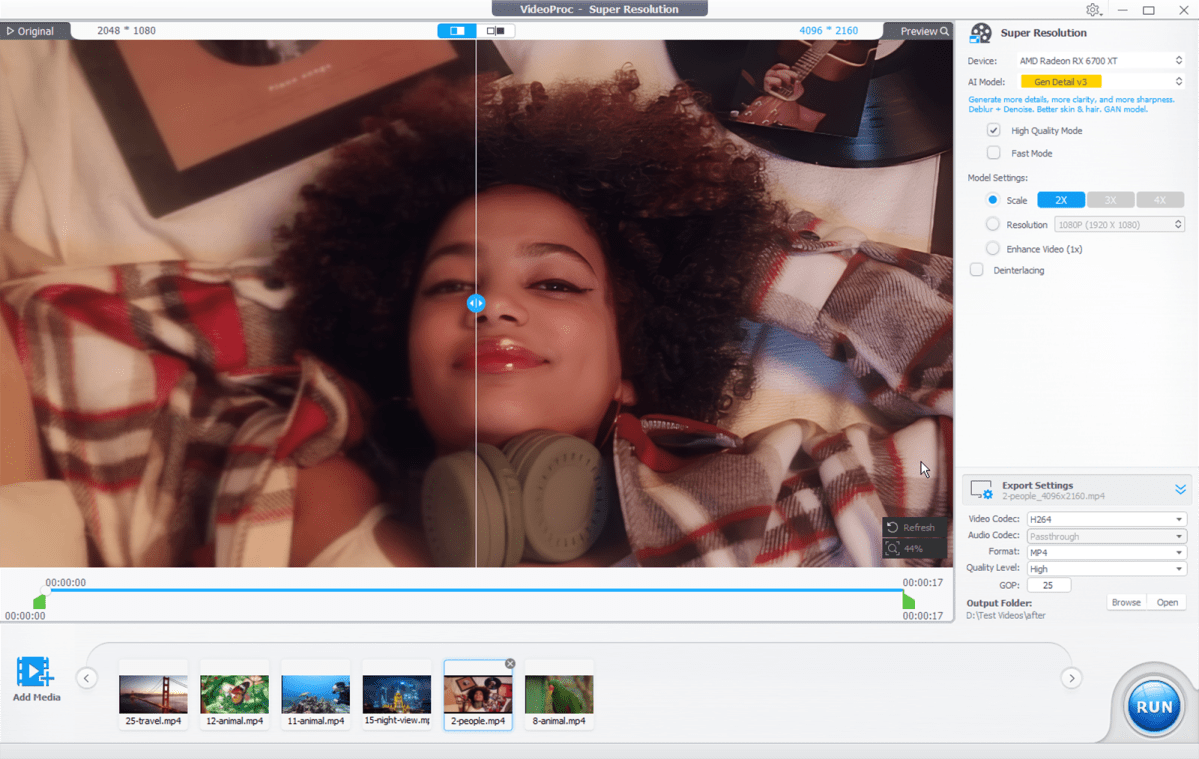
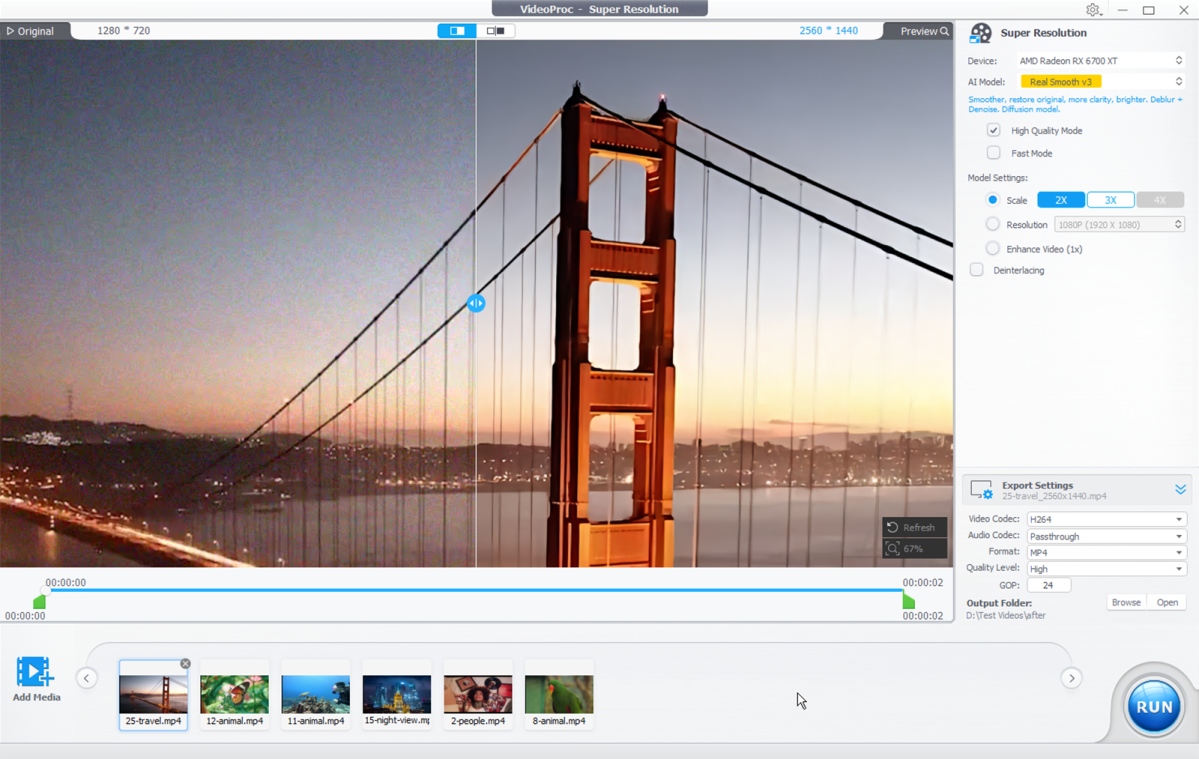
Step 3. Select the AI model to enhance, remove blur and denoise different types of videos. Gen Detail v3 and Real Smooth v3 are two commonly used options.
- Details of the v3 generation is ideal for increasing and removing blur from images, enhancing old videos, and bringing out fine details like fur and hair.
Digiarty
- Really smooth v3 also works well on many types of footage, such as family videos, travel clips, or AI-generated content. It can help you enhance, denoise and enhance your videos while keeping them sharp and clear.
Digiarty
Step 4. Adjust the output format and destination folder as needed, then click Run to export. In our tests, exporting videos from this powerful AI video converter software was quick and the resulting video appeared sharper and more detailed.
2. Stabilize shaky images with stabilization
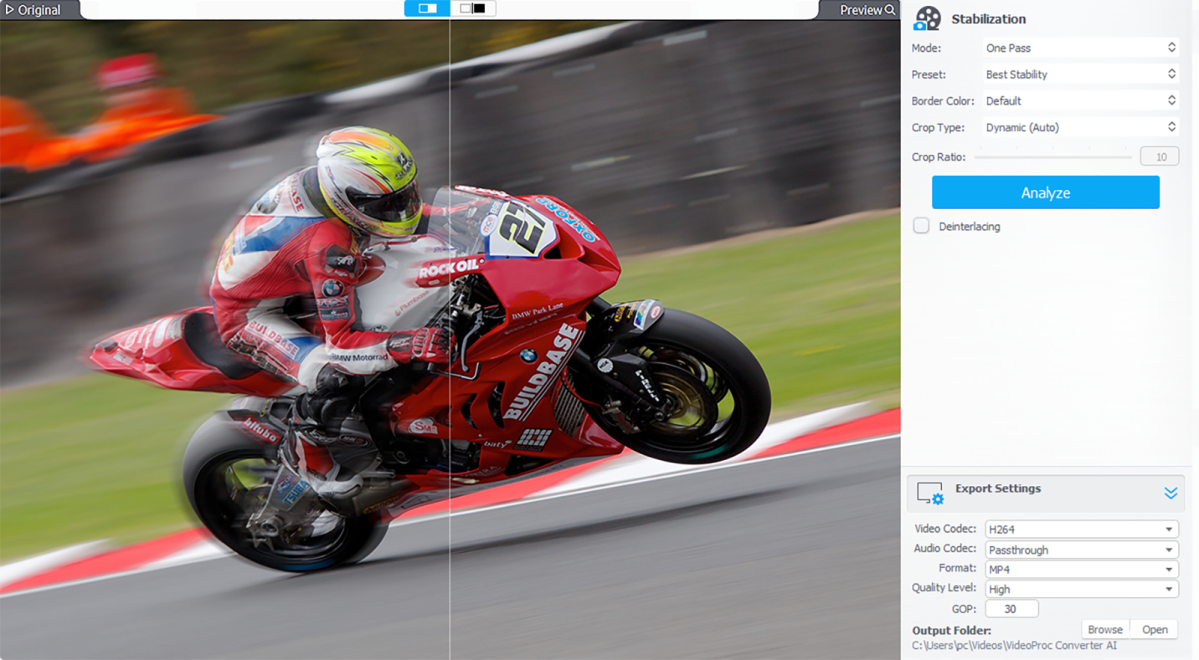
Camera shake is a common problem in handheld recording. VideoProc Converter AI stabilization analyzes key points frame by frame to generate a smoother camera path. In our tests, it significantly reduced shaking travel clips, action shots and footage from older cameras without image stabilization, making handheld video look like it was filmed on a tripod. The process is simple.
Step 1. Open the software, tap Stabilization and import the video. Select the mode and preset, and adjust the crop option if necessary.
Step 2. Click Run to stabilize the video. In our tests, the resulting footage was significantly more stable with minimal cropping artifacts.
Digiarty
3. Make choppy videos smoother with frame interpolation
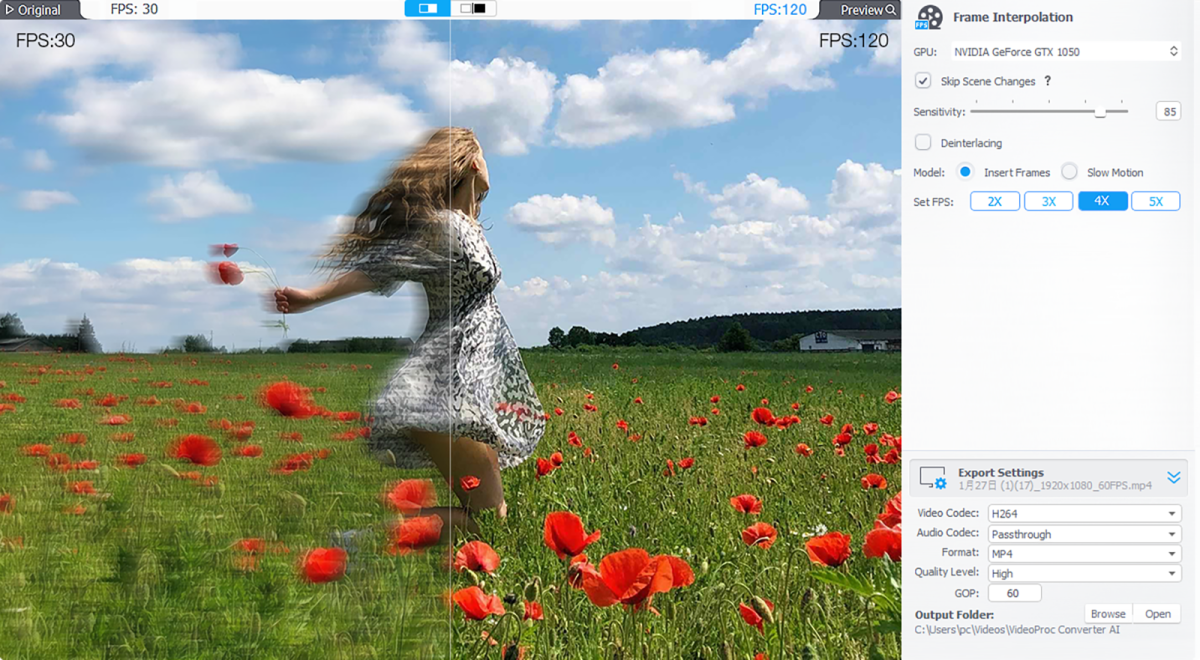
Low frame rates or dropped frames can make videos choppy, especially in sports scenes, fast-paced scenes, or older footage. VideoProc Converter AI solves this problem with frame interpolation, generating additional frames to smooth out motion and increase frame rates from 30 or 60 fps up to 120 fps or higher. In our tests, this did action clips And older videos play noticeably smoother and more naturally, with minimal artifacts, and the process is simple.
Step 1. Open the image interpolation tool in VideoProc Converter AI and import your images.
Step 2. Choose an fps multiplier (e.g. 2x to 5x). If necessary, enable options such as skip transitions.
Step 3. Once set, select the output format and click EXECUTE to export.
Digiarty
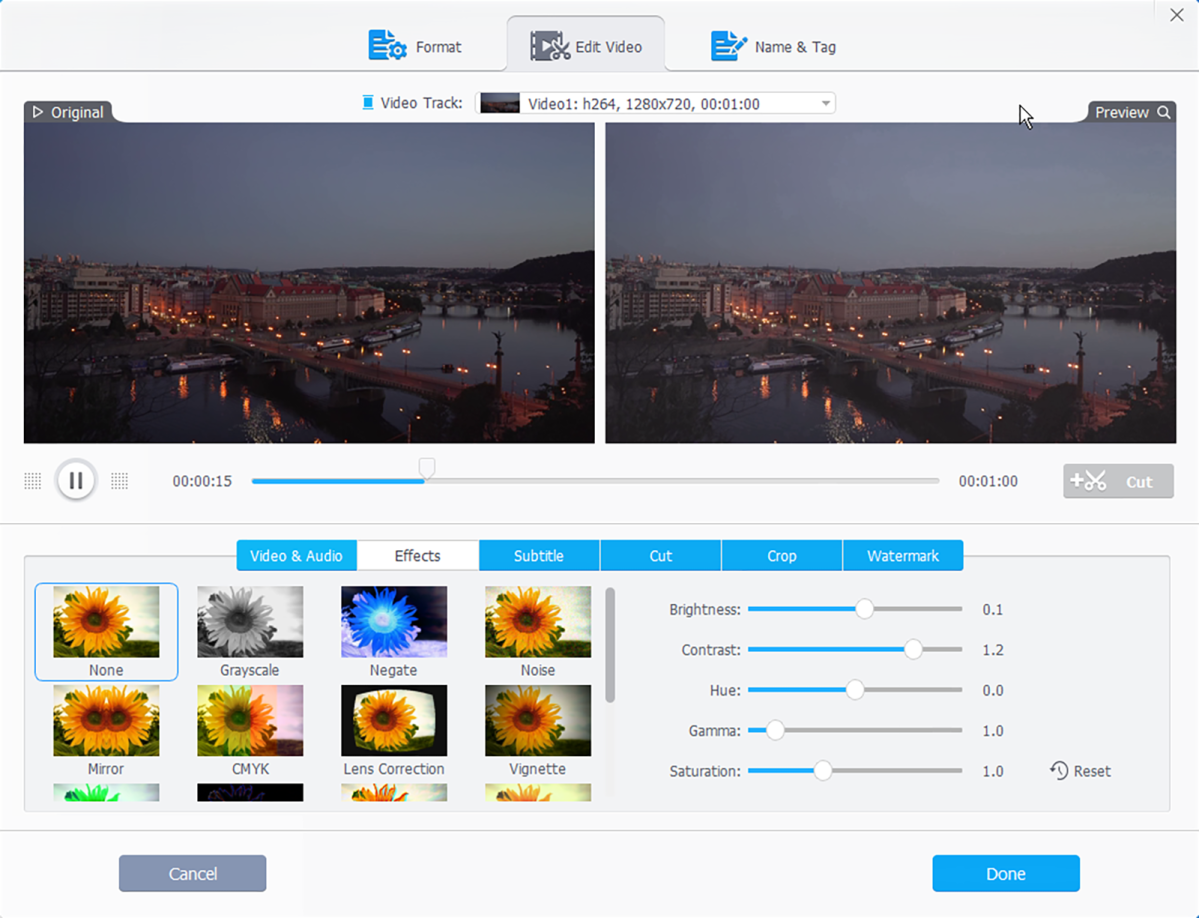
4. Improve brightness and color with quick editing
Poor lighting, faded colors, and poor exposure can make videos look flat. VideoProc Converter AI offers simple tools to adjust brightness, contrast and color for better visuals.
Step 1. Open the software → select Video Converter → import videos.
Step 2. Choose format → click Effect → adjust brightness, saturation, etc. → Done → Run.
Digiarty
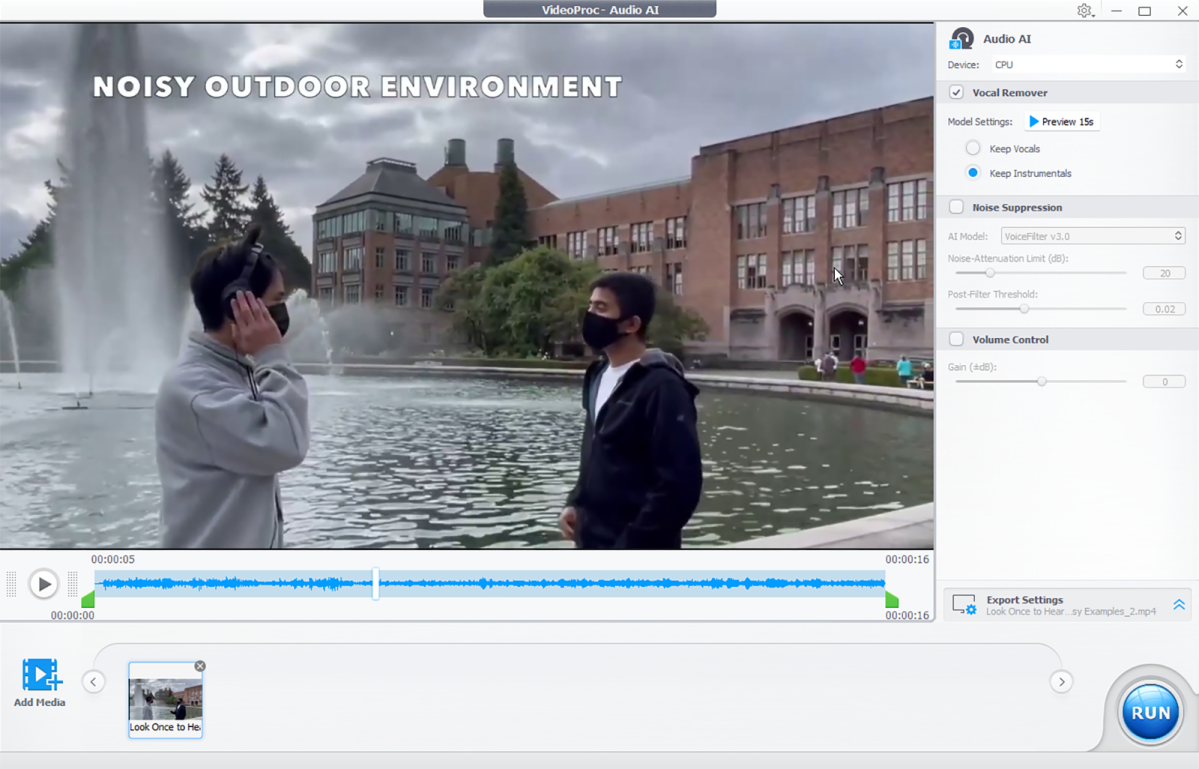
5. Clear Video Audio with AI Audio
Background noise in videos can distract viewers and reduce impact. This tool’s audio AI lets you remove hiss, hum, and wind noise, making voices and music clearer. It can also isolate vocals.
Step 1. Open VideoProc Converter AI → select Audio AI → add your video files.
Step 2. Enable noise suppression → choose AI Model/Settings → Run.
Digiarty
How to overall improve image quality with VideoProc Converter AI
Image issues are common: old photos appear faded, uploads lack resolution, crops lose sharpness, and scans add noise. In testing, VideoProc Converter AI’s Image AI (Super Resolution, Face Restoration, Colorization) improves them effectively.
1. High-end images with AI super resolution
It uses super resolution to enlarge low-resolution images up to 10K while preserving details. In tests with old digital photos, cropped images, and web uploads, blurry edges and pixelation were noticeably reduced, while textures such as hair, fabric, and background elements became sharper.
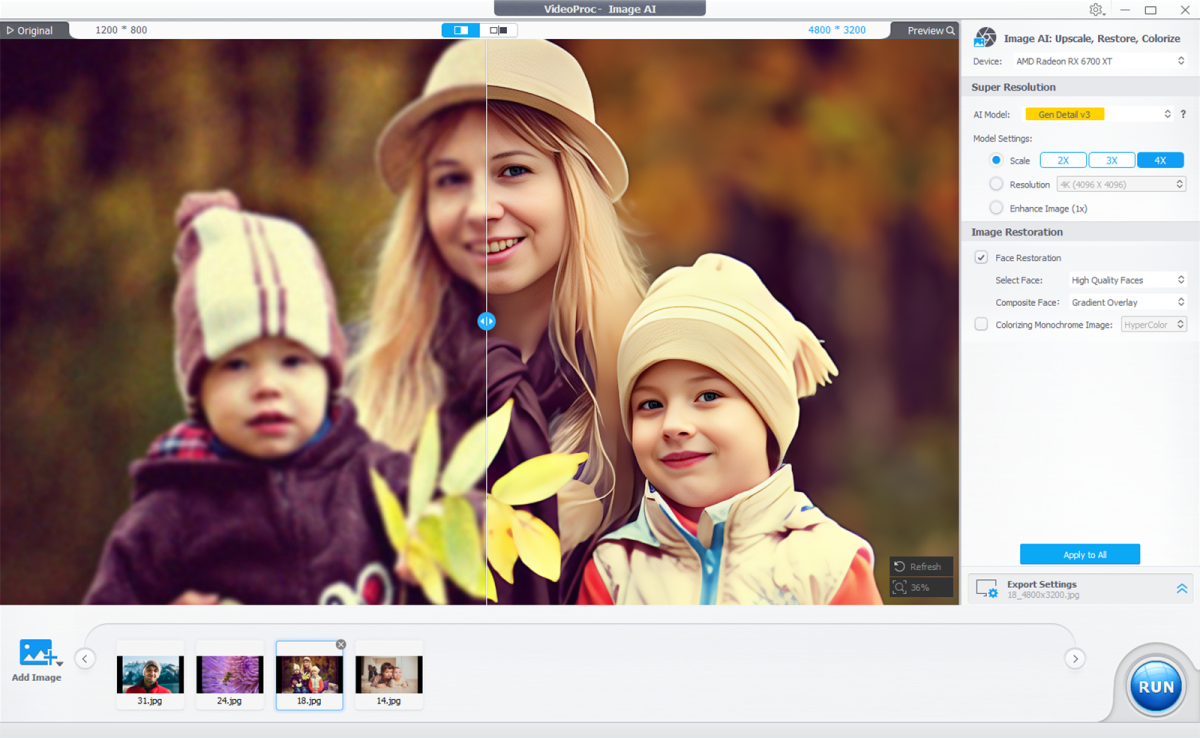
2. Restore faces in photos and colorize faded photos
The software’s facial restoration feature further refines portraits and group photos. It uses AI to recover subtle facial details such as eyes, lips and skin texture. In testing, it brought old family photos and low-quality selfies to life without introducing artificial effects. VideoProc also helps you add realistic colors to black and white or washed out images, improving depth while maintaining a natural look.
How to improve image quality with VideoProc Image AI
Step 1. Open the software → select Image AI → import images.
Step 2. Choose an AI mode and scale/aspect ratio.
Step 3. (Optional) Enable face restoration or colorization → click Run.
Digiarty
Conclusion
This AI video upscaler and optimizer improves the quality of home movies, gameplay, travel clips, AI content and shaky phone videos, making images sharper and cleaner. It also handles editing, converting, compressing, recording, downloading and ripping DVDs. Affordable, user-friendly and versatile, it covers all major video needs.