Laptop utility apps: 7 hidden features worth trying


Summary created by Smart Answers AI
In summary:
- PCWorld explores seven overlooked utility features for laptops, including Lenovo’s Self-Healing Diagnostics, Asus AI Noise Cancellation, and Samsung’s Device Ecosystem Integration.
- These pre-installed apps offer powerful customization beyond basic settings, from Surface touchpad controls to MyAsus Target mode to reduce eye strain.
- While some features, such as HP Enhanced Lighting, have practical limitations, others offer real added value in terms of productivity and user comfort.
One of the unsung heroes of your laptop’s productivity is the humble utility application. This is the software installed by your laptop manufacturer to manage and customize your device.
At its best, it’s a fascinating and nerdy collection of tools and features – things you never thought possible. At worst, it’s a collection of malware that sells you software and services you don’t need.
These utilities vary by manufacturer. Some, like the Microsoft Surface app, are terribly superficial. Others, like the built-in Asus app, can go into detail, giving you fine-grained control over ports and AI functions. High-performance gaming laptops often have their own completely different custom software, allowing for in-depth adjustments and monitoring of fan speeds, memory timings, or RGB controls.
Either way, here are some of my favorite apps to explore on any new laptop, because you never know what you’ll find. In a previous story, I showed the standard features you can expect to find in most utility apps, regardless of manufacturer. Here I focus on the most unique features I found that are specific to a single manufacturer.
This is not an endorsement of the best utility apps. Instead, use it as encouragement to dig into your laptop and see what these apps can do for you! I think you will be surprised.
E-reader mode (MyAsus)
You’ve probably heard of Windows’ blue light filter, which helps minimize eye strain. Some laptops now go well beyond that.
Mark Hachman / Foundry
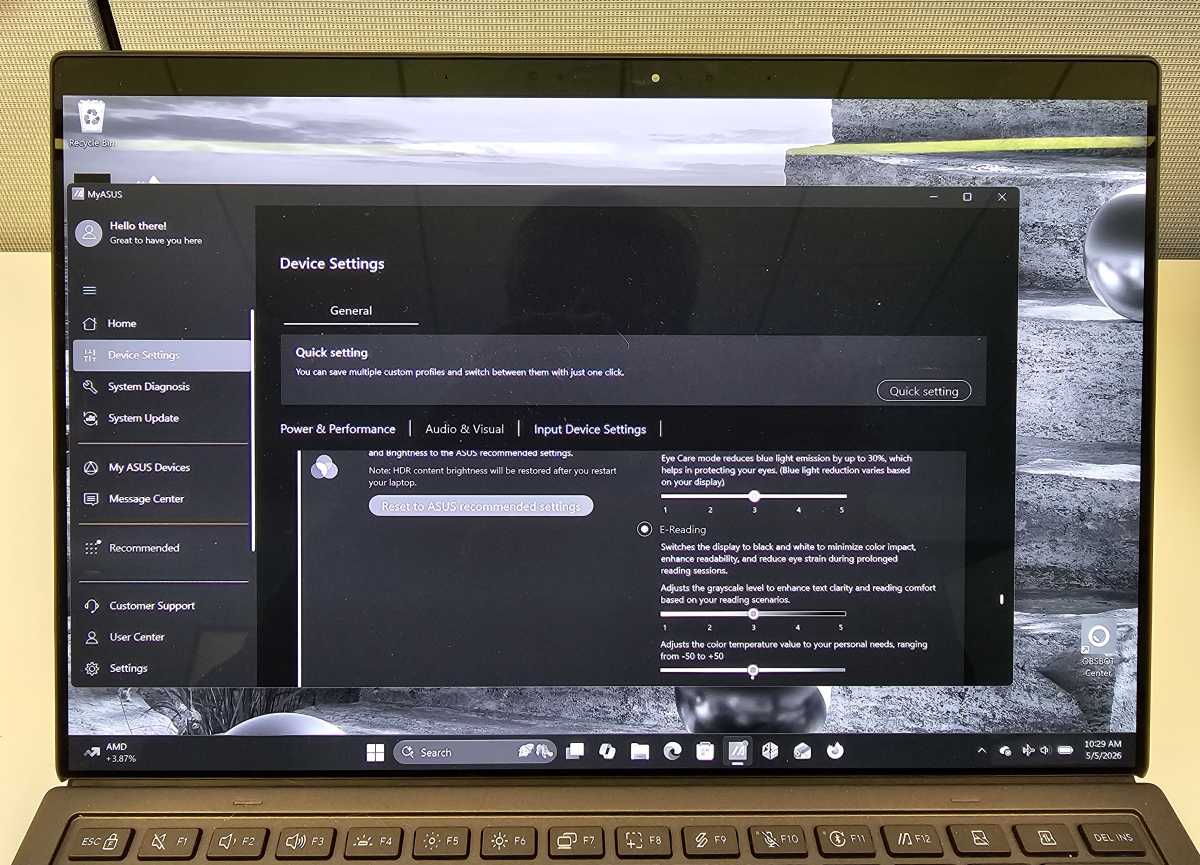
You’ll typically find sophisticated color controls in most utility applications, and some of these basic features have also been merged into Windows’ display settings (Settings > Display > Color Profile). They allow you to increase saturation for more vibrant colors or make adjustments for creative work. The MyAsus app on Asus laptops not only lets you reduce blue light more aggressively, but it also gives you the option to remove it completely.
MyAsus calls this mode “E-Reading”, and it does exactly what it says: it turns your display into grayscale. This can be an ideal solution at the end of a long work day when your eyes are tired. Combine it with something like Google Chrome’s Reading Mode to minimize distractions and provide a more restful background for your eyes.
AI noise-cancelling microphone (MyAsus)
The AI noise-canceling capabilities of Asus laptops are so powerful that I covered them in a separate story. The combination of directional mics and the Asus algorithm (powered by the laptop’s NPU) does an incredible job of filtering out extraneous noise. In my testing, I played loud music and white noise from my phone and placed it near my head. The microphones filtered everything perfectly.
The MyAsus software goes a bit overboard in that it can filter by direction or by speaker (even two), but it does a wonderful job at both. I’m just not as sure about noise filtering on the speakers, another feature offered by MyAsus and competing utility apps. This can distort the output, while my brain filters out background noise better.
Control TVs and other devices with SmartThings (Samsung Settings)
Samsung has gone to extraordinary lengths to connect its ecosystem of Samsung devices, from phones to tablets to Galaxy Book laptops. And Microsoft has followed suit by connecting Android phones and other Windows devices through the Phone Link app. Still, Samsung is putting considerable effort into its Samsung Settings utility app (connected devices), adding features like automatically switching the Galaxy Buds between your laptop and phone depending on which one you’re using.
Mark Hachman / Foundry
To date, however, it’s the broader ecosystem – in this case, Samsung’s consumer electronics ecosystem – that has a leg up on everyone else. And you can control these devices from your PC!
(Although our office TV is apparently locked, the Samsung TVs in neighboring offices are not. However, they flash a PIN code that you must enter on your device to ensure pranksters don’t hijack the screen.)
Target mode (MyAsus)
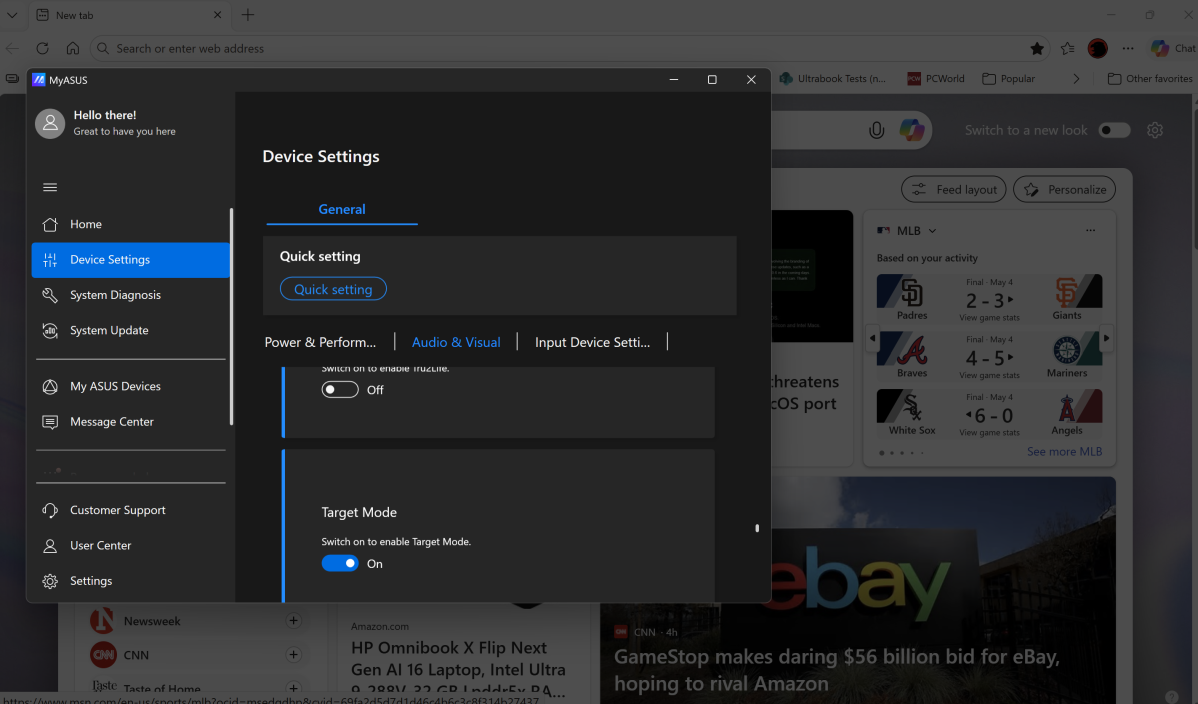
The MyAsus app identifies Target Mode as a power-saving feature, but I view it as another way to reduce eye strain. Target mode leaves your active window at full brightness, but then dims other windows on your screen.
Target Mode is a bit like PowerToys’ newest addition, Power Display, in that you can dim any screen on your desktop to the brightness you want. But the power display requires manual adjustment, unlike the target mode. To be fair, Target Mode could use an update, as it dimmed my secondary monitor’s windows appropriately, but never returned them to their previous state when I turned it off. It does a good job on a single laptop screen, though.
Mark Hachman / Foundry
Samsung also has a Focus mode in its Samsung Settings that promises to do the same thing, but it seems to do relatively little.
Right-click region settings on touchpad (Microsoft Surface)
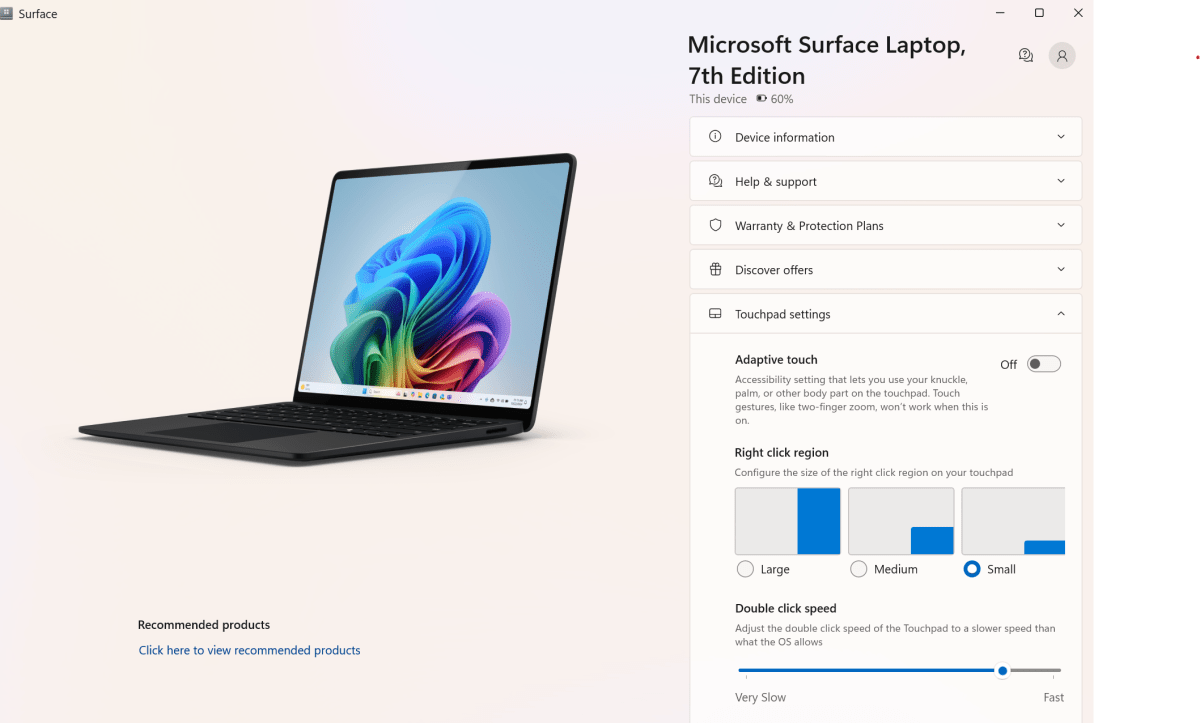
Microsoft’s Surface app is one of the worst utility apps I’ve seen. (MSI gives it a run for its money.) But, to its credit, it’s the only utility app I’ve seen that lets you draw a boundary to establish where a touchpad’s “right-click” and “left-click” are.
Mark Hachman / Foundry
Do you rarely right-click on a file? If you do this, you can set the right-click region as less than a quarter of your touchpad or subdivide it to about as large as the entire right half. You can also set it to use a knuckle, palm, or other body part, as an adaptive setting for those lacking fingers.
HP Enhanced Lighting (HP Enhanced Lighting)
HP’s collection of utility software is surprisingly poor, focused more on setting up a new printer and solving troubleshooting problems than providing features that an average user might enjoy.
One small exception is HP Enhanced Lighting, which essentially turns your screen into a giant ring of light, a feature that already works quite well on most laptops and monitors if you open a new document in Windows Notepad and then maximize the screen brightness. The problem is that HP’s implementation takes up a significant portion of your screen to do this – a screen you might want to use to look at documents or just see the person you’re talking to.
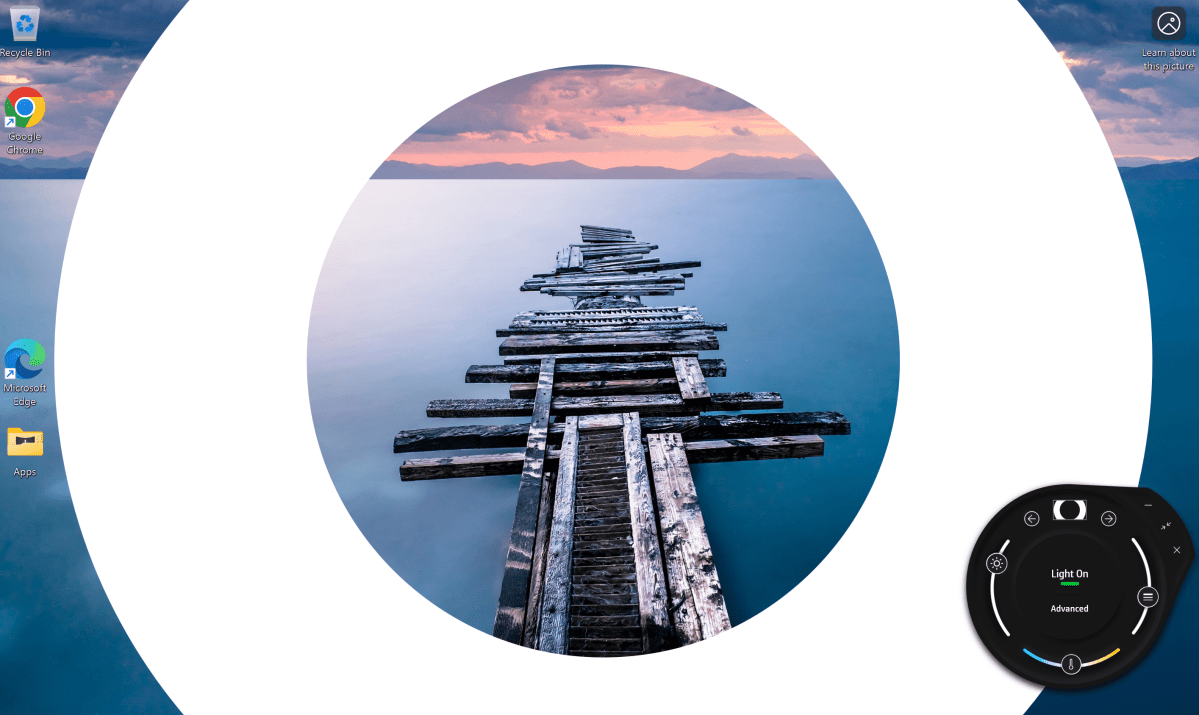
Mark Hachman / Foundry
On-demand PC self-repair (Lenovo Vantage)
Lenovo just enabled this new feature as I wrote this story, so I can’t say for sure what it does or how effective it will be. But I know it’s free and doesn’t collect personal data.
“When enabled, Vantage automatically detects and fixes common issues,” the feature states. “You will receive helpful reminders and quick suggestions to keep your device running smoothly.”
Self-healing promises to detect potential problems, analyze the potential cause, and then repair them while potentially recommending other solutions. It scans for issues affecting your screen, camera, Wi-Fi, Bluetooth, battery, touchpad, keyboard, and audio. It also analyzes a list of around 30 applications (from Chrome to Deezer to Foobar2000 to Teams to Zoom).
Honestly, this is a service I might consider not allowing, simply because I’m not sure what it does or what benefits it would provide on a new PC. But it’s also a feature that could provide peace of mind. I enabled it, just to see what it will do in the real world.
To be honest, some of these features are better than others. I thought, for example, that a Lenovo feature that automatically pauses a video when you walk away would be surprisingly useful. But it was only enabled with local apps on the device, not streaming services. It didn’t really work at the time either. But that’s kind of the fun of the utility app, in my opinion: finding out what works and what works best for you.


