Microsoft takes on Ninite with easy batch multi-app installations


Microsoft has quietly started to challenge Ninite with an interesting addition to the Microsoft Store: multi-app installs as easy as a few clicks. Interestingly, the new option doesn’t appear to be available through the Microsoft Store app on Windows. Instead, Windows Central found it hidden on the Microsoft Store website,
Ninite has been around practically forever: PCWorld reviewed Ninite years ago in 2012, and we recently highlighted it this year as a superb tool for resetting your PC and quickly getting it back up and running with common applications after a fresh start.
In short, Ninite lets you choose from a suite of third-party apps and combine them into a single batch installer that cycles through and installs them all at once. The winget command in Windows is vaguely similar, although it’s aimed more at users who want to avoid the Microsoft Store altogether and grab an app a la carte via the command line.
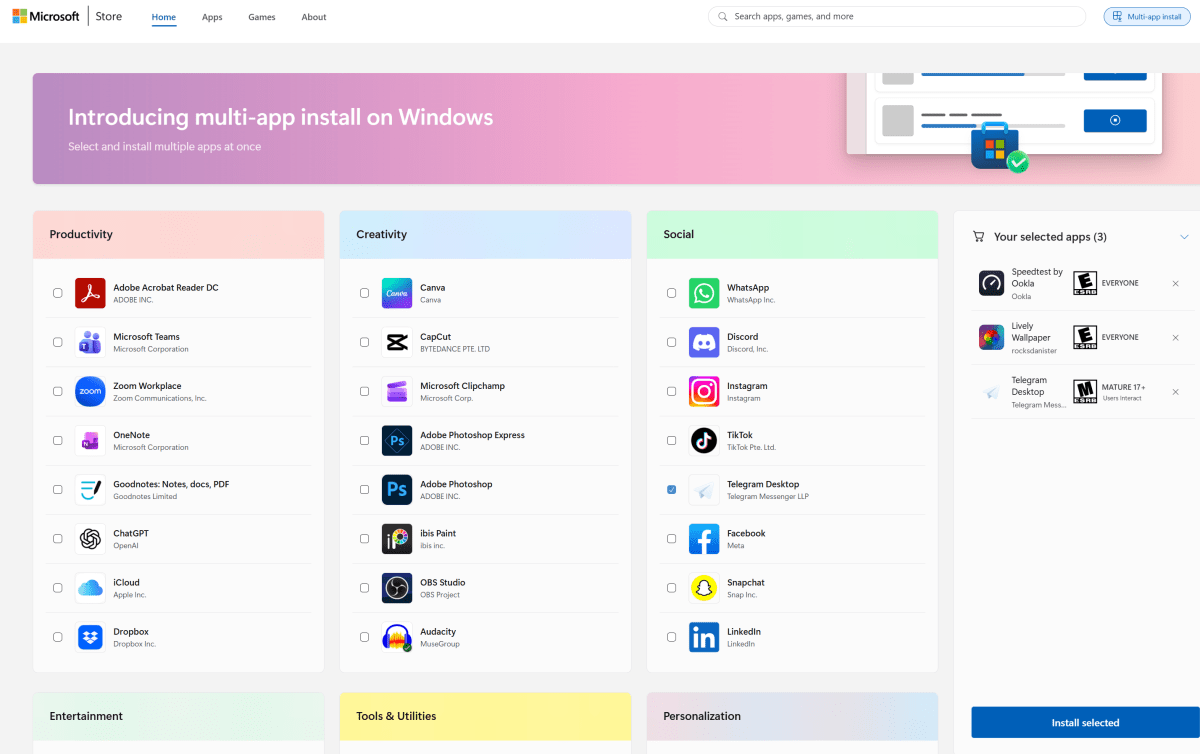
Microsoft’s multi-app install challenges Ninite in its format, although it still caters to the Store suite of apps. Microsoft distinguishes six categories of eight applications each, divided into “personalization”, “social”, “creativity”, etc. Apps include everything from Adobe Acrobat to EarTrumpet to Lively Wallpaper, with a focus on apps (not games) you’d probably like to add to your PC.
Mark Hachman / Foundry
The multi-app setup page allows you to select apps via checkboxes, where they will be collected in a “selected apps” column on the right. Once you are happy with your selections, you can choose to download the installer, which will appear in the Downloads section of File Explorer.
Oddly, there’s no way to click and see what each app actually does or how much space it will take up on your PC.

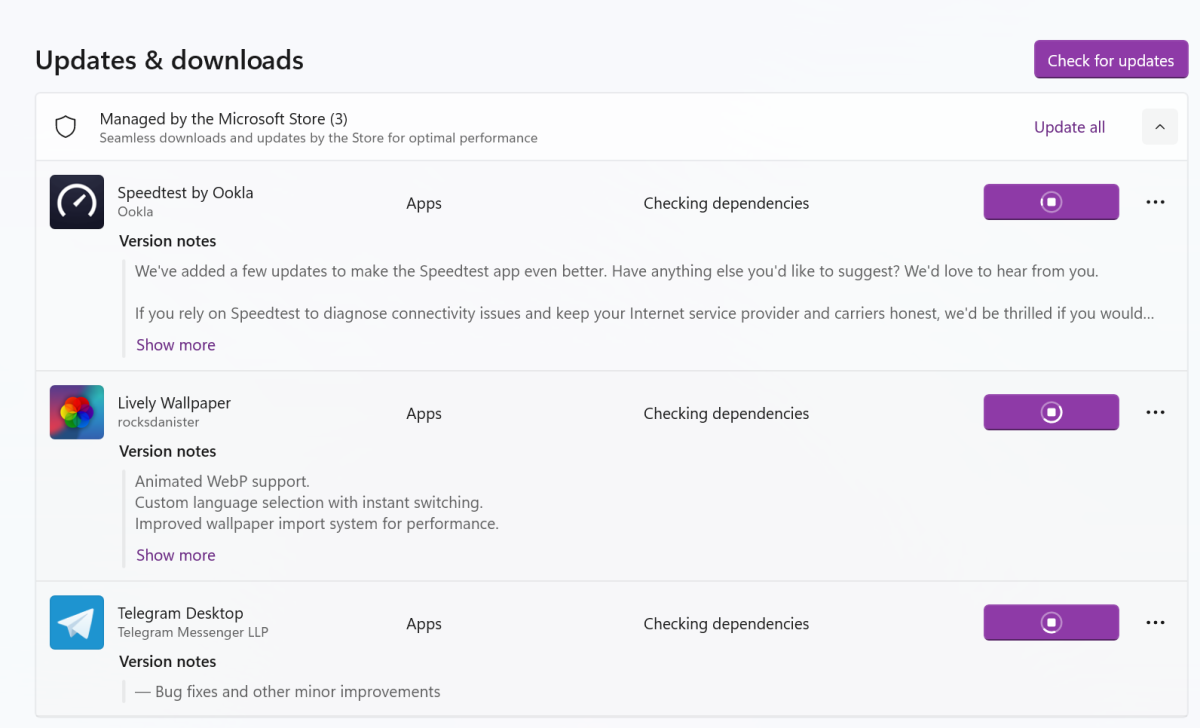
Don’t expect too much magic here. The “installer” is essentially a macro that tells the Microsoft Store to download the apps you’ve selected. It’s not much different from going to the Microsoft Store, searching for the app, and then clicking the “Download” button several times. As you can see in the screenshot below, the Microsoft Store checks dependencies this way, but this is something it always does anyway:
However, the multi-app install page is all about curating quality apps that Microsoft thinks you’ll like, which is always a useful thing.
I’ve been told that Microsoft is sensitive to the fact that users are abandoning Windows in favor of the Apple Mac ecosystem, especially in the waning days of Windows 10 support. That’s one of the reasons Microsoft has pushed its Windows Backup and Restore strategy so hard: backing up your files to the cloud helps you stay in the Windows ecosystem. (Backing up your files also gets you an extra year of Windows 10 support.)
Currently, Microsoft has no way to “save” your multi-app bundle to the Store itself. Microsoft’s Restore feature will automatically “restore” apps to your PC that you downloaded from the Store, but doesn’t offer this third-party functionality like Ninite does. It seems unlikely that Microsoft will steer you toward “untrusted” third-party apps that it can’t control, which means Ninite may retain an advantage there.


:max_bytes(150000):strip_icc()/Health-GettyImages-2150426225-25c6fa90cba940e284ee54471b388180.jpg?w=390&resize=390,220&ssl=1 "Bodyweight Exercises That Strengthen Your Core Similar to a Plank")
