Stop pointing your router antennas straight up—the secret to positioning them for perfect Wi-Fi coverage


Routers are easily forgotten, placed once and only remembered when they stop working. In doing this, a lot of people overlook the antennas, often leaving them pointing in random directions or arranged on a whim. It’s a waste: you need to arrange them properly to maximize your network efficiency.
Router antennas shape your Wi-Fi coverage
Where the antenna points, the signal follows
If a router has antennas, it’s for a reason. The Wi-Fi signal does not simply blast outward equally in every direction like a magic bubble of “internet.” It radiates in patterns, and the orientation of the antennas affects those patterns. That means the physical position of your antennas can influence where the signal is strongest and where it struggles.

Quiz
Home Networking & Wi-Fi
Think you know your routers from your repeaters — put your home networking know-how to the ultimate test.
Wi-FiRoutersSecurityHardwareProtocols
What does the ‘5 GHz’ band in Wi-Fi offer compared to the ‘2.4 GHz’ band?
That’s right! The 5 GHz band delivers faster data rates but loses signal strength more quickly over distance and through walls. It’s ideal for devices close to the router that need maximum throughput, like streaming 4K video.
Not quite — the 5 GHz band actually offers faster speeds at the cost of range. The 2.4 GHz band travels farther and penetrates obstacles better, which is why smart home devices and older gadgets often prefer it.
Which Wi-Fi standard, introduced in 2021, is also known as Wi-Fi 6E and extends into a new frequency band?
Correct! 802.11ax is the technical name for Wi-Fi 6 and Wi-Fi 6E. The ‘E’ variant extends the standard into the 6 GHz band, offering a massive swath of new, less-congested spectrum for faster and more reliable connections.
The answer is 802.11ax — that’s Wi-Fi 6 and Wi-Fi 6E. Wi-Fi 6E adds support for the 6 GHz band, giving it far less congestion than the crowded 2.4 GHz and 5 GHz bands. 802.11be is actually the upcoming Wi-Fi 7 standard.
What is the default IP address most commonly used to access a home router’s admin interface?
Spot on! The vast majority of consumer routers use either 192.168.0.1 or 192.168.1.1 as the default gateway address. Typing either into your browser’s address bar will bring up the router’s login page — just make sure you’ve changed the default password!
The correct answer is 192.168.0.1 or 192.168.1.1. These are the most common default gateway addresses for home routers. The 255.x.x.x addresses are subnet masks, and 127.0.0.1 is your own machine’s loopback address, not a router.
Which Wi-Fi security protocol is considered most secure for home networks as of 2024?
Excellent! WPA3 is the latest and most robust Wi-Fi security protocol, introduced in 2018. It uses Simultaneous Authentication of Equals (SAE) to replace the older Pre-Shared Key handshake, making it far more resistant to brute-force attacks.
The answer is WPA3. WEP is completely broken and should never be used, WPA is outdated, and WPA2 with TKIP has known vulnerabilities. WPA3 offers the strongest protection, and if your router supports it, you should enable it right away.
What is the primary difference between a mesh Wi-Fi system and a traditional Wi-Fi range extender?
Exactly right! Mesh systems use multiple nodes that talk to each other intelligently, handing off your device seamlessly as you move around your home under one SSID. Traditional range extenders typically broadcast a separate network and can cut bandwidth in half as they relay the signal.
The correct answer is that mesh nodes form one intelligent, seamless network. Range extenders are actually the ones that often create separate SSIDs (like ‘MyNetwork_EXT’) and can significantly reduce speeds. Mesh systems are far superior for large homes with many devices.
What does DHCP stand for, and what is its main function on a home network?
Perfect! DHCP (Dynamic Host Configuration Protocol) is the unsung hero of home networking. Every time a device joins your network, your router’s DHCP server automatically hands it a unique IP address, subnet mask, and gateway info so it can communicate without manual configuration.
DHCP stands for Dynamic Host Configuration Protocol, and its job is to automatically assign IP addresses to devices on your network. Without it, you’d have to manually configure a unique IP address on every single phone, laptop, and smart device — a tedious nightmare!
What is ‘QoS’ (Quality of Service) used for in a home router?
That’s correct! QoS lets you tell your router which traffic gets priority. For example, you can prioritize video calls or gaming over a family member’s file download, ensuring your Zoom meeting doesn’t freeze just because someone is downloading a large update.
QoS — Quality of Service — is actually about traffic prioritization. By tagging certain data types (like VoIP calls or gaming packets) as high priority, your router ensures latency-sensitive applications get bandwidth first, even when the network is congested.
What does the ‘WAN’ port on a home router connect to?
Correct! WAN stands for Wide Area Network, and the WAN port is where your router connects to the outside world — typically to your cable modem, DSL modem, or ISP gateway. The LAN ports on the other side connect to devices inside your home network.
The WAN (Wide Area Network) port connects your router to your ISP’s modem or gateway — essentially your entry point to the internet. The LAN (Local Area Network) ports are for connecting devices inside your home. Mixing them up can cause your network to not function at all!
Your Score
/ 8
Thanks for playing!
In many cases, a router’s antennas will be straight up by default, which may lead you to believe that this is the optimal position for them. But this just isn’t true. There are many factors that impact the best position for the antennas, and in some cases, straight up could be the right call. But to really know which direction to point your router antenna, you need to know a few things about Wi-Fi and how it reaches your devices.
There is usually no single perfect angle
One size fits all does not fit here
When it comes to antenna orientation, it matters because your devices are not all positioned the same way. Phones are held vertically one moment and sideways the next. Laptops sit horizontally. TVs remain fixed against a wall. Smart home devices can be mounted high, low, or behind furniture.

Each of those devices has its own Wi-Fi signal receiver; they each receive the signal at different angles. If all of your antennas are pointing up, devices lower than the antennas themselves might get a weaker signal. Any device that’s not aligned with at least one antenna might not fare as well. This is why there is no one perfect angle for all the antennas to be at. All up, all sideways, all slanted to the left or right; there’s almost no situation where one direction is the best for everything.
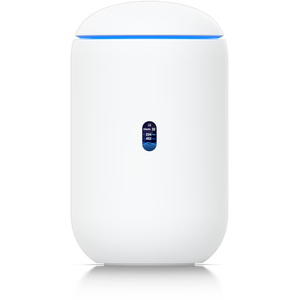

9/10
- Brand
-
Unifi
- Range
-
1,750 square feet
That’s exactly why routers with antennas usually have multiple, so you can point them in several different directions and get an optimal signal to a bunch of devices in different positions. That said, the ability to orient all of your antennas efficiently is heavily dependent on where you put your router in the first place.
Router positioning is the most important thing
Antenna placement won’t compensate for poor placement
Even if you perfectly position your antennas, they cannot compensate for a badly placed router. A lot of people consider a router an eyesore, so they bury it behind a TV stand, in a closet, or tuck it away in a tight corner where it can’t be seen. It should come as no surprise, then, when those people get a poor signal somewhere in their house. If the router is blocked by obstacles or far away from the devices it is sending a signal to, it’s going to suffer.

Routers work best when they are placed in a central, open, elevated spot. Height, open space, and distance from thick walls, metal surfaces, and large appliances all make a big difference. If your router is sitting beside a microwave, tucked behind books, or trapped inside a media console, you’re already handicapping it before antenna position even enters the conversation. Wi-Fi is convenient, but it is still a radio signal, and radio signals do not pass cleanly through everything in their way.
How to adjust your router antennas for maximum effectiveness
Trial and error is the only way to do it
Antenna adjustments are part of a broader approach to Wi-Fi optimization, not a magic trick that will solve all problems. The first step is to place the router somewhere ideal: higher up and free of obstructions. Once you’ve done that, go ahead and set all of the antennas vertically, and test the Wi-Fi coverage in the places where you actually use your devices.

If you get a poor signal in any scenario, make one change at a time. Angle one antenna 45 degrees. If you are trying to improve the signal between floors, try tilting one more horizontally while leaving the others upright. Walk through the house with your phone or laptop and see whether the dead zone improves. Try to point an antenna directly at the rooms where you need the strongest signal. After every adjustment, check the strength of your signal again.
This kind of testing may be a bit tedious, but it’s also free. Before spending money on extenders, boosters, or an expensive mesh system, it makes sense to just check and see if your current router just isn’t being used as effectively as it could be.
Of course, there are plenty of routers that don’t have external antennas in the first place, so if you are having trouble with your Wi-Fi signal with one of those, it’s probably just the location of the router that is giving you grief.
Moving antennas doesn’t fix every problem
There may be other issues affecting your network
While moving your antennas around may solve some network issues, misaligned antennas aren’t the root of every problem. They will not solve slow speeds caused by your internet provider. They won’t compensate for outdated router hardware, neighborhood congestion, or a home full of dense concrete walls. They will not magically erase interference from dozens of nearby networks in a crowded apartment building. When you have these types of problems, the right answer is probably a better router, a mesh setup, or a faster service plan.
That said, if you do have a router with exterior antennas you can manipulate, you may as well see if that fixes your problems first. No need to jump to something expensive right away, especially if all you have to do is point an antenna directly at every important device in your house.
Experimentation is the key to optimized antennas
There really isn’t anything that complicated about optimizing the antennas on your router. Where you point them is where the signal will be strongest. All you have to do is cover every important angle in your living space instead of pointing all the antennas in one particular direction. I know it might ruin the aesthetic of that cool Sauron router, but in this age of all-important internet, efficiency is more important than looks. Always play around with your router antennas before doing anything that costs money if your Wi-Fi signal seems weaker than it should be.

- Wi-Fi Bands
-
Wi-Fi 6
- Ethernet Ports
-
6 (2 each)


