The open-laptop AI panic has a very boring Windows fix


The latest viral trend? Refuse to close your laptop when walking to a meeting, even in airports! – because you are afraid that your AI agents will stop. Absurdity! Windows can prevent this from happening.
Here’s what happens: AI-obsessed technicians move around the world while their AI agents busily work on their own virtual desktops, carrying their laptops open like pizzas. By default, closing your laptop puts it into sleep or hibernation mode, terminating AI agent processes before they are completed. Poof! Useful work, gone.
And yes, by default, they may have reason to worry. But there is a simple Windows setting that lets your laptop work even with the lid closed.
How to Stop Your Windows Laptop from Shutting Down When Closed
People are so passionate about productivity that they actively worry about their AI sessions closing unexpectedly, forcing them to recreate their prompts and the resulting output. This led to people refusing to close their laptops, carrying them awkwardly by the edge or upright, as if they were serving a plate of food to a table.
Cloud-based tools can work independently, even when your laptop is closed. Local implementations like Claude Code Desktop work directly with local files while preserving existing project tools and configuration. This has made local AI the preferred method for many people.
Even OpenAI has followed the trend.
Still, it’s an easy solution. Simply go to the Windows 11 Settings menu (Settings > System > Power & Battery) and scroll down to the “on battery” section. Make sure the “Closing the lid will make my PC” option is set to “Do nothing”. Presto! Your PC and its processes will continue to function.
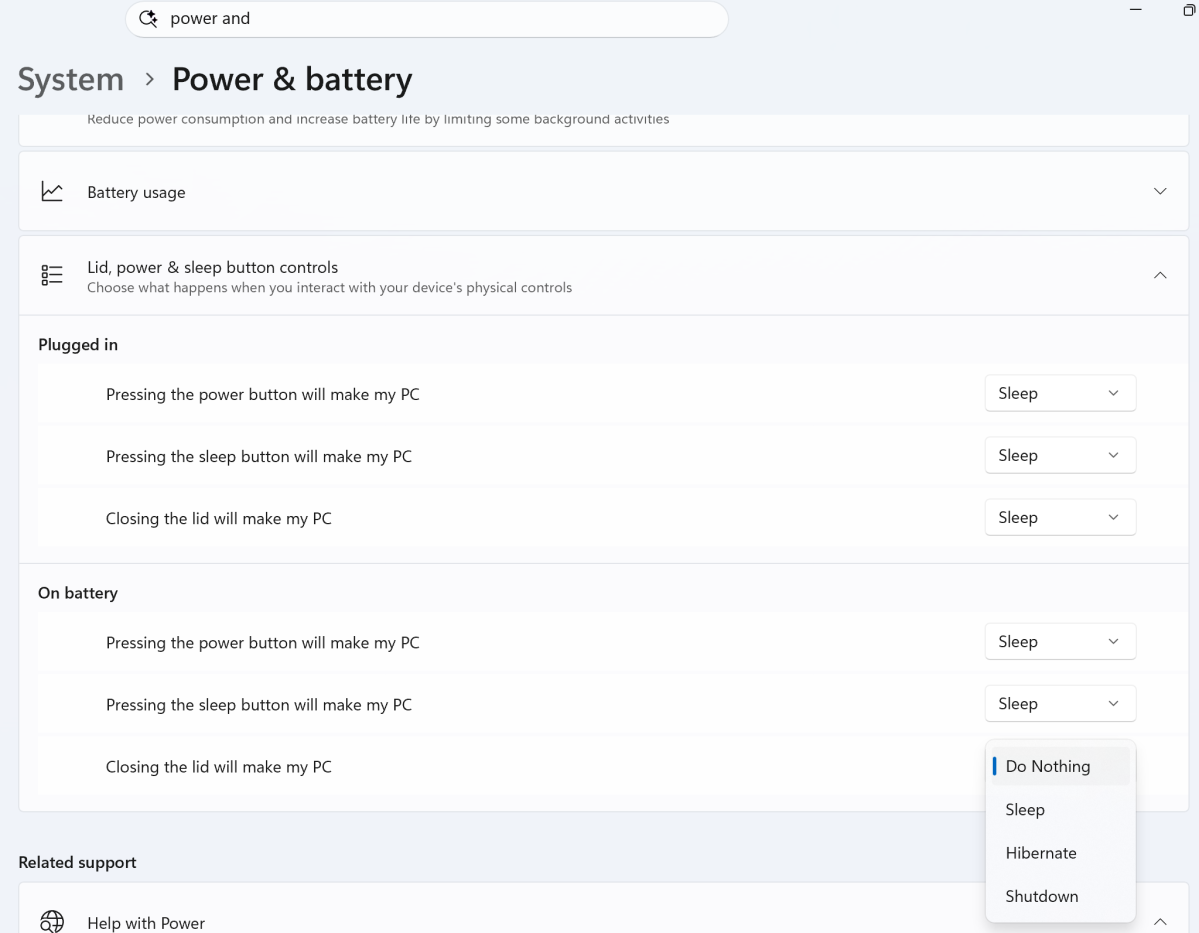
Is it that simple? In general, yes, but you will need to consider two other things.
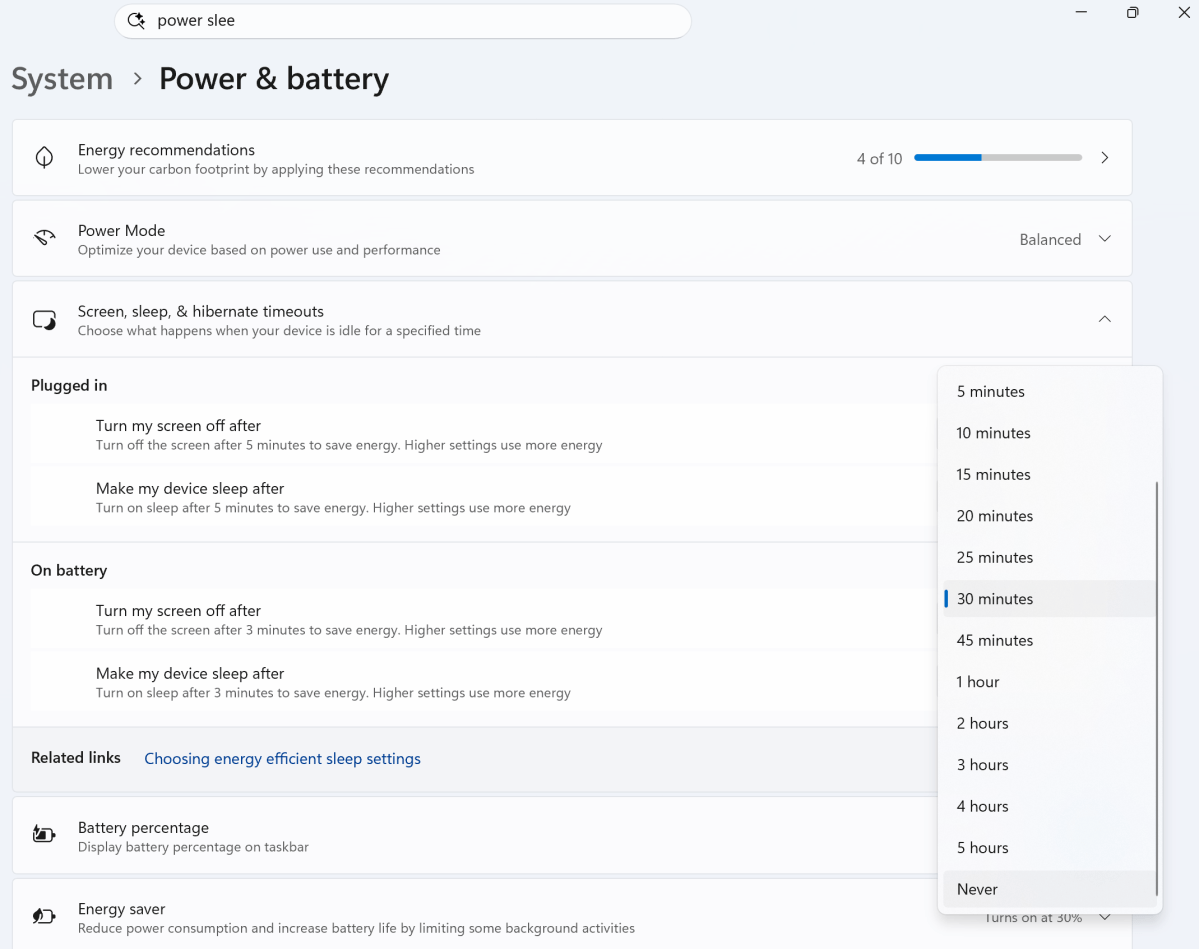
First, scroll down the same page to “Screen Timeout, Sleep Timeout, and Hibernate Timeout”. You will see two options: “Plugged in” and “On battery”. Open the drop-down menu under “Put my device to sleep after” and make sure it’s set to Never. Otherwise, your laptop will enter sleep mode after a period of inactivity. Many laptops default to a few minutes, so checking this setting can avoid any potential issues.
Note that turning off your screen should not affect any background processes, although putting your laptop to sleep will. (Turning off your display by closing the lid is one of the traditional use cases for “battlestation” setups, which allows a Thunderbolt dock to illuminate multiple external displays.)
There’s one more thing to consider: proximity detection. Your laptop can try to sense if you’re nearby, then lock it or go to sleep if it thinks you’re out of range or can’t actively see you. This is a setting that varies by laptop, but it is one that you should check, in case you notice that it always goes to sleep after adjusting the settings above.
OK, so your laptop is set up to keep working no matter what happens. Problem solved, right?
Not always. The tendency to keep your laptops slightly open has one benefit: Keeping your laptop out of its bag keeps its fans running efficiently, and running one or more Agents will likely keep it running at full speed. If it is in the open air, its fans will circulate efficiently.
Inside your laptop bag, there’s no fresh air to suck in. Instead, air will be sucked in, warmed by your CPU and/or GPU, and then expelled into your bag. This warmed air will then be drawn in, reheated and… you get the idea.
Eventually your laptop will shut down. Your laptop’s thermal sensors will force it to switch to a less efficient mode. To protect it from damage, your laptop will initiate an emergency shutdown to prevent its components from being damaged. This is even more of a concern with a laptop with a discrete GPU, which will overheat even more quickly. Microsoft has made several Surface devices with this problem, so I know from experience what the problem is.
So all these AI users from TikTok and Instagram showing off this clumsy way of carrying their laptops in their hands? Well, maybe just carrying It’s a smart idea… but open-ended? Certainly not.


