This Google Maps widget puts live traffic on your home screen


Google Maps is an invaluable app for many reasons. Not only can it get you from point A to point B, but it can also intelligently direct you on the route less traveled. To go even further, Google Maps on Android offers a very practical road shortcut.
App shortcuts are one of Android’s most underrated features. As the name suggests, an app shortcut takes you directly to a specific location in the app. These shortcuts can be added to the home screen for quick access, and you’d be surprised how many apps have them.
Instant traffic conditions on your home screen
Faster than a “Hey Google” command
The Google Maps “Traffic” shortcut is a convenient way to quickly see traffic in your area. The shortcut automatically displays Google Maps with the live traffic layer enabled and the estimated travel time to your saved work or home locations. From there you can move on to navigation and continue on your way.
As I said, many Android apps support shortcuts, but using them is actually a somewhat hidden feature. Shortcuts are accessed by long-pressing an app icon from the home screen or app drawer. Technically, Google Maps only has two shortcuts: Home and Work, but it also has five. widgets. This is where you will find the “Traffic” shortcut.
On your desired home screen, long-press and select “Widgets” from the menu. This will be very different depending on your launcher. The screenshot below is from a Samsung Galaxy phone with One UI Home. Next, scroll down the list of widgets and find “Maps”. Tap and hold the “Traffic” widget to place it on your home screen.
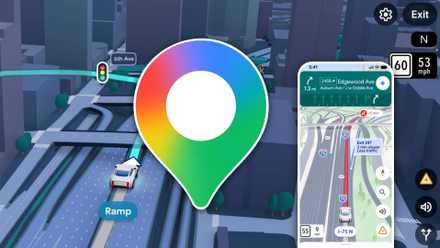
Google Maps navigation is about to change in a big way
Google Maps has announced several upgrades that will fundamentally change the way we use maps. And while part of that revolves around AI, what caught my attention was the biggest visual update “in over a decade.” This is called immersive navigation and the 3D effects are quite amazing. We’ve all experienced frustrating times where we miss a turn while driving, for various reasons, and soon it will be a thing of the past. The idea here is that Google Maps wants to make navigation easier and better. The update focuses on a more intuitive guidance system, significantly improved visuals, and other tools that will help you prepare for upcoming turns in advance. I don’t know about you, but it’s something everyone can appreciate.
See traffic without opening the app
When you’re looking for the “Traffic” shortcut widget, you may have noticed that there’s also an even larger “Nearby Traffic” widget. This gives you a semi-real-time view of traffic conditions in your immediate location. Tapping this widget will also open Maps with the live traffic layer enabled, but it won’t give you work and home travel estimates.

Make sure to configure “Home” and “Work” locations
These two widgets/shortcuts are very useful if you travel to and from work every day. However, you won’t get travel time estimates if you haven’t added your home and work locations to Google Maps.
To add your home or work address to Google Maps, open the Android app and tap your profile icon in the top corner. Next, go to “Your data in Maps” and scroll down to “Home and work addresses”. Tap “Home” or “Work” to enter an address or select the location on the map. That’s all there is to say.
Whether you use app shortcuts or useful widgets like these, Android’s home screen should be your starting point for getting things done quickly. Taking a quick look at the traffic before you leave can make your commute a little more predictable and less stressful.
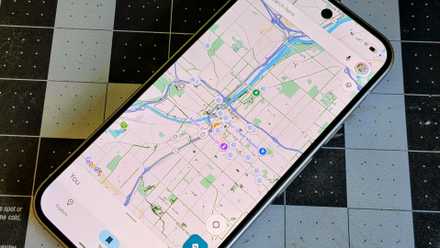
I started creating my own map in Google Maps, and you should too
Google Maps is one of the most popular apps of all time, and for good reason: it helps us find places, navigate unfamiliar roads, discover restaurants, and much more. You probably use it to get from point A to point B, but did you know that the app has a core feature that can turn it into a personal travel journal and route notebook? Lists are one of the most underrated features of Google Maps. It’s an incredibly versatile tool for creating custom routes that slowly transform into an interactive world map as Google Maps fills with your saved locations. If you’ve never tried creating lists, now is a great time to start.


