Windows 11 26H2 is coming: Meet all the new features


Windows 11 26H2 follows the model of an activation package and is technically based on version 25H2. An activation package is a small feature update that does not trigger a full operating system reinstallation. Microsoft uses this process to unlock existing but previously disabled features that have been added to the system through regular monthly updates.
The activation package basically changes the version identifier of Windows and activates these features collectively without completely replacing system files or affecting existing applications and settings. The installation process only takes a few minutes and is technically more of a cumulative update than a typical feature upgrade.
Updating to 26H2 changes the version ID without reinstallation and extends the support period by 24 months for consumer editions and 36 months for professional editions. Functional changes already reach systems via monthly updates for 25H2, and then are carried forward without modification to 26H2.
A significant increase in functionality is especially evident on systems migrating from older versions such as 23H2. The rollout is planned for the usual period of late September to early October 2026. Participants in the Insider program will of course receive the new features in advance as a test version.
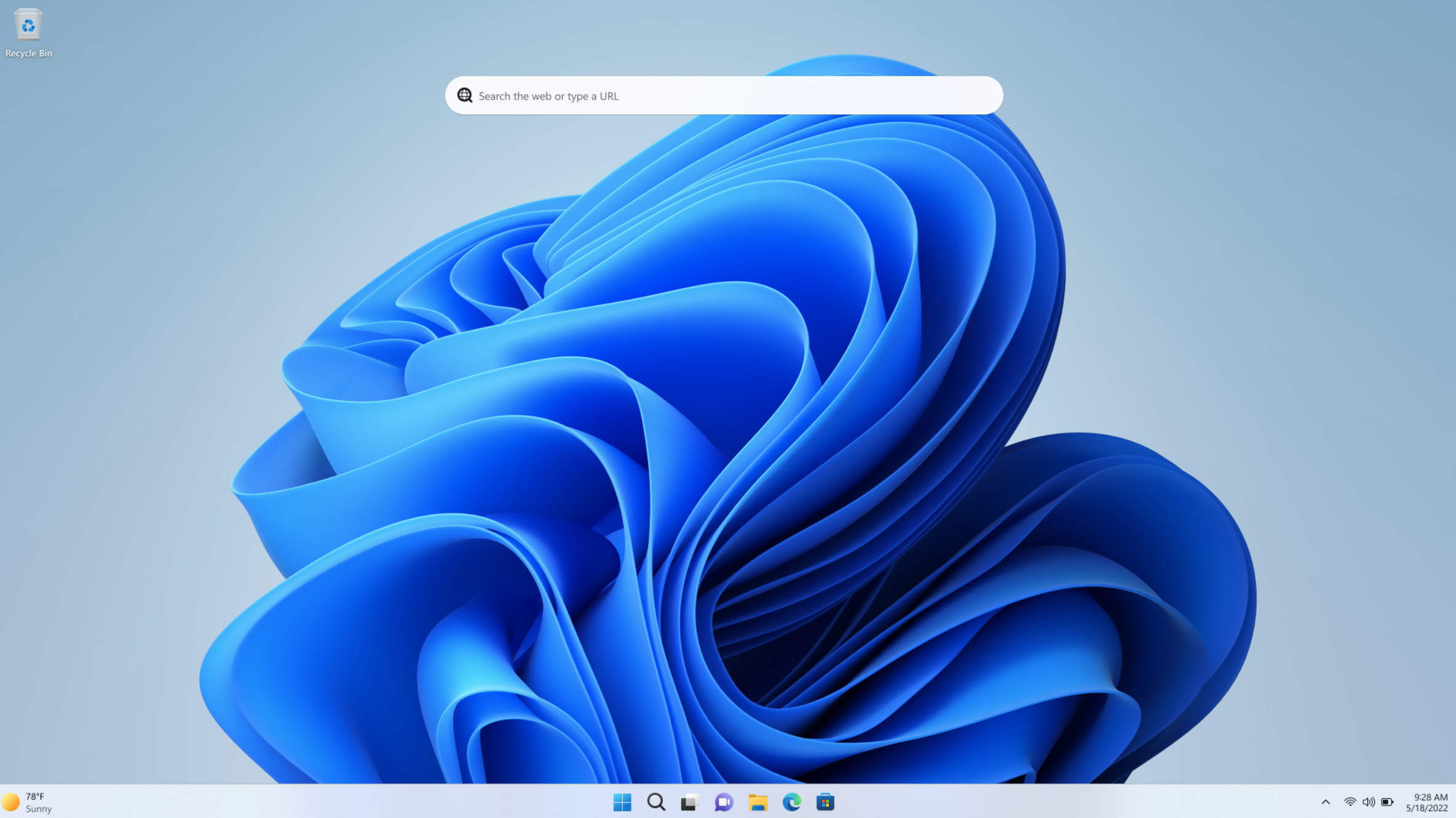
Copilot-based search in the taskbar
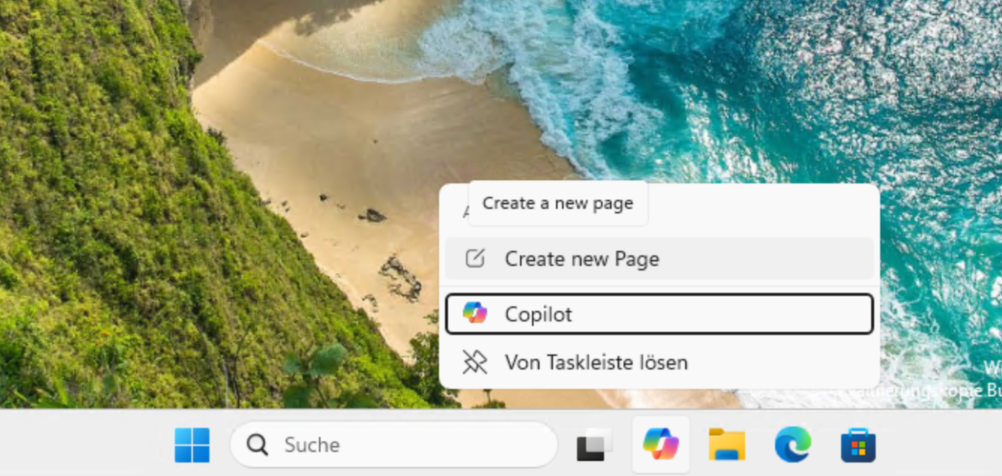
Classic Windows search is replaced by an optional “Ask Copilot” feature. This can be enabled in the taskbar settings under “Personalization”. Once enabled, a compact search window opens with direct access to applications, files and system settings. The technical basis remains the existing Windows search index.
Thomas Joos
Copilot also interprets user intent and matches search queries to appropriate parameters, such as brightness or display settings. The interface doesn’t display Bing pop-ups and responds noticeably more directly.
Further expansion will include file and image uploading as well as Copilot Vision, which integrates content from open applications. Without activation, the familiar Windows Search remains unchanged on the taskbar. Copilot does not access local data unless files are explicitly transferred.
File Explorer with revised context structure
File Explorer received restructured context logic with nested menus to reduce the number of visible entries. Actions such as compression, path copy or image rotation are grouped under “Manage File”.
Image-related functions such as background assignment or rotation are also grouped together. Compression formats can be selected in a separate submenu. OneDrive-related options are moved to a separate area. Individual commands like “Ask Copilot,” “Edit with Clipchamp,” “Edit in Notepad,” “Edit in Paint,” and Microsoft Photos still appear multiple times. Context-dependent prioritization via ML does not take place.
Meanwhile, Microsoft is working on a dark display for File Explorer’s Properties tab. Additionally, Explorer background preloading is being tested to speed up startup, which can be disabled in the folder options.
Copilot integration in File Explorer
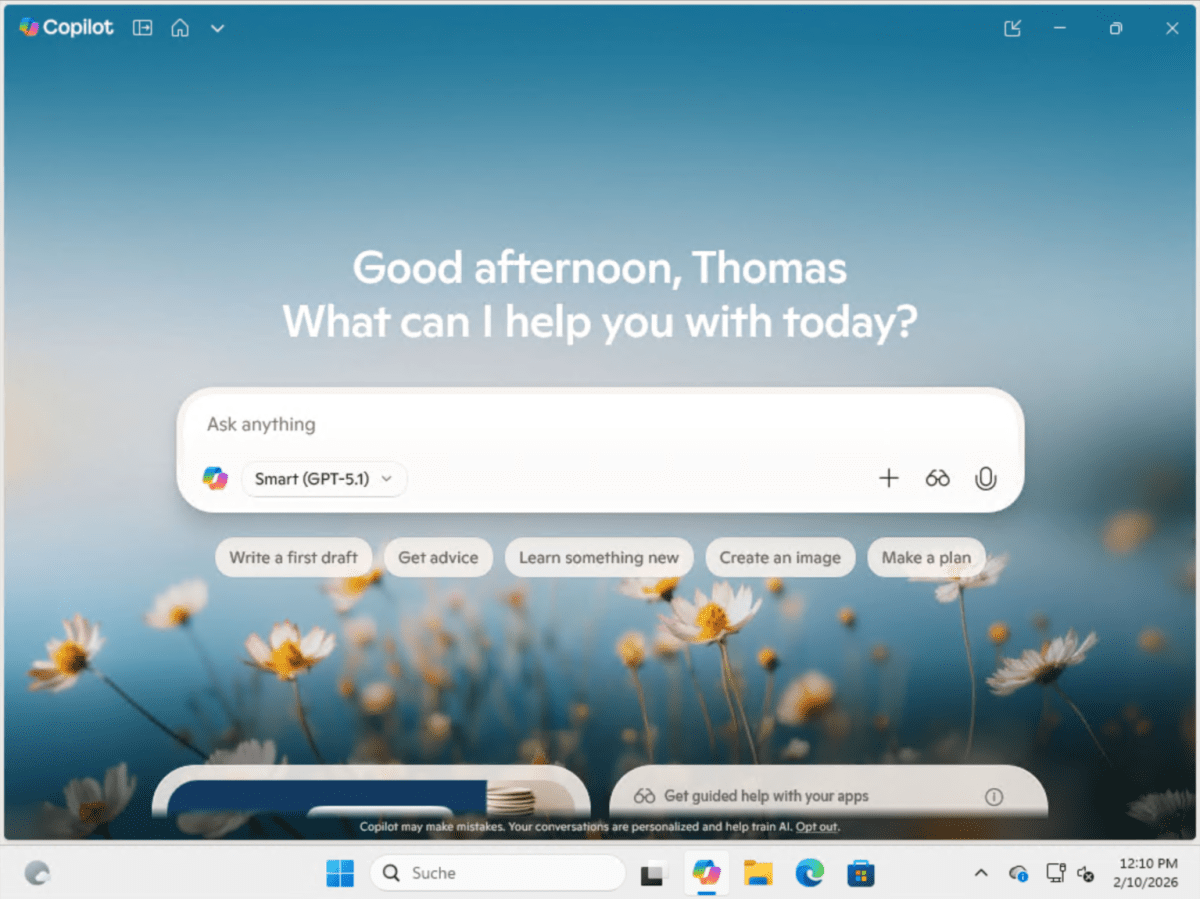
Additionally, Copilot integration will be deeper in File Explorer. The plan is to have a dockable side panel near the detail and preview views with the option to detach it in a separate window. Unlike the current transfer of files to the Copilot application, Copilot works directly in the file system and allows dialog-based interactions with folders and files.
Thomas Joos
The Run window, which has remained unchanged for decades, will receive a WinUI-based variant with a Mica background, an enlarged input field, and a command preview above the input. It can be enabled in the advanced section of system settings. Once activated, the system will hide the classic variant.
The new interface displays matching apps, including icons, as you type. At the same time, Microsoft is testing a dark mode for the classic Run window. The two versions coexist as options.
Return of the agenda to the notification center
Calendar view returns to Notification Center and integrates with Outlook. Once logged in, appointments are automatically synced and appear in the Win+N calendar view. The implementation uses WebView2 and takes up over 100MB of RAM. The view allows you to join meetings and view current appointments in real time. A Copilot button completes the interface.
System Monitor as an integrated security component
Sysinternals System Monitor is integrated directly into Windows 11. The component comes from the external Sysinternals suite and records system events for threat detection. Events are stored in the Windows event database and can be filtered using separate configuration files. Activation is optional via Windows Features or the command line. No reboot is required.
Camera settings and emoji update
Camera settings have been expanded to include pan and tilt control for supported hardware. The options appear in the settings under “Bluetooth & devices” in the basic camera settings. The interface currently still displays inconsistencies in window settings. At the same time, Microsoft introduces Emoji version 16.0 with new symbols.
Game mode with full-screen Xbox interface
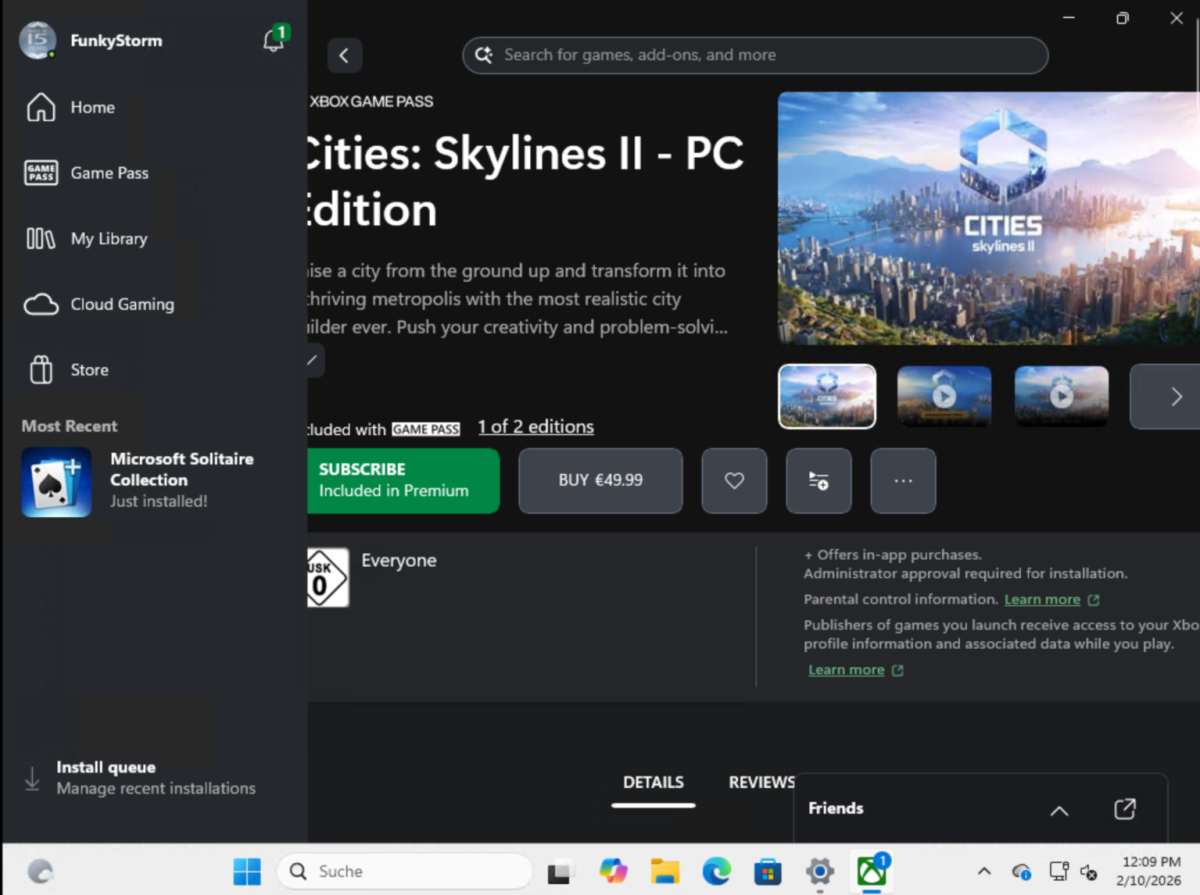
An optional full-screen mode replaces the desktop interface with a controller-oriented dashboard based on existing Xbox apps. It can be enabled in the gaming settings. The mode reduces background processes and saves system resources, which impacts gaming performance and battery life.
A reboot activates the new interface. You can return to the desktop using the Windows key. For productive work, it is recommended to disable it before restarting.
Agentic AI functions in the system
An experimental area for agentic functions appears in the AI components of the settings. Apps like Copilot support automated tasks related to organizing files, scheduling, or sending emails. The feature remains disabled until you enable and use it.
Thomas Joos
Bug fixes and detail improvements
Current versions of Windows also fix visual issues with the taskbar automatically hiding, unexpected rebuilding of desktop icons, and display issues with Windows Security login windows. File Explorer tweaks improve accessibility, allow custom folder names, and add tooltips to bookmarks.
A hotfix resolves application crashes during file operations with OneDrive and Dropbox, as well as issues with Outlook configurations that store PST files in OneDrive. Voice Access expands language support to include the Netherlands.