How to enable Android’s dual-pane tablet mode on your phone


There’s no denying that people love big phones. Android already does a pretty good job of making good use of all the screen real estate, but there’s a hidden setting that can unlock some special abilities that are usually reserved for even larger devices.
People have different reasons for choosing big phones. Some like spacious screens for watching videos, others spend a lot of time gaming, and then there are those who want better multitasking. Either way, there’s a way to make that big screen do even more, and you can find it in Android’s secret Developer Mode options.
Real pixels vs. virtual pixels
How Android knows what things should look like
Let’s talk about how Android determines the size of elements that should appear on your screen. A density-independent pixel (dp) is a virtual pixel that is not related to the number of physical pixels on the screen. This is extremely important for Android’s responsive design.
Without any adjustment, a 144 x 144 pixel icon would look gigantic on a 720p screen: it’s 1/5th the width of the screen. However, this same icon would appear very small on a 1440p screen since it is only 1/10th the width.

So to compensate for pixel disparity, the dp setting is higher on the 720p phone and lower on the 1440p phone. This sort of evens things out and allows screen content to appear relatively similar on both screens.
Obviously, you can’t change the physical resolution of your phone’s screen, and that’s why the dp setting is so important. Android uses it to make sure things appear the same general size regardless of screen resolution, and we can use it to trick your phone into thinking the screen is a different size than it actually is.

I Can’t Live Without This Underrated Android Gesture
A simple solution to a common problem.
Android’s hidden display size settings
Much more powerful than stock options
For a long time, Android included a slider in the display settings to slightly adjust the size or smallness of elements on the screen. This is usually called “Screen Zoom” or simply “Display Size”. While this can be useful, it is somewhat limited.
Now here’s what’s interesting about the density-independent pixel setting: it basically tells Android what type of device you’re using. We’ll use this to trick Android into thinking your big phone is actually a foldable tablet or a small tablet, and the UI will adjust accordingly.
That means a dual-pane UI in many apps and, best of all, a cool taskbar on Pixel phones and some other Android devices. Here’s how to do it:
-
Enable Developer Mode by going to Settings > About Phone (Galaxy owners should also go to “Software Info”).
-
Find “Build Number” on this page and tap it repeatedly until you see a message saying “You are now a developer!” »
-
We can now enter the “Developer Options” menu. On some phones, you’ll find it in Settings > System > Developer Options. Other devices simply place it at the very bottom of the main settings page.
-
The setting we’re looking for here is called “Minimum Width”. You will find it in the “Drawing” section.
-
This is where a bit of trial and error is necessary. First, take note of the current dp number before changing anything. You might want to go back.
-
The goal is to find a dp setting that will turn Android into a tablet/foldable UI. On my Pixel 9 Pro XL, that’s 601 dp. On the Galaxy S25 Ultra, it’s 600 dp. Keep in mind that the aforementioned display size slider also determines this number, which is why yours may be different from mine.

Android quick settings can finally be resized: here’s how it works
Customize your Quick Settings like never before with this new feature.
This is what it looks like
Use your Android phone in mini tablet mode
You’ll know you’ve switched to another device mode when the Settings app switches to a dual-pane UI. Once the larger UI is enabled, you can go to the Standard Display Size option under Settings > Display to fine-tune it even further.
Google Pixel, OnePlus, and several other phones feature a nifty floating taskbar when this larger UI is enabled. That’s what you get on Android tablets and foldables. The taskbar can be brought up with a single swipe or you can long-press the divider line to make it always there. It includes a few slots for your favorite apps and an app drawer that can be accessed from anywhere. Simply drag an app onto the screen to start split-screen mode.
Unfortunately, Samsung Galaxy phones don’t let you enable the taskbar, although it is available on the Galaxy Z Fold and Galaxy tablets. Typically, the option to enable it is found in Settings > Display > Taskbar. I couldn’t find a dp setting to display this.
Either way, it’s a pretty cool way to expand the functionality of a big phone. The apps’ dual-pane UI is nice, but I particularly like the floating taskbar. It’s nice to be able to open the app drawer wherever you are. I generally don’t like using big phones, but if I do, I want it to be worth the size of my pocket.
-
- SoC
-
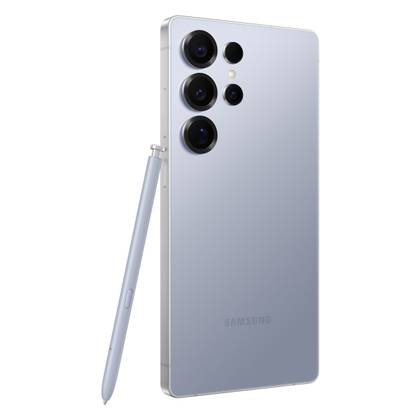
Snapdragon 8 Elite Gen 5
- Display
-
6.9-inch 2X Dynamic Super AMOLED
- RAM
-
12 or 16 GB
- Storage
-
256 GB, 512 GB or 1 TB
- Battery
-
5000mAh
- Operating system
-
Android
Get the new Galaxy S26 Ultra with artificial intelligence and an all-new privacy screen.
-

- Brand
-
Google
- SoC
-
Google Tensor G5
- Display
-
6.8-inch Super Actua, 20:9
- RAM
-
16 GB of RAM
- Storage
-
256 GB / 512 GB with zoned UFS / 1 TB with zoned UFS
- Battery
-
5200mAh
Need a bigger phone? This is exactly what the Pixel 10 Pro XL offers. While you’ll get much of the same experience as the 10 Pro, you’ll get a bigger screen and a bigger battery, so you won’t miss anything compared to the full-size 10 Pro.