Windows 11: Delete unnecessary entries from the ‘Send to’ menu


In Windows 11, if you right-click a file or folder in File Explorer, you can access the expanded context menu by clicking “Show more options.” Among other options, you will find the “Send to” command.
This allows you to quickly create a shortcut to the file or folder, send it by email, or open it in a specific application.
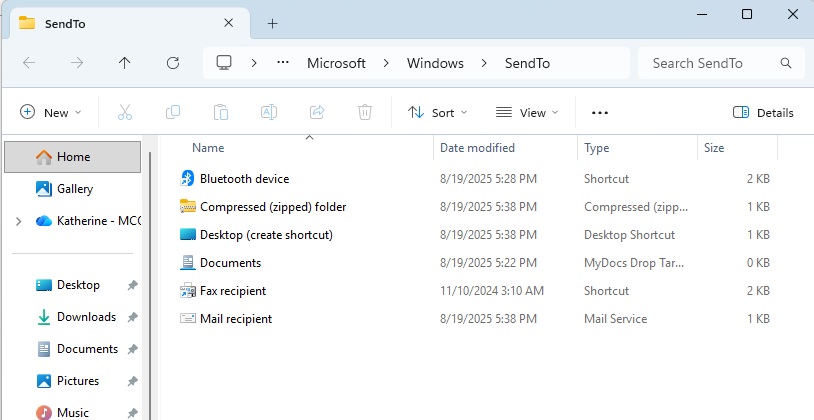
Tidying up: With just a few mouse clicks, you can easily remove unused entries from File Explorer’s “Send To” context menu.
Foundry
However, all kinds of unnecessary entries accumulate here over time. To store, follow these steps: Select the file or folder and press the key Windows + R key combination.
The “Run” window will now appear, where you enter the shell:sendto command. This opens the folder in File Explorer where the “Send To” shortcuts are stored. You can then simply delete them from there.
Related content
This article was originally published on our sister publication PC-WELT and has been translated and localized from German.