Windows 11 tip: Open PowerShell or CMD in any folder with one click


As a Windows 11 user, there may be times when you want to perform a Command Prompt action directly in a specific folder, such as initiating a copy process. For more advanced tasks, you may want to quickly run a PowerShell command, preferably without having to click a lot. Both can be achieved easily with the following tip.
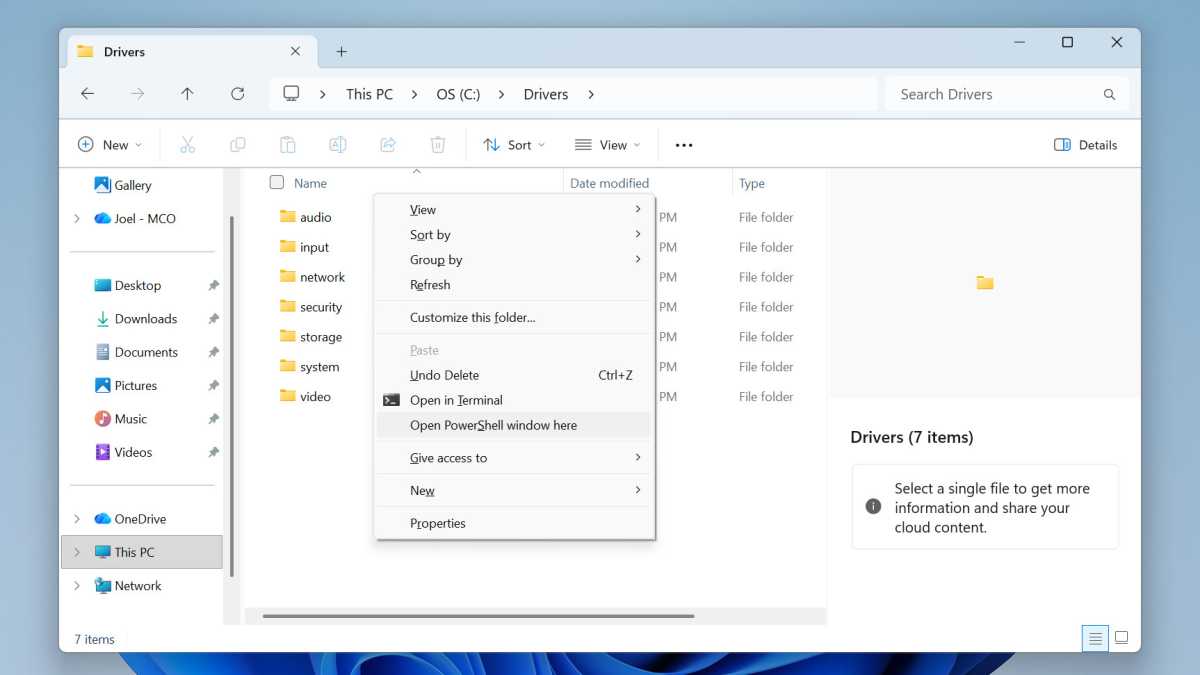
To easily launch PowerShell from a particular folder, navigate to the desired folder in File Explorer. Next, hold down Shift and right-click on an empty area. Next, select the “Open PowerShell window here” action from the context menu.
Joel Lee / Foundry
On the other hand, if you need Command Prompt to start in that folder, select the “Open in Terminal” action instead. (This one doesn’t require holding Shift before right-clicking. You’ll see it in the normal context menu with a single right-click.)
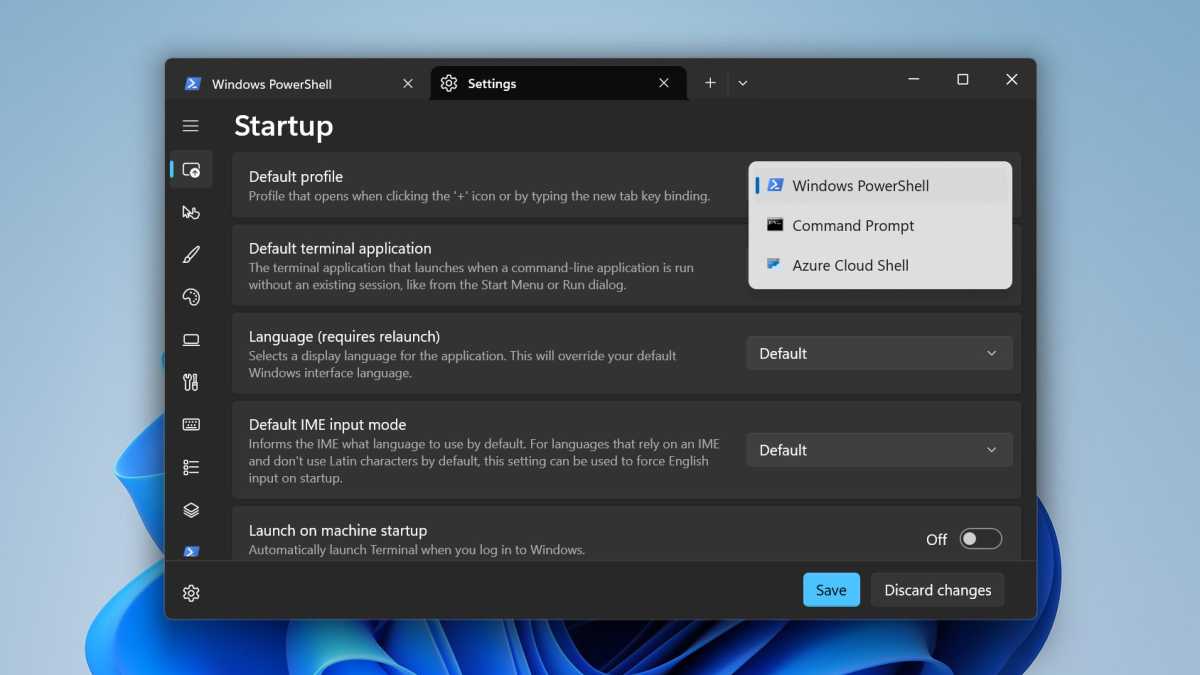
Note! When you use the “Open in Terminal” action, it may end up launching PowerShell anyway. If you prefer Command Prompt to be used by default, here’s what you can do:
Joel Lee / Foundry
Use the “Open in Terminal” option to launch PowerShell. Then, in the PowerShell window, use the Ctrl + Comma keyboard shortcut to launch PowerShell settings. Under the Getting Started > Default Profile option, use the drop-down menu to select Command Prompt. Now, whenever Windows 11 tries to launch “Terminal,” it will display Command Prompt by default.
Further reading: These 13 pro tips will make you a Windows 11 master